

If you work with Salesforce Flow regularly, you already know that each release brings something worth paying attention to. The Salesforce Flow Updates Summer ’26 release is no different — and honestly, this one has some changes that solve problems Flow builders have been quietly frustrated with for a long time.
These aren’t surface-level tweaks. They’re practical improvements that affect how you build, deploy, and manage flows day to day. Let’s break them down one by one.
1. Date Operators in Decision Logic — Finally
For anyone who has built date-based logic in Flow Builder, this update will feel long overdue.
Before this change, if you wanted a Decision element to check whether something happened in the last 30 days, or whether today is a specific milestone date, you had to write a formula to handle it. It worked, but it added unnecessary complexity to flows that should have been simple.
With the Salesforce Flow Updates Summer ’26, Decision elements now support dedicated date operators — things like Is Today, Is Anniversary of Today, and Last Number of Days. These operators activate automatically when your condition uses a date data type.
So now, if you want to send a renewal reminder when a contract is within 15 days of expiring, or trigger a different flow path on a customer’s anniversary date, you can do that directly inside the Decision element. No formula fields, no workarounds.
2. Email Template References That Actually Survive Deployment
If you’ve deployed flows between orgs and had your Send Email actions break on the other side, you know exactly why this update matters.
The old behavior stored your selected email template as an ID. That ID is tied to the specific org where you chose it. The moment you deploy that flow to a sandbox or production environment, the ID doesn’t match anything — and the action breaks. Someone then has to go in, find the right template, re-select it manually, and save again.
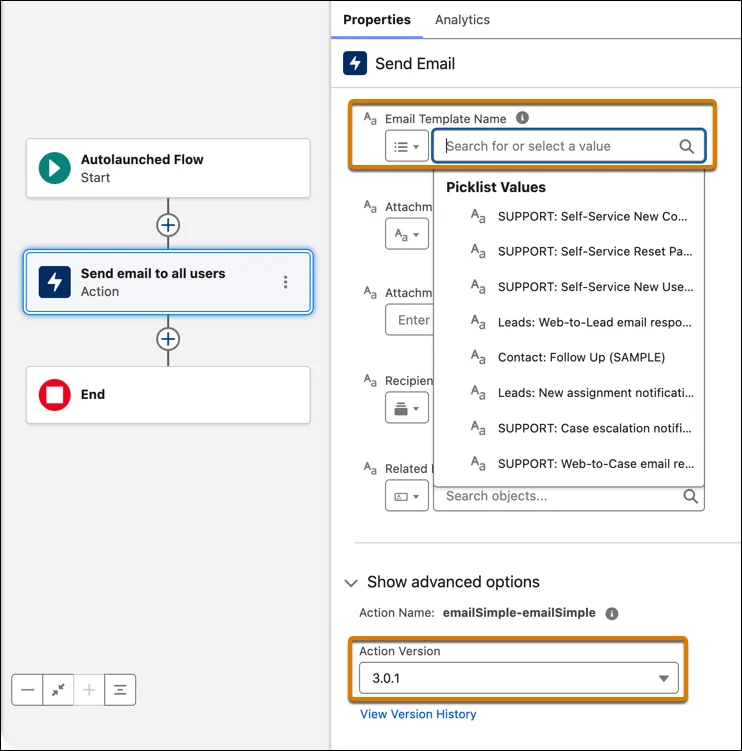
One of the most practical Salesforce Flow Updates Summer ’26 fixes this cleanly. The Send Email action (Version 3.0.1) now stores your email template as a named reference instead of an ID. The name travels with the flow across environments, so the reference stays intact after deployment.
To use it, update your Send Email action to Version 3.0.1 and re-select your email template from the dropdown. That’s it. No more post-deployment manual fixes.
3. Edit Screen Flows by Just Describing What You Want
This is the update that gets the most attention in Salesforce Flow Updates Summer ’26 — and for good reason.
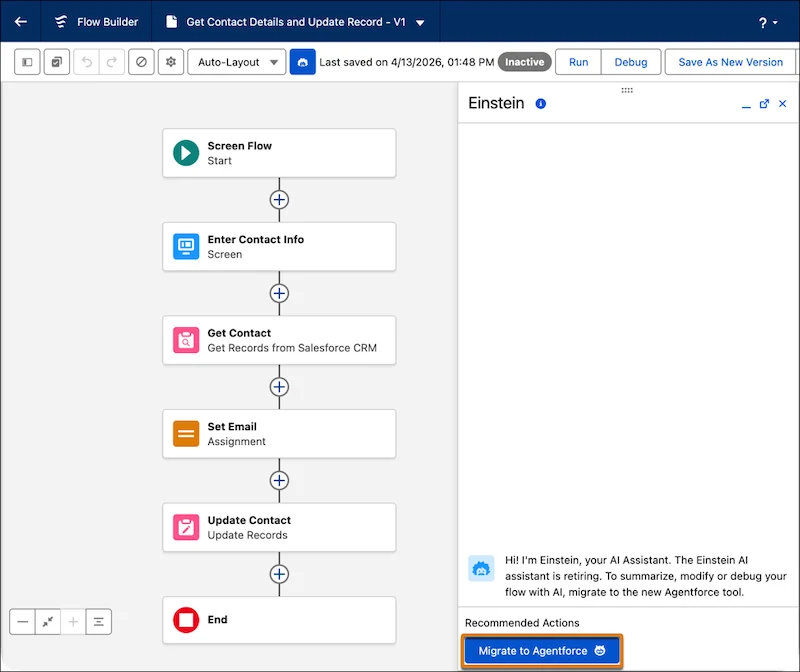
Salesforce already let you use AI to modify certain flow types through the Agentforce panel. Now that capability extends to screen flows — the ones your users actually see and interact with. Instead of manually dragging elements around in Flow Builder, you describe the change you want in plain English inside the Agentforce panel, and the AI makes it happen.
Want to add a new input field to a screen? Remove a step from the flow? Reorder some elements? Just describe it. The flow locks while Agentforce processes your instructions so nothing gets accidentally overwritten. If the result isn’t right, you can revert the last change and try a different description.
To get started, you’ll need Data 360 provisioned and Einstein generative AI enabled. Then open a flow, click the panel icon, and migrate to Agentforce. If you’ve used the panel before, just open your screen flow and start typing what you need.
For teams that iterate on screen flows frequently, this cuts down configuration time significantly — and reduces the risk of small manual errors that sneak in during complex edits.
4. A Smarter Resource Picker in Prompt Flows
Anyone who has built template-triggered prompt flows knows the resource picker used to be a bit of a maze. Finding the right variable or resource often meant scrolling through a long, unsorted list.
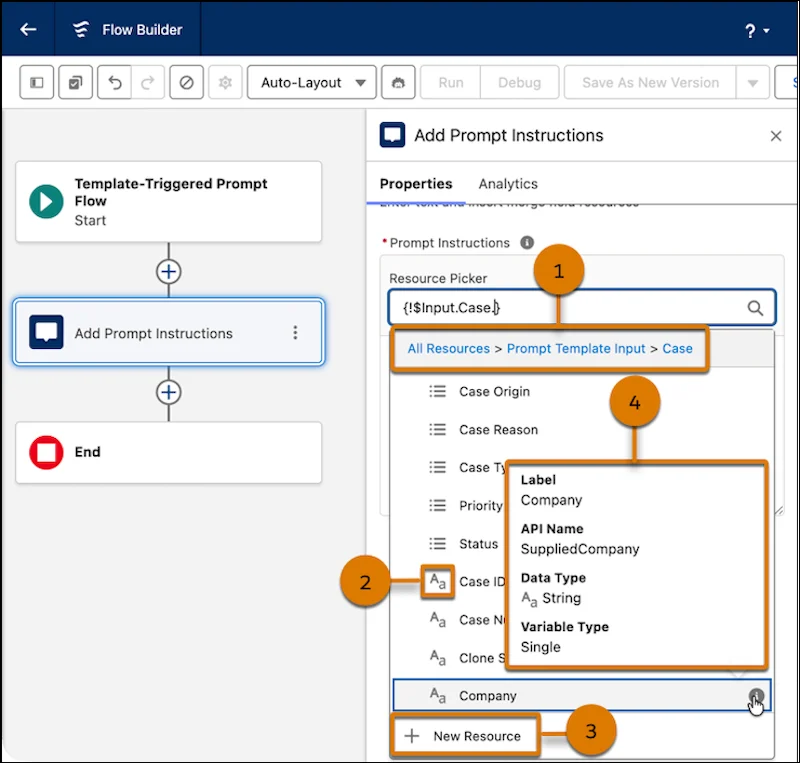
The Salesforce Flow Updates Summer ’26 redesigns the resource picker inside the Add Prompt Instructions element. Resources are now grouped logically, each with a clear label and a distinct icon so you can recognize the type at a glance.
A breadcrumb path at the top of the picker shows you exactly where you are as you navigate through resource groups. There’s a New Resource button if you need to create something on the fly, and you can hover over any resource to get more details without leaving the picker.
It’s a UI improvement, but one that actually speeds up how you work — especially when you’re dealing with a large number of resources and need to find the right one quickly.
5. A Validation Panel That Doesn’t Get in Your Way
This last update affects everyone who builds flows, regardless of type.
Previously, when you opened a draft flow in Flow Builder, the validation panel opened automatically. If your flow had any errors or warnings — which most works-in-progress do — you’d see the full list immediately, even if you weren’t ready to deal with them yet.
The Salesforce Flow Updates Summer ’26 changes this behavior. The validation panel now stays closed by default when you open a draft flow. You focus on building, and when you’re ready to review issues, you open the panel yourself.
When you open it, the layout is cleaner too. Issues are organized into cards grouped by element. Click a card and you jump straight to that element’s property panel to fix the problem. No hunting around trying to figure out which part of the flow the error belongs to.
Final Thoughts
The Salesforce Flow Updates Summer ’26 are a good example of Salesforce listening to what builders actually deal with. Date logic that required formula workarounds now has native operators. Email templates that broke on deployment now persist correctly. Screen flows can be edited with plain language. The resource picker is easier to navigate. And the validation panel no longer interrupts your work before you’re ready.
Each of these changes is worth adopting — some immediately, some as you revisit older flows. Taken together, they make Flow Builder a noticeably smoother tool to work with.
If you haven’t explored these updates yet, now’s a good time to open Flow Builder and see what’s changed.