
Ask any Sales Development Representative what their day looks like and you’ll hear the same story: hours spent staring at leads. Open a lead. Scroll through the activity timeline. Check the emails. Count the touchpoints. Google the company. Guess whether this person is worth a call. Multiply that by 40–80 leads a day.
SDRs are not slow. The process is broken. They’re asked to make conversion decisions that require synthesising dozens of signals, but they’re doing it manually, one record at a time. Valuable selling time gets eaten up by research and gut-feel scoring.
What if Salesforce could just tell them? That’s exactly what I built: an AI-powered utility bar component that reads a lead’s full history, sends it to Claude, and returns a structured conversion recommendation (score, signals, next steps) without the SDR ever leaving their CRM.
What We’re Building
Here’s the full flow from click to recommendation:
SDR clicks "Analyze Lead"
        │
        ▼
  LWC: sdrAgentUtility
  (Utility Bar / Record Page)
        │  @AuraEnabled call
        ▼
  Apex: LeadAnalysisService
  (Fetches Lead + Tasks + Events + Emails)
        │  builds structured prompt
        ▼
  Apex: ClaudeAPIService
  (calls Anthropic Messages API)
        │  Named Credential
        ▼
  https://api.anthropic.com/v1/messages
        │  JSON response
        ▼
  LWC renders:
  Score (0–100) · YES/NO/MAYBE · Signals · Next Steps
The result is a single-click analysis that gives every SDR the same high-quality read on a lead, in about 10 seconds.
Get Your Anthropic API Key
Before any Salesforce setup, you need an API key from Anthropic. Here’s how to get one from platform.claude.com.
1. Go to platform.claude.com
Navigate to platform.claude.com in your browser. If you don’t have an Anthropic account, click Sign Up and create one — it only takes a minute.
2. Open the API Keys section
Once logged in, click your profile icon in the top-right corner, then select API Keys from the menu. You can also navigate directly via the left sidebar under Settings → API Keys.
3. Click “Create Key”
Hit the Create Key button. Give your key a descriptive name — something like salesforce-sdr-agent so you know what it’s used for later.
4. Copy the key immediately
Anthropic shows your API key only once. Copy it right now and store it somewhere safe (a password manager, not a sticky note). It starts with sk-ant-api03-...
5. Check your usage plan
For testing, the free tier works fine. For production, check the Usage tab to understand your limits. Each lead analysis call uses roughly 2,000–4,000 tokens depending on activity history length.
Never commit your API key to version control. We’ll store it inside Salesforce External Credentials, which is the secure, audited way to handle third-party secrets. Don’t hardcode it in Apex.
Salesforce Credentials Setup
This is a three-part process. Each step builds on the last, so don’t skip any of them.
Part A: Create the External Credential
The External Credential is a Salesforce vault for your API key. It has three distinct steps inside the same record: create the credential, add a Principal, then add the Custom Header that carries your key.
1 Open the External Credentials page
Go to Setup → Named Credentials. At the top of the page, click the External Credentials tab (it sits next to the Named Credentials tab). Then click New.
2 Fill in the basic fields and save
Enter the values below, then click Save. This creates the credential shell — the Principal and Custom Header come next.
| Field | Value |
|---|---|
| Label | Claude API Credential |
| Name | Claude_API_Credential |
| Authentication Protocol | Custom |
3 Add a Principal
After saving, you land on the External Credential detail page. Scroll down to the Principals related list and click New. A Principal is a named identity — it’s what you later grant to a Permission Set so users can make callouts.
| Field | Value |
|---|---|
| Principal Name | Claude_Principal |
| Identity Type | Named Principal |
| Parameter Sequence Number | 1 |
Click Save. You will be taken back to the External Credential detail page.
4 Add the Custom Header (your API key)
Still on the External Credential detail page, scroll down to the Custom Headers related list and click New. This is where the actual API key is stored — Salesforce injects it as an HTTP header on every callout.
| Field | Value |
|---|---|
| Name | x-api-key |
| Value | Paste your sk-ant-api03-... key here |
| Sequence Number | 1 |
Click Save. Salesforce encrypts and stores the key. It will never appear in Apex code or logs.
Part B: Create the Named Credential
Navigate to Setup → Named Credentials → New.
| Field | Value |
|---|---|
| Label | Claude API |
| Name | Claude_API |
| URL | https://api.anthropic.com |
| External Credential | Claude_API_Credential |
| Generate Authorization Header | Unchecked |
| Allow Merge Fields in Body | Unchecked |
In Apex, reference this as callout:Claude_API/v1/messages. Salesforce resolves the base URL and injects the auth header automatically.
Part C: Grant Principal Access (The Step Everyone Misses)
External Credentials use a Principal model. Access must be explicitly granted at the Permission Set or Profile level.
1 Open the Permission Set
Go to Setup → Permission Sets and open the Permission Set assigned to your SDR users.
2 Find External Credential Principal Access
Scroll down to External Credential Principal Access and click Edit.
3 Add Claude_Principal
Move Claude_API_Credential – Claude_Principal from Available to Enabled. Save.
You can do this at the Profile level instead (Profile → External Credential Principal Access), but Permission Sets give you finer control per user group.
The Claude API Service (Apex)
This class is the thin bridge between Salesforce and Anthropic. It takes a plain string prompt, posts it to the Claude API via Named Credential, and returns the response text.
Key decisions baked in:
- 120-second timeout: AI responses take time. Salesforce’s default 10s will kill the callout before Claude finishes.
- Named Credential reference:
callout:Claude_API/v1/messageskeeps auth entirely out of code. - Anthropic Messages API format: the
messagesarray with a singleuserrole entry. - anthropic-version header: required by Anthropic’s API. Use
2023-06-01.
// ClaudeAPIService.cls
public with sharing class ClaudeAPIService {

    private static final String CLAUDE_API_ENDPOINT = 'callout:Claude_API/v1/messages';
    private static final String CLAUDE_MODEL        = 'claude-sonnet-4-5-20250929';
    private static final Integer MAX_TOKENS         = 4096;

    public static ClaudeResponse callClaude(String prompt) {
        HttpRequest req = new HttpRequest();
        req.setEndpoint(CLAUDE_API_ENDPOINT);
        req.setMethod('POST');
        req.setHeader('Content-Type', 'application/json');
        req.setHeader('anthropic-version', '2023-06-01');

        Map<String, Object> body = new Map<String, Object>{
            'model'      => CLAUDE_MODEL,
            'max_tokens' => MAX_TOKENS,
            'messages'   => new List<Map<String, String>>{
                new Map<String, String>{ 'role' => 'user', 'content' => prompt }
            }
        };

        req.setBody(JSON.serialize(body));
        req.setTimeout(120000);

        HttpResponse res = new Http().send(req);

        if (res.getStatusCode() == 200) {
            return parseClaudeResponse(res.getBody());
        }
        throw new ClaudeAPIException(
            'API Error ' + res.getStatusCode() + ': ' + res.getBody()
        );
    }

    private static ClaudeResponse parseClaudeResponse(String responseBody) {
        Map<String, Object> parsed  = (Map<String, Object>) JSON.deserializeUntyped(responseBody);
        List<Object>        content = (List<Object>) parsed.get('content');

        ClaudeResponse response = new ClaudeResponse();
        if (content != null && !content.isEmpty()) {
            Map<String, Object> block = (Map<String, Object>) content[0];
            response.content          = (String) block.get('text');
        }
        response.model      = (String) parsed.get('model');
        response.stopReason = (String) parsed.get('stop_reason');
        return response;
    }

    public class ClaudeResponse {
        public String content    { get; set; }
        public String model      { get; set; }
        public String stopReason { get; set; }
    }

    public class ClaudeAPIException extends Exception {}
}
Test the Claude Connection
Now that ClaudeAPIService.cls is deployed, verify the full credential chain is working before building anything else. Run the snippet below from Setup → Developer Console → Debug → Open Execute Anonymous Window (or use the VS Code Anonymous Apex runner).
// Test Claude API Connection
try {
    String testPrompt = 'Respond with just the word SUCCESS if you receive this message.';

    ClaudeAPIService.ClaudeResponse response = ClaudeAPIService.callClaude(testPrompt);

    System.debug('SUCCESS! Response: ' + response.content);
    System.debug('Model: ' + response.model);

} catch (Exception e) {
    System.debug('ERROR: ' + e.getMessage());
}
Open the Debug Logs panel and look for your log entry. Expand it and filter by USER_DEBUG. You should see:
| Log line | Means |
|---|---|
SUCCESS! Response: SUCCESS | Claude received the call and responded — you’re good to go. |
Model: claude-... | Confirms which Claude model handled the request. |
ERROR: Callout not authorized | Principal access is missing — go back to Step 2 Part C and check the Permission Set. |
ERROR: Unauthorized (401) | The API key in the Custom Header is wrong or expired — go back to Step 2 Part A Step 4. |
4 The Lead Analysis Service (Apex)
This is where the intelligence lives. It gathers everything Salesforce knows about the lead, crafts a rich structured prompt, calls Claude, and parses the JSON response back into typed fields the LWC can bind to.
What data gets pulled?
- Lead fields: Name, Company, Title, Email, Phone, Industry, Lead Source, Status, Rating, Website, Employees, Revenue, Description, Created Date
- Tasks sub-query: up to 50 recent tasks (subject, type, status, date, description)
- Events sub-query: up to 25 meetings (subject, type, start/end times, description)
- Email Messages: up to 30 emails matched by the lead’s email address (subject, direction, 500-char body preview, date)
Prompt Engineering: Why It Matters
The prompt is a markdown-structured document. It describes Claude’s role, formats all lead data clearly, then requests a specific JSON schema as the response. The more complete and structured the data you send, the better the analysis you get back.
One critical extra step: strip markdown fences from the output before parsing. Claude often wraps JSON in ```json blocks even when you don’t ask for it, so extractJSON() handles that edge case.
// LeadAnalysisService.cls
public with sharing class LeadAnalysisService {

    @AuraEnabled
    public static LeadAnalysisResult analyzeLead(String leadId) {
        try {
            Lead leadData             = getLeadWithActivities(leadId);
            List<EmailMessage> emails = getEmailMessages(leadData.Email);
            String prompt             = buildLeadAnalysisPrompt(leadData, emails);

            ClaudeAPIService.ClaudeResponse claudeResponse =
                ClaudeAPIService.callClaude(prompt);

            return parseAnalysisResult(claudeResponse.content, leadData);

        } catch (Exception e) {
            throw new AuraHandledException('Error analyzing lead: ' + e.getMessage());
        }
    }

    private static Lead getLeadWithActivities(String leadId) {
        List<Lead> leads = [
            SELECT Id, Name, Email, Company, Title, Industry, Status, Rating,
                   LeadSource, Phone, MobilePhone, Website, NumberOfEmployees,
                   AnnualRevenue, Description, CreatedDate,
                   (SELECT Id, Subject, Status, ActivityDate, Description, Type,
                           TaskSubtype, CreatedDate, CompletedDateTime
                    FROM Tasks
                    ORDER BY CreatedDate DESC LIMIT 50),
                   (SELECT Id, Subject, StartDateTime, EndDateTime, Description,
                           Type, CreatedDate
                    FROM Events
                    ORDER BY CreatedDate DESC LIMIT 25)
            FROM Lead
            WHERE Id = :leadId
            LIMIT 1
        ];
        if (leads.isEmpty()) {
            throw new LeadAnalysisException('Lead not found: ' + leadId);
        }
        return leads[0];
    }

    private static List<EmailMessage> getEmailMessages(String leadEmail) {
        if (String.isBlank(leadEmail)) return new List<EmailMessage>();
        return [
            SELECT Id, Subject, TextBody, FromAddress, ToAddress,
                   Status, MessageDate, Incoming, HasAttachment, CreatedDate
            FROM EmailMessage
            WHERE ToAddress LIKE :('%' + leadEmail + '%')
               OR FromAddress = :leadEmail
            ORDER BY CreatedDate DESC
            LIMIT 30
        ];
    }

    private static String buildLeadAnalysisPrompt(
        Lead lead, List<EmailMessage> emailMessages
    ) {
        List<String> p = new List<String>();

        p.add('You are an expert SDR AI assistant. ');
        p.add('Analyze the following lead and determine conversion potential.\n\n');

        p.add('## LEAD INFORMATION\n\n');
        p.add('**Name:** '           + lead.Name + '\n');
        p.add('**Company:** '        + nv(lead.Company) + '\n');
        p.add('**Title:** '          + nv(lead.Title) + '\n');
        p.add('**Email:** '          + nv(lead.Email) + '\n');
        p.add('**Phone:** '          + nv(lead.Phone) + '\n');
        p.add('**Industry:** '       + nv(lead.Industry) + '\n');
        p.add('**Lead Source:** '    + nv(lead.LeadSource) + '\n');
        p.add('**Status:** '         + lead.Status + '\n');
        p.add('**Rating:** '         + nv(lead.Rating) + '\n');
        p.add('**Annual Revenue:** ' + (lead.AnnualRevenue != null ? String.valueOf(lead.AnnualRevenue) : 'N/A') + '\n');
        p.add('**Employees:** '      + (lead.NumberOfEmployees != null ? String.valueOf(lead.NumberOfEmployees) : 'N/A') + '\n');
        p.add('**Created:** '        + String.valueOf(lead.CreatedDate) + '\n\n');

        p.add('## ACTIVITY HISTORY\n\n');

        if (lead.Tasks != null && !lead.Tasks.isEmpty()) {
            p.add('### Tasks\n');
            for (Task t : lead.Tasks) {
                p.add('- **' + nv(t.Subject) + '** | Type: ' + nv(t.Type)
                    + ' | Status: ' + t.Status + ' | Date: ' + String.valueOf(t.ActivityDate) + '\n');
                if (t.Description != null) {
                    p.add('  Details: ' + t.Description + '\n');
                }
            }
            p.add('\n');
        }

        if (lead.Events != null && !lead.Events.isEmpty()) {
            p.add('### Events/Meetings\n');
            for (Event e : lead.Events) {
                p.add('- **' + nv(e.Subject) + '** | Type: ' + nv(e.Type)
                    + ' | Date: ' + String.valueOf(e.StartDateTime) + '\n');
                if (e.Description != null) p.add('  Details: ' + e.Description + '\n');
            }
            p.add('\n');
        }

        if ((lead.Tasks == null || lead.Tasks.isEmpty())
            && (lead.Events == null || lead.Events.isEmpty())) {
            p.add('*No tasks or events recorded.*\n\n');
        }

        if (emailMessages != null && !emailMessages.isEmpty()) {
            p.add('### Email Messages\n');
            for (EmailMessage em : emailMessages) {
                p.add('- **' + nv(em.Subject) + '** | '
                    + (em.Incoming ? 'Incoming' : 'Outgoing')
                    + ' | Date: ' + String.valueOf(em.MessageDate) + '\n');
                if (em.TextBody != null && em.TextBody.length() > 0) {
                    String preview = em.TextBody.length() > 500
                        ? em.TextBody.substring(0, 500) + '...'
                        : em.TextBody;
                    p.add('  Preview: ' + preview + '\n');
                }
            }
            p.add('\n');
        } else {
            p.add('### Email Messages\n*No email messages found.*\n\n');
        }

        p.add('## REQUESTED OUTPUT\n\n');
        p.add('Return ONLY valid JSON (no markdown fences) in this exact structure:\n');
        p.add('{\n');
        p.add('  "conversionScore": <number 0-100>,\n');
        p.add('  "recommendation": "<YES|NO|MAYBE>",\n');
        p.add('  "positiveSignals": ["signal1", "signal2"],\n');
        p.add('  "negativeSignals": ["signal1", "signal2"],\n');
        p.add('  "engagementLevel": "<HIGH|MEDIUM|LOW>",\n');
        p.add('  "engagementAnalysis": "<detailed analysis>",\n');
        p.add('  "nextSteps": ["step1", "step2"],\n');
        p.add('  "riskFactors": ["risk1", "risk2"],\n');
        p.add('  "summary": "<brief summary>"\n');
        p.add('}');

        return String.join(p, '');
    }

    private static String nv(String val) {
        return val != null ? val : 'N/A';
    }

    private static LeadAnalysisResult parseAnalysisResult(String content, Lead lead) {
        LeadAnalysisResult result = new LeadAnalysisResult();
        result.leadId   = lead.Id;
        result.leadName = lead.Name;
        result.company  = lead.Company;

        try {
            String json = extractJSON(content);
            Map<String, Object> a = (Map<String, Object>) JSON.deserializeUntyped(json);

            result.conversionScore    = a.get('conversionScore') != null
                ? Integer.valueOf(a.get('conversionScore')) : 0;
            result.recommendation     = (String) a.get('recommendation');
            result.engagementLevel    = (String) a.get('engagementLevel');
            result.engagementAnalysis = (String) a.get('engagementAnalysis');
            result.summary            = (String) a.get('summary');
            result.positiveSignals    = toStringList((List<Object>) a.get('positiveSignals'));
            result.negativeSignals    = toStringList((List<Object>) a.get('negativeSignals'));
            result.nextSteps          = toStringList((List<Object>) a.get('nextSteps'));
            result.riskFactors        = toStringList((List<Object>) a.get('riskFactors'));
            result.rawResponse        = content;

        } catch (Exception e) {
            result.conversionScore = 0;
            result.recommendation  = 'ERROR';
            result.summary         = 'Failed to parse AI response: ' + e.getMessage();
            result.rawResponse     = content;
        }
        return result;
    }

    private static String extractJSON(String content) {
        if (content.contains('```json')) {
            Integer s = content.indexOf('```json') + 7;
            Integer e = content.indexOf('```', s);
            return content.substring(s, e).trim();
        }
        if (content.contains('```')) {
            Integer s = content.indexOf('```') + 3;
            Integer e = content.indexOf('```', s);
            return content.substring(s, e).trim();
        }
        return content.trim();
    }

    private static List<String> toStringList(List<Object> src) {
        List<String> out = new List<String>();
        if (src != null) for (Object o : src) out.add(String.valueOf(o));
        return out;
    }

    public class LeadAnalysisResult {
        @AuraEnabled public String  leadId            { get; set; }
        @AuraEnabled public String  leadName          { get; set; }
        @AuraEnabled public String  company           { get; set; }
        @AuraEnabled public Integer conversionScore   { get; set; }
        @AuraEnabled public String  recommendation    { get; set; }
        @AuraEnabled public String  engagementLevel   { get; set; }
        @AuraEnabled public String  engagementAnalysis{ get; set; }
        @AuraEnabled public String  summary           { get; set; }
        @AuraEnabled public List<String> positiveSignals { get; set; }
        @AuraEnabled public List<String> negativeSignals { get; set; }
        @AuraEnabled public List<String> nextSteps       { get; set; }
        @AuraEnabled public List<String> riskFactors     { get; set; }
        @AuraEnabled public String  rawResponse       { get; set; }
    }

    public class LeadAnalysisException extends Exception {}
}
The Lightning Web Component
The LWC works in two modes simultaneously:
- On a Lead Record page:
@api recordIdand@api objectApiNameare injected by the platform. The component auto-detects this and hides the record picker, showing a confirmation banner instead. - In the Utility Bar / App Page: a
lightning-record-pickerlets the SDR search for any Lead by name.
The score circle colour is computed dynamically: green ≥ 75, amber ≥ 50, red below 50. The component is registered for all four surfaces (Utility Bar, Record Page, App Page, and Home Page) with a configurable height property for the utility bar.
// sdrAgentUtility.js
import { LightningElement, api, track } from 'lwc';
import analyzeLead from '@salesforce/apex/LeadAnalysisService.analyzeLead';

export default class SdrAgentUtility extends LightningElement {
    @api recordId;
    @api objectApiName;
    @api height = 600;

    @track selectedLeadId;
    @track analysisResult;
    @track isLoading = false;
    @track errorMessage;
    @track isOnLeadPage = false;

    connectedCallback() {
        if (this.recordId && this.objectApiName === 'Lead') {
            this.selectedLeadId = this.recordId;
            this.isOnLeadPage   = true;
        }
    }

    handleLeadSelection(event) {
        this.selectedLeadId = event.detail.recordId;
        this.analysisResult = null;
        this.errorMessage   = null;
    }

    handleAnalyze() {
        if (!this.selectedLeadId) {
            this.errorMessage = 'Please select a Lead first.';
            return;
        }
        this.isLoading      = true;
        this.errorMessage   = null;
        this.analysisResult = null;

        analyzeLead({ leadId: this.selectedLeadId })
            .then(result => {
                this.analysisResult = result;
            })
            .catch(error => {
                this.errorMessage = error.body?.message || 'An error occurred.';
            })
            .finally(() => {
                this.isLoading = false;
            });
    }

    get scoreClass() {
        if (!this.analysisResult) return 'score-circle';
        const s = this.analysisResult.conversionScore;
        if (s >= 75) return 'score-circle score-high';
        if (s >= 50) return 'score-circle score-medium';
        return 'score-circle score-low';
    }

    get hasResult()    { return !!this.analysisResult; }
    get hasError()     { return !!this.errorMessage; }
    get showPicker()   { return !this.isOnLeadPage; }
    get isAnalyzeDisabled() { return !this.selectedLeadId || this.isLoading; }

    get recommendationBadgeClass() {
        const r = this.analysisResult?.recommendation;
        if (r === 'YES')   return 'slds-badge slds-badge_success';
        if (r === 'NO')    return 'slds-badge slds-badge_error';
        return 'slds-badge';
    }
}
<!-- sdrAgentUtility.html -->
<template>
<div class="sdr-agent-container">
<!-- Header -->
<div class="sdr-header">
<lightning-icon icon-name="standard:lead" size="small"></lightning-icon>
<span class="sdr-title">SDR AI Agent</span>
</div>
<!-- Auto-detect banner (record page mode) -->
<template if:true={isOnLeadPage}>
<div class="sdr-detect-banner">
<lightning-icon icon-name="utility:check" size="xx-small" variant="success"></lightning-icon>
<span>Analyzing current Lead record</span>
</div>
</template>
<!-- Record picker (utility bar / app page mode) -->
<template if:true={showPicker}>
<lightning-record-picker
label="Select Lead"
placeholder="Search leads..."
object-api-name="Lead"
onchange={handleLeadSelection}>
</lightning-record-picker>
</template>
<!-- Analyze button -->
<div class="sdr-btn-wrap">
<lightning-button
label="Analyze Lead"
icon-name="utility:einstein"
variant="brand"
onclick={handleAnalyze}
disabled={isAnalyzeDisabled}>
</lightning-button>
</div>
<!-- Spinner -->
<template if:true={isLoading}>
<div class="sdr-loading">
<lightning-spinner alternative-text="Analyzing..." size="medium"></lightning-spinner>
<p>Claude is analyzing this lead…</p>
</div>
</template>
<!-- Error -->
<template if:true={hasError}>
<div class="sdr-error" role="alert">
<lightning-icon icon-name="utility:error" size="x-small" variant="error"></lightning-icon>
{errorMessage}
</div>
</template>
<!-- Results -->
<template if:true={hasResult}>
<div class="sdr-results">
<!-- Score circle -->
<div class={scoreClass}>
<span class="score-number">{analysisResult.conversionScore}</span>
<span class="score-label">Score</span>
</div>
<!-- Recommendation badge -->
<div class="sdr-badges">
<span class={recommendationBadgeClass}>{analysisResult.recommendation}</span>
<span class="slds-badge">{analysisResult.engagementLevel} ENGAGEMENT</span>
</div>
<!-- Summary -->
<div class="sdr-section">
<p class="sdr-section-title">Summary</p>
<p>{analysisResult.summary}</p>
</div>
<!-- Positive signals -->
<div class="sdr-section">
<p class="sdr-section-title">✅ Positive Signals</p>
<ul>
<template for:each={analysisResult.positiveSignals} for:item="sig">
<li key={sig}>{sig}</li>
</template>
</ul>
</div>
<!-- Risk factors -->
<div class="sdr-section">
<p class="sdr-section-title">⚠️ Risk Factors</p>
<ul>
<template for:each={analysisResult.riskFactors} for:item="risk">
<li key={risk}>{risk}</li>
</template>
</ul>
</div>
<!-- Next steps -->
<div class="sdr-section">
<p class="sdr-section-title">🚀 Next Steps</p>
<ol>
<template for:each={analysisResult.nextSteps} for:item="step">
<li key={step}>{step}</li>
</template>
</ol>
</div>
</div>
</template>
</div>
</template><!-- sdrAgentUtility.js-meta.xml -->
<?xml version="1.0" encoding="UTF-8"?>
<LightningComponentBundle xmlns="http://soap.sforce.com/2006/04/metadata">
<apiVersion>62.0</apiVersion>
<isExposed>true</isExposed>
<targets>
<target>lightning__UtilityBar</target>
<target>lightning__RecordPage</target>
<target>lightning__AppPage</target>
<target>lightning__HomePage</target>
</targets>
<targetConfigs>
<targetConfig targets="lightning__UtilityBar">
<property name="height" type="Integer" default="600"
label="Panel Height (px)"
description="Height of the utility panel in pixels"/>
</targetConfig>
</targetConfigs>
</LightningComponentBundle>Adding the Component to the Utility Bar
Once you’ve deployed the LWC to your org, you need to wire it into the app through Lightning App Builder. There are two ways to use it — as a utility bar panel available on every page, or embedded directly on the Lead record page. Here’s how to set up both.
Option A: Utility Bar (Recommended for SDRs)
The utility bar is the persistent strip at the bottom of Salesforce. The component pops up as a panel when clicked, so the SDR can analyze a lead without navigating away from anything they’re doing.
1 Open App Manager
Go to Setup → App Manager. Find the app your SDR team uses (typically Sales). Click the dropdown on the right and select Edit.
2 Go to Utility Items
In the App Settings wizard, click the Utility Items (Desktop Only) tab in the left navigation.
3 Add the component
Click Add Utility Item. In the search box, type SDR AI Agent. Select the component from the results.
4 Configure the panel
Set the Panel Height to 600 (pixels). This gives enough room to show the full analysis output. You can also set a label like “SDR AI Agent” and pick an icon.
5 Save and activate
Click Save. Users on that app will now see the SDR AI Agent button in their utility bar at the bottom of every page. No page refresh needed if they’re already logged in — they may need to reload the browser tab once.
When the component is opened from the utility bar on a Lead record page, it auto-detects the lead. The record picker disappears and a green banner confirms the lead name. The SDR just clicks Analyze — no searching needed.
Option B: Embedded on the Lead Record Page
If you’d rather have the analysis panel always visible on the Lead page itself (rather than in the utility bar), you can drag it onto the record layout through Lightning App Builder.
1. Open a Lead record
Navigate to any Lead record in your org. Click the Setup gear icon (top right) and select Edit Page. This opens Lightning App Builder for the Lead record page.
2 Find the component
In the left panel under Custom Components, find SDR AI Agent. If it doesn’t appear, make sure the LWC has been deployed and that lightning__RecordPage is listed as a target in the metadata file.
3 Drag it onto the page
Drag the component to the right sidebar or any section of the layout. The component will automatically detect recordId and objectApiName from the page context, so no manual configuration is needed.
4 Activate the page
Click Save, then Activate. Assign the page as the default for the org, a specific app, or a specific profile — your call. Once activated, every Lead record page shows the AI panel.
Utility bar vs. record page embed: The utility bar approach is better for SDRs who are triaging a list of leads quickly, since the panel stays open as they click through records. The record page embed is better if you want the tool visible by default without the SDR having to click anything to open it.
What It Looks Like in Action
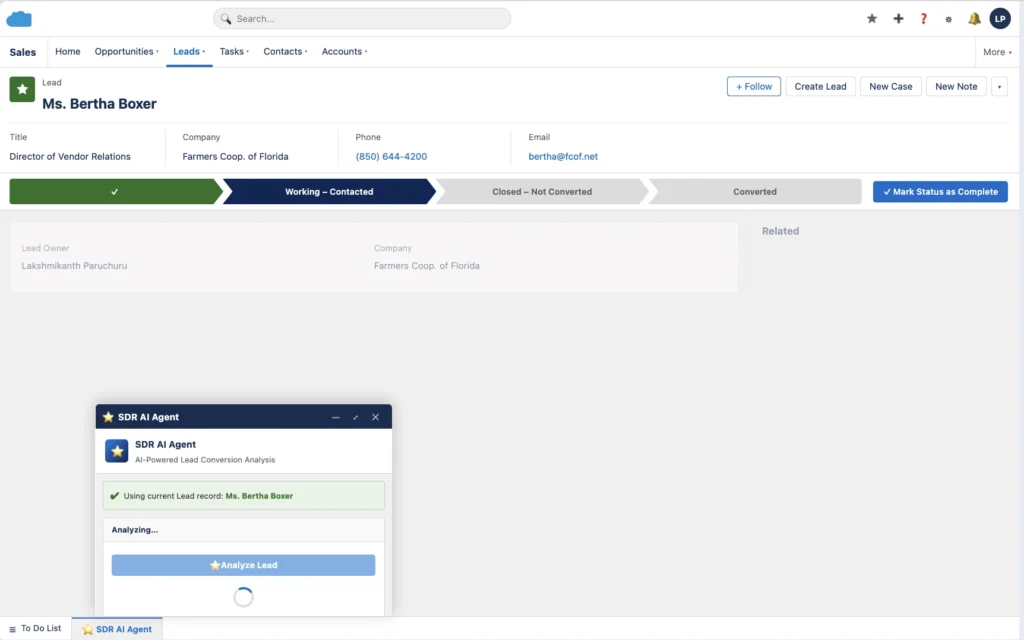
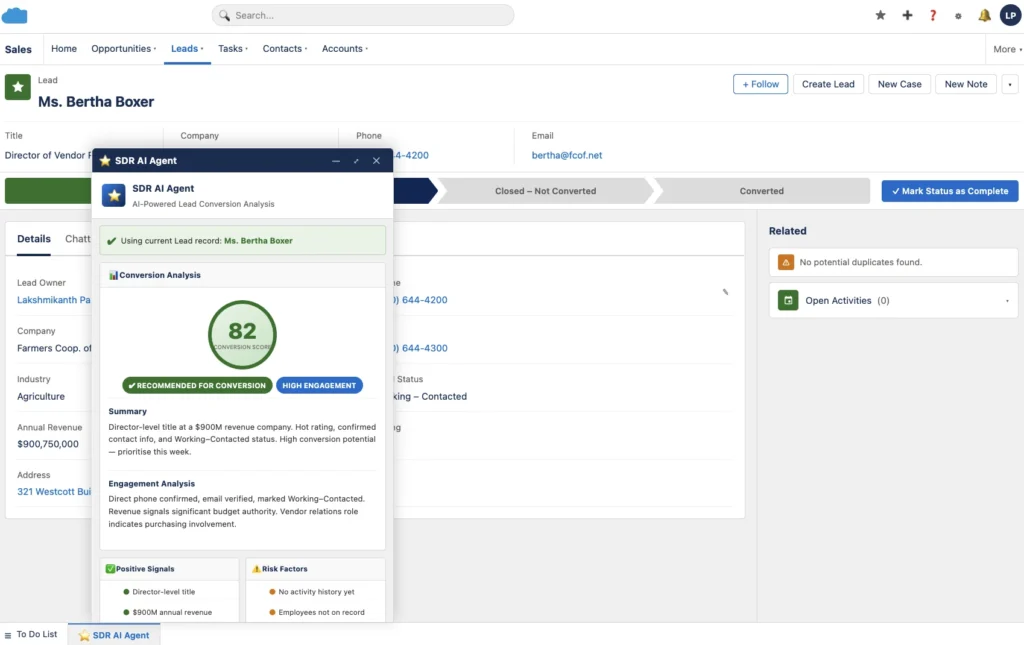
Here’s the complete SDR journey, from clicking the utility bar button to getting a full recommendation, without leaving the Lead record page.
📸 Step 1 — Rep clicks “SDR AI Agent” in the Utility Bar → Panel opens · Lead auto-detected
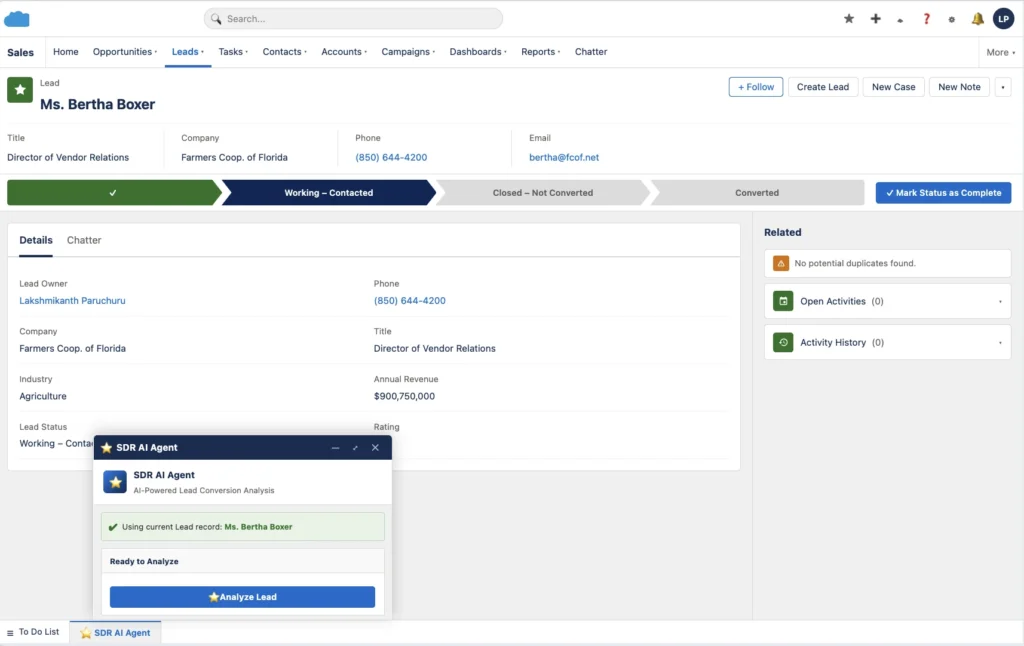
📸 Step 2 — Rep clicks “Analyze Lead” → Spinner shows while Claude processes the data (~10 seconds)
📸 Step 3 — Results: Score 82 · RECOMMENDED · Signals, engagement analysis, and next steps rendered
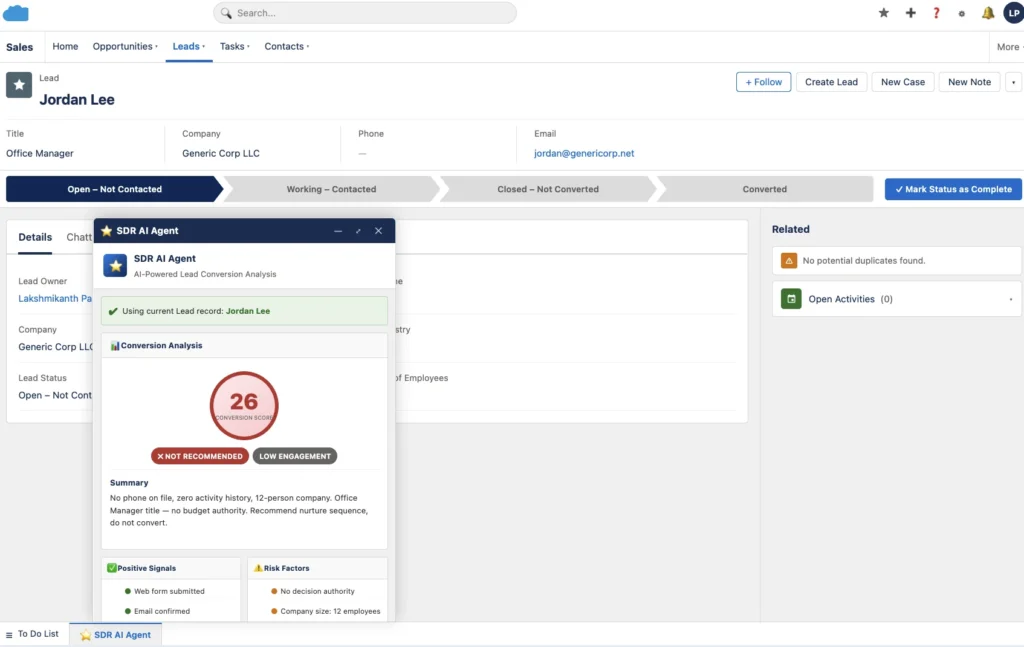
📸 Bonus — Low score lead (26): NOT RECOMMENDED · Claude suggests a nurture sequence instead
The Real Win: Time Saved
Let’s put numbers to this. Here’s what one lead analysis looks like, before and after:
| Task | Manual | With AI Agent |
|---|---|---|
| Read lead profile | 2 min | 0 sec (automated) |
| Review activity history | 5–10 min | 0 sec (automated) |
| Read email threads | 5–15 min | 0 sec (previews sent to Claude) |
| Form a conversion opinion | 3–5 min | 0 sec (Claude scores it) |
| Decide next steps | 2–3 min | 0 sec (listed in output) |
| Total per lead | 17–35 min | ~10 seconds |
For an SDR working 30 leads a day, that’s 8–17 hours saved weekly. That’s not a productivity tweak. That’s a completely different job. Those hours go back into actual selling: calls, demos, relationships.
Beyond time, there’s the consistency factor. Every lead gets the same thorough analysis. No leads slip through because someone was tired on a Friday afternoon. The tool evaluates signals, not feelings.
Things to Keep in Mind
Governor limits: Each analysis is one HTTP callout and one SOQL query with sub-selects. Well within limits for individual use — but don’t wire this to a bulk trigger or a Batch job that processes thousands of leads simultaneously.
AI confidence: Claude’s output is a recommendation, not a guarantee. SDRs should treat the score as a starting point. The “MAYBE” bucket is exactly where human judgement still wins.
Prompt quality = output quality. The more complete the lead’s activity history and email trail, the better Claude’s analysis. If leads have sparse data, the score reflects that — and that’s actually useful information for your SDRs.
Test coverage is mandatory. Mock the HTTP callout using HttpCalloutMock in your @IsTest class. Both LeadAnalysisService and ClaudeAPIService must have test coverage — they’re @AuraEnabled methods and will block deployment without it.
Wrapping Up
Building AI features inside Salesforce doesn’t require a data science team or a months-long implementation. It requires four things:
- An API key from platform.claude.com
- A Named Credential + External Credential for secure callouts
- An Apex service that fetches lead data and crafts a good prompt
- An LWC that surfaces the result cleanly, and don’t forget: grant External Credential Principal access on Permission Sets
The result is a genuinely useful tool that changes how SDRs work. This isn’t AI for the sake of AI. It’s AI for the sake of getting your best reps out of their inbox and in front of the right customers, faster.
The code above is a complete, working implementation. Take it, adapt it, ship it.