
Ashish Agarwal — independent Salesforce architect, trainer, and runner of the academy at asagarwal — demoed live on ApexHours. The new piece making it possible is Salesforce Headless 360, a set of hosted Model Context Protocol (MCP) servers that turn your org into something any MCP-capable AI client (Claude, ChatGPT Desktop, Gemini, Cursor) can read, write, and reason over.
Here’s what you’ll get from this Salesforce Headless 360 Hands-On workshop:
- The exact setup — MCP Server activation, External Client App config, Claude custom connector, the callback URL Salesforce wants
- Three demos rebuilt from the session: lead-from-PDF, multi-system lead qualification across Salesforce + Gmail + Calendar + Drive, and the pipeline-as-a-chat-chart trick
- The gotchas that actually bite: deletes, SSO, permission inheritance, and the “always allow vs. ask” choice that decides how dangerous this gets
- Architecture diagrams so you can explain the whole pipeline to your security team

What “Headless 360” Actually Means
Salesforce announced Headless 360 at TDX 2026 and made the Hosted MCP Servers generally available in April 2026 for Enterprise Edition and above (Developer Edition included — that’s what you’ll set this up in). The pitch is simple and worth taking at face value: you no longer need the Salesforce UI to use Salesforce.
Headless 360 is the umbrella for three access patterns:
- Hosted MCP Servers — Salesforce-hosted, GA, what we’ll use here.
- REST and gRPC APIs — the long-time foundation. MCP servers call these under the hood.
- CLIs (sf, sfdx) — for build pipelines and headless automation.
The interesting one is MCP. The Model Context Protocol is an open standard from Anthropic that gives LLMs a way to call tools across systems. With a Salesforce MCP server in front of your org, an AI client can list leads, run SOQL, create records, update fields — all in natural language, all enforcing your existing security model (FLS, sharing rules, validation rules, transaction security policies — none of it is bypassed).
Learn more Salesforce Headless 360: No Browser Required – The Entire Platform Is Now an API.
The six standard hosted servers Salesforce ships:
| Server | Capabilities | When you’d pick it |
|---|---|---|
SObject All | Full CRUD + query + search across all sObjects | Hands-on demos, internal tools, low-risk environments |
SObject Reads | Read and query only | Reporting and analyst use cases — safest tier |
SObject Mutations | Create and update, no deletes | Data-entry assistants where deletion is forbidden |
SObject Deletes | Delete only | Pair with another server when you genuinely need destructive ops |
Data 360 | Query unified customer data in Data 360 (Customer 360 / formerly CDP) | 360-degree customer queries |
Tableau Next | Discover semantic models, query KPIs, run analytics | BI conversations with the AI client |
All six are disabled by default. An admin has to switch them on, and you can’t change their tool sets — they’re shipped as-is. If you need something custom, you build your own MCP server with Flow or Apex (more on that at the end).
Architecture: What Happens When You Type “List my leads” in Claude
Before the click-by-click, hold the model of the request lifecycle in your head:
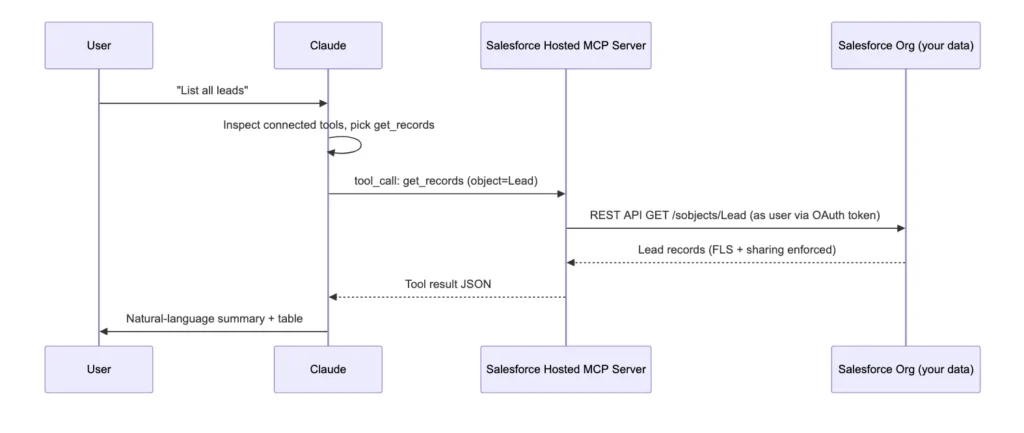
A few things this picture makes obvious:
- Claude doesn’t talk to Salesforce directly. It talks to the MCP server. The MCP server talks to Salesforce.
- The token is yours. OAuth + PKCE issues a token scoped to the logged-in user. Anything that user can’t do, the AI can’t do.
- Validation rules still fire. A bad write returns an error to the MCP server, which surfaces it to Claude, which tells you in plain English why the record didn’t save.
Step by Step guide for Salesforce Headless 360
Allow about 15 minutes the first time, less once you’ve done it.
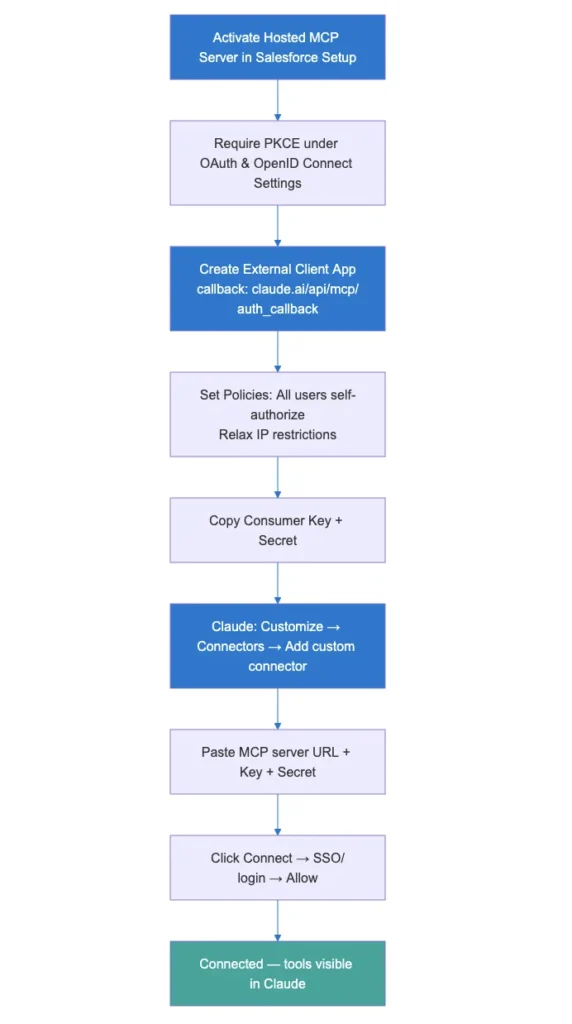
Step 1: Activate the MCP Server in Your Salesforce Org
- In Setup, search for MCP in the Quick Find box.
- Click Salesforce Servers.
- Click into SObject All (or whichever server fits your risk tolerance — read-only is the cautious starting point).
- Click Activate.
Once active, scroll down and you’ll see the tool list — get_records, get_recently_viewed_records, run_soql_query, run_sosl_query, get_current_user_info, get_object_schema, create_records, update_records, and a couple of prompts. These are the verbs Claude will know about.
Step 2: Require PKCE on OAuth Flows
- Setup → OAuth and OpenID Connect Settings.
- Toggle on Require Proof Key for Code Exchange (PKCE) Extension for Supported Authorization Flows.
PKCE is the standard mitigation against intercepted authorization codes. Salesforce requires it for the External Client App flow that Claude uses.
Step 3: Create the External Client App
External Client Apps are the modern replacement for Connected Apps for new OAuth integrations. (You can still use Connected Apps if your org has been on them for years; the docs steer new setups toward External Client Apps.)
- Setup → External Client App Manager → New External Client App.
- App Name:
Claude(or whatever your team will recognize). - Contact Email: yours.
- Under API (Enable OAuth Settings):
- Check Enable OAuth.
- Callback URL:
https://claude.ai/api/mcp/auth_callback(this is the official URL — Salesforce’s docs confirm it exactly). - Selected OAuth Scopes — only these two:
- Perform requests at any time (
refresh_token) - Access MCP servers (
mcp_api)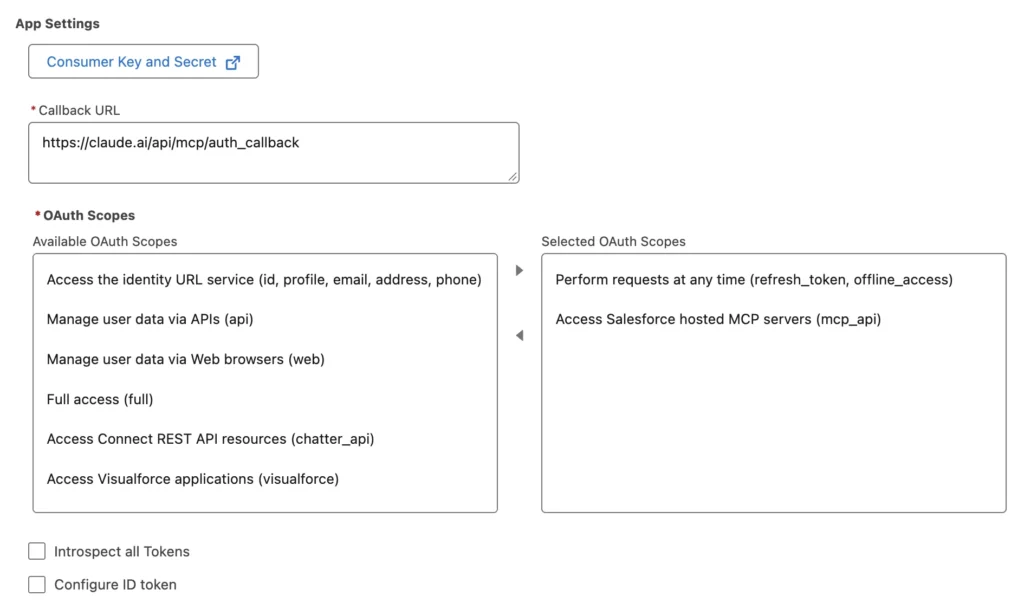
- Perform requests at any time (
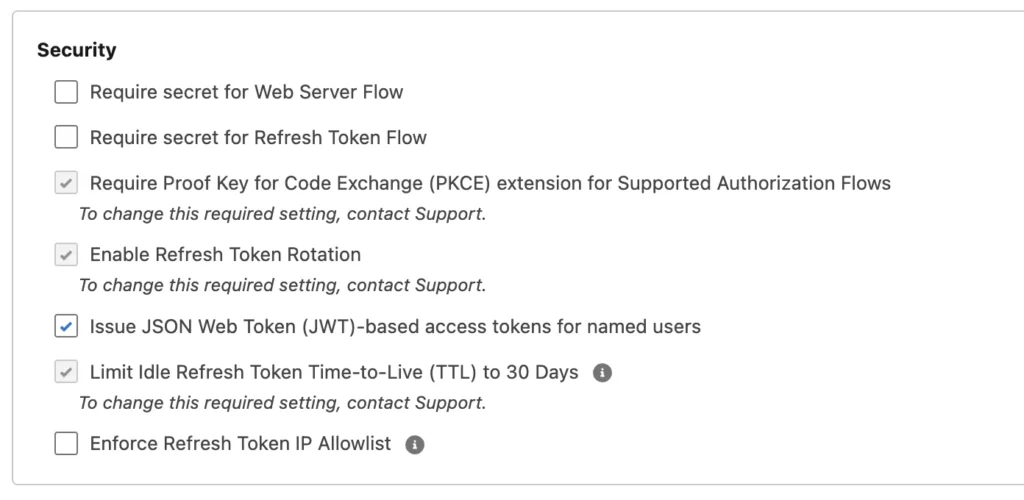
- Under Security:
- Check Require Proof Key for Code Exchange (PKCE) Extension for Supported Authorization Flows.
- Check Issue JSON Web Token (JWT)-based access tokens for named users.
- Uncheck everything else — no client credentials flow, no web server flow secrets.
- Click Create.
Heads-up: Salesforce notes the External Client App can take up to 30 minutes to become fully available. If your first connect attempt fails with an OAuth error, give it time before debugging.Step 4: Tune the App Policies
After the app is created, open it and go to the Policies tab.
- Expand OAuth Policies → Edit.
- Permitted Users:
All users may self-authorize. - IP Relaxation:
Relax IP restrictions. - Save.
The “all users may self-authorize” choice matters: it lets any user in your org log into Claude and get their own token, instead of an admin pre-approving each one.
Step 5: Grab the Consumer Key and Secret
Back on the main app screen → Settings → expand OAuth Settings → Consumer Key and Secret → Manage Consumer Details.
Salesforce will email you a one-time verification code. Paste it, click Verify, then copy the Consumer Key and Consumer Secret. You’ll need both in Claude.
Step 6: Add the Custom Connector in Claude
In claude.ai:
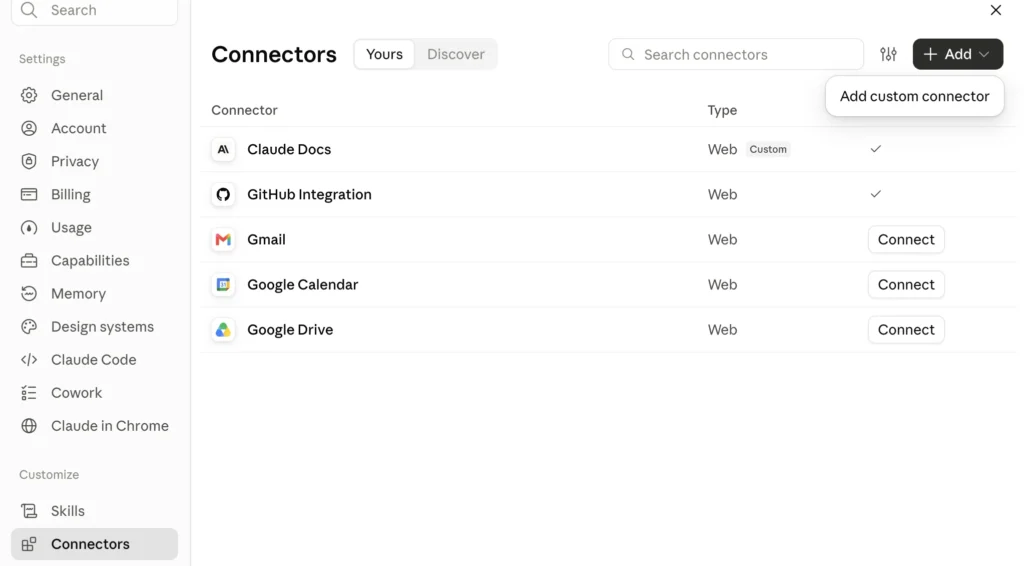
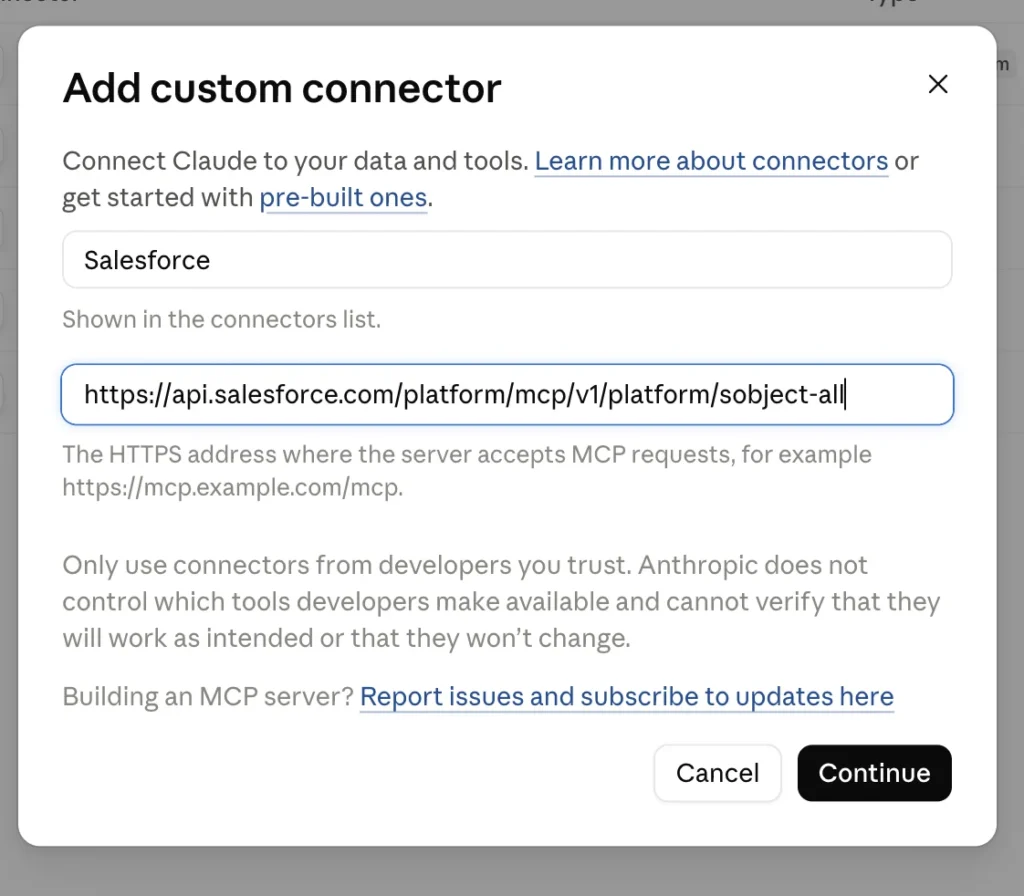
- Left sidebar → Customize → Connectors → + → Add custom connector.
- Name:
Salesforce. - Remote MCP server URL — use the canonical format:
- Production:
https://api.salesforce.com/platform/mcp/v1/<SERVER-NAME> - Sandbox or scratch org:
https://api.salesforce.com/platform/mcp/v1/sandbox/<SERVER-NAME> - For SObject All,
<SERVER-NAME>issobject-all. The same server URL is also surfaced in Setup → MCP Server → click the server → copy the URL. Use whichever is convenient.
- Production:
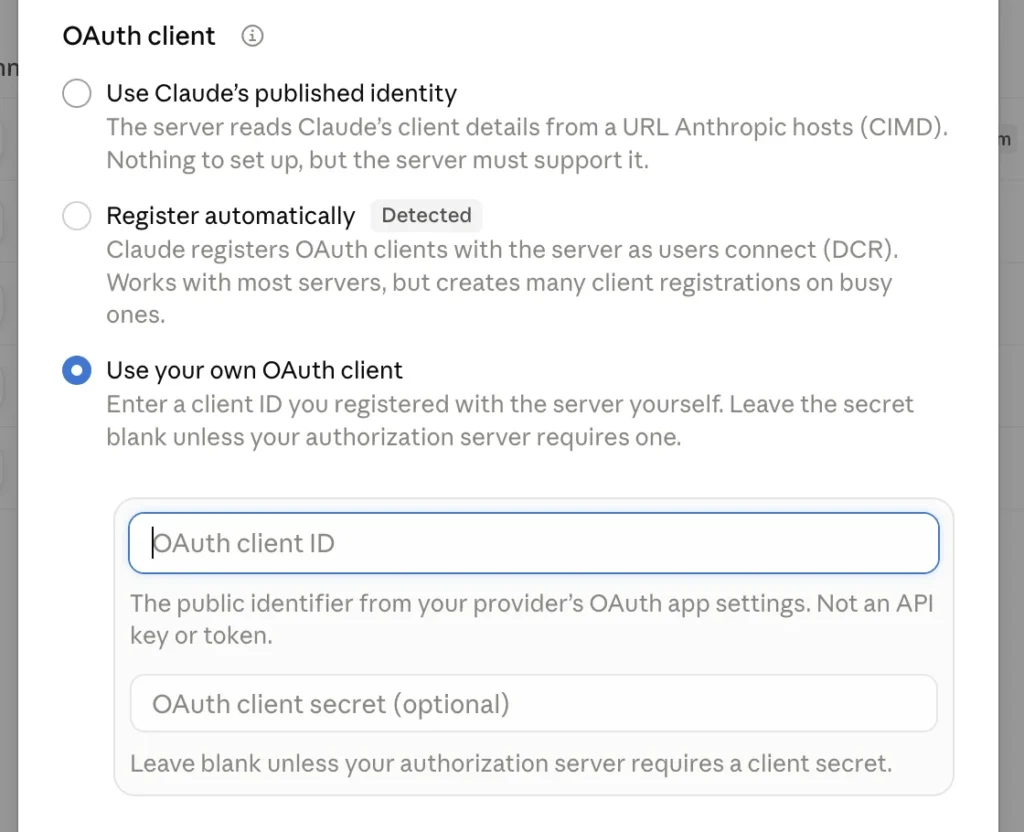
- Under Advanced:
- OAuth Client ID = your Salesforce Consumer Key.
- OAuth Client Secret = your Salesforce Consumer Secret.
- Click Add.
Step 7: Connect
Click Connect next to your new connector. Claude redirects to Salesforce login (your SSO will kick in if you have it — more on that below), you approve access, and Claude lists every tool the MCP server exposes. From this point on, you’re in business
Step 8: Choose Your Permission Mode (the most important slider)
For each tool, Claude lets you pick one of three modes:
- Always allow — Claude executes without asking. Fast. Risky for
delete_records. - Needs approval — Claude shows you the proposed call and waits. Recommended starting point.
- Block — Claude is told the tool exists but isn’t allowed to call it. Useful for surgically disabling
delete_recordswhile keeping the rest of SObject All on.
Start everything on Needs approval. Move to Always allow only for the verbs you’ve watched fire a few times and trust.
Check Step by step setup.
Hands-On Demo 1: Create a Lead from a LinkedIn PDF
The single most demo-worthy moment of Ashish’s session.
- On LinkedIn, click the ⋯ menu on a profile → Save to PDF.
- In your Claude
Salesforceproject, drop the PDF in. - Prompt:
Create the attached LinkedIn profile as a lead in Salesforce.
The MCP server got create_records(Lead, [...]), called the REST API as the user, and the record appeared in Salesforce with assignment rules and field validation firing exactly as if you’d typed it by hand
Hands-On Demo 2: One Prompt, Three Updates
This is the “compound action” example that shows why this is more interesting than a faster New Lead button.
Prompt:
“I met Amit this morning for coffee and updated him on our products and services. Amit has promised to take a look at our company’s website and get in touch. Log this as an activity on Amit’s record, set the lead status to Working – Contacted, and create a follow-up task for next Thursday to see if he has any questions.”
Claude’s plan, executed in sequence:
get_records(Lead, where=Name like 'Amit%')— find the right Lead.update_records(Lead, [{Id: ..., Status: 'Working - Contacted'}]).create_records(Task, [{WhoId, Subject: 'Meeting follow-up — coffee', Status: 'Completed', ActivityDate: today}]).create_records(Task, [{WhoId, Subject: 'Check if Amit reviewed website', ActivityDate: next_thursday}]).
Roughly 30–40 seconds end-to-end. Doing the same in the Salesforce UI is five minutes of clicks. Multiplied across a sales team’s day, this is the productivity story Salesforce is selling with Headless 360, and it actually checks out in practice.
Bonus Demo: Pipeline as a Chat
Prompt: Give me an overview of my opportunities pipeline.
Claude runs run_soql_query (or several get_records calls), reads the Stage / Amount / CloseDate columns, and renders:
- Total weighted pipeline value
- A horizontal bar chart by stage
- A table of the top opportunities with critical fields
- A short written analysis flagging stalls and large deals
You didn’t ask for the chart. Claude inferred it was useful. If you want a specific format, say so in the prompt or pin it to Project Instructions. This is the part that makes “old way of building a dashboard” feel slow.
Real-World Use Cases
Three patterns this is genuinely good at, based on the session and what’s worth piloting first:
- Sales reps capturing field interactions. Business cards, meeting notes, voice memos turned into Leads, Contacts, Activities, and follow-up Tasks in one prompt. Cuts data-entry friction so reps actually log activity instead of skipping it.
- Service triage with case-to-opportunity correlation. Ashish’s case-review prompt surfaced a $2.5M open opportunity tied to a Generator Failure case — the kind of “the AI noticed something” moment that’s hard to engineer with reports. Pair
SObject Readswith Slack and you have a queue manager. - Cross-system account briefs. Drop Salesforce + Gmail + Google Drive + Slack into a Claude project, ask for a briefing on Acme before a Tuesday call, and you get a single doc. This is the killer use case for revenue ops and AEs at quota.
Best Practices & Gotchas
The session generated good audience questions. Here are the gotchas worth committing to memory.
Security carries through
Every Salesforce permission you have is honored. Profile, Permission Set Group, OWDs, sharing rules, FLS, validation rules, transaction security policies — none of them are bypassed. The AI runs as you. If you don’t have access to delete Cases, neither does Claude on your behalf. Don’t loosen the security model “so the AI can work”; instead, give the AI exactly what the user needs and no more.
Deletes are not in SObject All
A nice surprise. SObject All exposes create, read, update, and query — but not delete. If you want delete, you separately activate the SObject Deletes server and add it as another connector. This is intentional gating, and it’s a good model: opt in to dangerous verbs explicitly.
“Delete all leads” is one prompt away
With great power comes great responsibility. Make sure that whatever you are exposing through Claude, through MCP Server, you really want your users to be able to have that access. — Ashish Agarwal, ApexHours session
A grumpy user with full delete access plus Claude can issue delete all leads in Salesforce and Claude will dutifully fan out the API calls. Mitigations:
- Don’t activate
SObject Deletesorg-wide unless you need it - Lock the user’s profile to “delete on the objects they actually own”
- Set
delete_recordspermission in Claude to Block unless they explicitly need it - Layer a Transaction Security Policy that flags bulk deletes from the MCP API path
SSO works — through the standard redirect
If your org runs SSO instead of username/password, the External Client App flow still works. When you click Connect in Claude, the SSO redirect kicks in and you log in via your IdP. The MCP server doesn’t care how you authenticated, only that Salesforce returned a valid token.
Approval prompts: first use vs. ongoing
Ashish noticed mid-demo that Claude didn’t re-prompt for approval on later writes. The answer: once you’ve approved a tool in a session, Claude trusts subsequent calls. When you set the tool to Always allow, you skip approval entirely. New users should keep Needs approval on until they trust the model’s planning.
External Client App boot time
Up to 30 minutes for the app to be fully usable after creation. If “Invalid OAuth client” hits you on the first connect attempt, wait it out before changing settings.
Custom MCP servers — when “SObject All” isn’t enough
Need to expose your own Flow or Apex via MCP? Setup → MCP Server → Create Custom MCP Server. You define the tools, point them at Flows or invocable Apex, and wire it into Claude the same way. Worth a follow-up post; out of scope here. (Pilot in Developer Edition first — custom tool design is where you’ll make security mistakes.)
Pricing
As of the session, the Hosted MCP Servers themselves were free — you pay for Salesforce, you pay for your Claude/ChatGPT/Gemini subscription, but the MCP layer isn’t separately priced. That may change; check with your Salesforce account exec before designing a large rollout that depends on it staying free.
Architectural placement
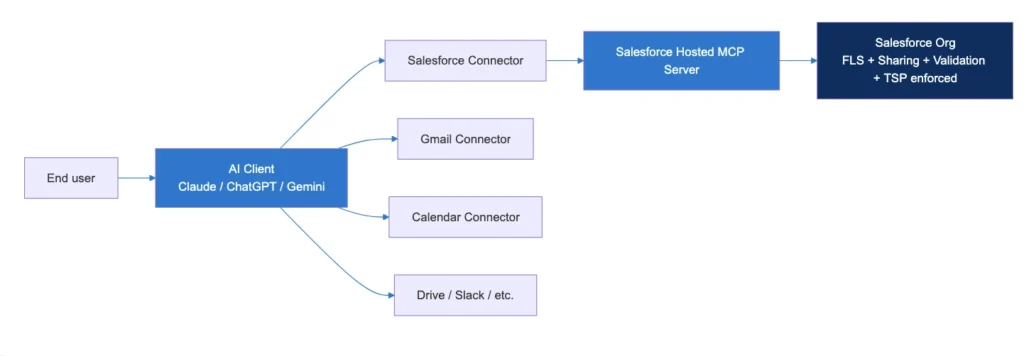
The “old way of working” is to keep five browser tabs open and copy-paste between them. The “new way” is one prompt fan-out across every connector. Headless 360 makes Salesforce a first-class citizen in that picture.
Summary
- Salesforce Headless 360 = Salesforce without the UI, accessed through Hosted MCP Servers (GA April 2026, Enterprise Edition and above; works in Developer Edition too).
- Six standard servers ship out of the box. Pick
SObject Readsfor safe pilots,SObject Allfor full demos,SObject Deletesonly when you mean it. - Setup is seven steps: activate the MCP server, require PKCE, create an External Client App with the exact callback
https://claude.ai/api/mcp/auth_callback, scopesmcp_api+refresh_token, set policies, copy the consumer key/secret, paste into Claude’s custom connector. - The big productivity moment is one prompt, multiple actions — log activity + update status + create task in one go.
- The big intelligence moment is one prompt, multiple systems — Salesforce + Gmail + Calendar + Drive synthesized into a lead brief.
- Security is fully honored: profile, FLS, sharing, validation rules, transaction security. Don’t bypass any of it; instead, scope user access tightly.
- Start every tool on Needs Approval. Promote to Always Allow only after you’ve watched it work.
- Custom MCP servers are where you go next — expose Flows and Apex as AI-callable tools.
Session credit: Ashish Agarwal, independent Salesforce architect and trainer based in Singapore, founder of academy.asagarwal.com. Delivered live at ApexHours on May 30, 2026