
The Problem: Speech Is Not Yet Salesforce Data
Voice AI is becoming increasingly relevant to Salesforce users. Salesforce’s State of Service research found that 53% of service organizations already use Voice AI, while another 32% expect to use it.
For Salesforce teams, adding voice is not simply a matter of replacing typing with speech. The solution also needs to fit into the Salesforce environment and work with the data, records, and processes already in place.
Consider a field sales rep who finishes a customer visit and wants to record the outcome before moving to the next meeting. Speaking instead of typing can be faster and more convenient for users who need to capture information, but the real challenge is making that voice input useful inside Salesforce.
So, what are the practical ways to add Salesforce AI voice assistants, and what should you consider when choosing an approach?
Why Use Voice to Text Salesforce?
Speech to text Salesforce can reduce the work involved in turning information from conversations, meetings, or field work into Salesforce data. Instead of typing notes and updates manually, users can speak them directly.
The benefit goes beyond transcription when the voice solution can understand what the user is asking Salesforce to do. For example, a user might say: “The customer is interested in the Enterprise plan and wants a follow-up next Friday.”
A basic speech-to-text tool would turn this into text. An AI voice agent can interpret the request and use it to update Salesforce, such as saving the note and creating a follow-up Task with a due date.
The difference is important:
Voice input → transcription → intent detection → Salesforce action.
The action could be saving a note, creating a Task, or updating fields on the current record.
There are several ways to bring voice into Salesforce. Some tools simply turn speech into text, while others can understand what the user wants to do and act on the relevant Salesforce record. In the next section, we’ll look at these options and what each one can do.
Approaches to Adding Speech-to-Text to Salesforce
Voice capabilities can be added to Salesforce in different ways, depending on the requirements and how much of the solution the development team wants to build and maintain. The main options are Salesforce’s native capabilities, custom development, and Salesforce applications.
| Comparison of Voice-to-Text Approaches in Salesforce | |||
|---|---|---|---|
| Approach | How it works | Pros | Cons |
| Salesforce Flow + Speech to Text | Uses Salesforce’s Convert Speech to Text or Convert Base64 Speech to Text Flow action to convert audio into text that a Flow can process. The Convert Speech to Text action works with audio files stored in Salesforce Files and returns the transcript as Flow output. | Uses native Salesforce capabilities and works with existing Flow automation. | Mainly handles transcription. Additional Flow or AI logic is needed if the transcript needs to be interpreted or used to perform Salesforce actions. |
| Salesforce mobile app voice to text: Post-Meeting Voice Notes | Lets users record their own post-meeting voice notes in the Salesforce mobile app. Voice to text Salesforce mobile can transcribe the recording and make the resulting text available as part of the post-meeting voice note. | Native Salesforce functionality with no separate voice integration required for this use case. | Designed for post-meeting notes rather than general voice commands or broader voice-to-Salesforce workflows. |
| Custom voice integration | A developer connects Salesforce to a speech-to-text or AI service and builds the logic for transcription, intent detection, and Salesforce actions. | Provides control over the voice experience and business logic and can be designed around specific requirements. | Requires development, API integration, authentication, error handling, security controls, and ongoing maintenance. |
| AppExchange voice-to-text solution | A Salesforce application can provide voice input, transcription, and additional functionality for working with Salesforce records and data. | Requires less custom development and provides a ready-made Salesforce integration. Can support multiple voice use cases. | Capabilities vary by application, so the solution needs to be evaluated against the specific voice and Salesforce requirements. |
The right approach depends on what the Salesforce team needs from voice-to-text. Native Salesforce features can cover specific use cases, while custom development provides more control but requires more work to build and maintain.
AppExchange (now AgentExchange) offers another path for teams that want to add voice-to-text capabilities without building the entire solution themselves. We reviewed the available Salesforce applications to see how they handle voice input, transcription, and Salesforce actions.
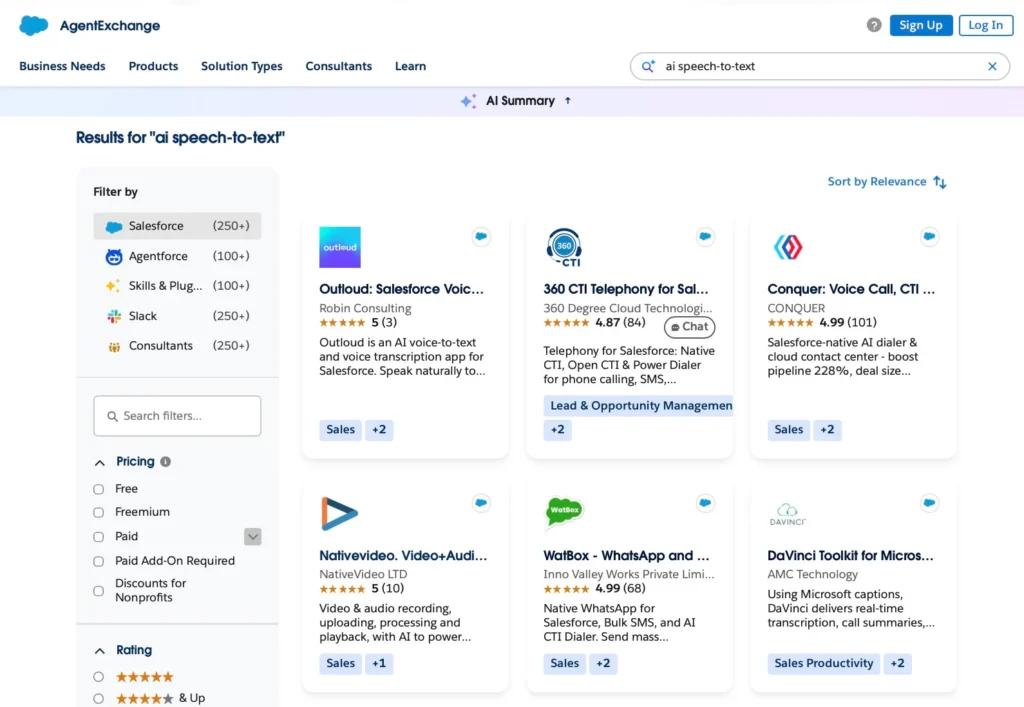
AI speech-to-text apps on AppExchange
One solution that stood out was Outloud: Salesforce Voice to Text. It allows users to speak naturally while working with Salesforce records, turning voice input into editable notes and, when a supported command is detected, actions such as creating a Task or updating a field. Outloud can also translate voice notes into languages configured by the Salesforce administrator. Voice commands require user confirmation before the requested Salesforce action is applied. The app also supports Salesforce mobile voice to text, allowing users to record and work with voice notes from the Salesforce mobile app. For this article, we use Outloud as an example of how AI voice-to-text can be enabled in Salesforce.
Its focus on voice-to-text and Salesforce record actions makes it an example of a prepackaged approach to the workflow described in this article. Other Salesforce voice solutions address different applications, including customer calls, contact center functionality, and broader conversational interfaces.
Enable Salesforce Voice Assistant with Outloud
Outloud is installed as a Salesforce package from its AppExchange listing. After installation, an administrator configures the application and gives users access to the functionality they need. The setup can be organized into three practical steps.
1. Install the Package
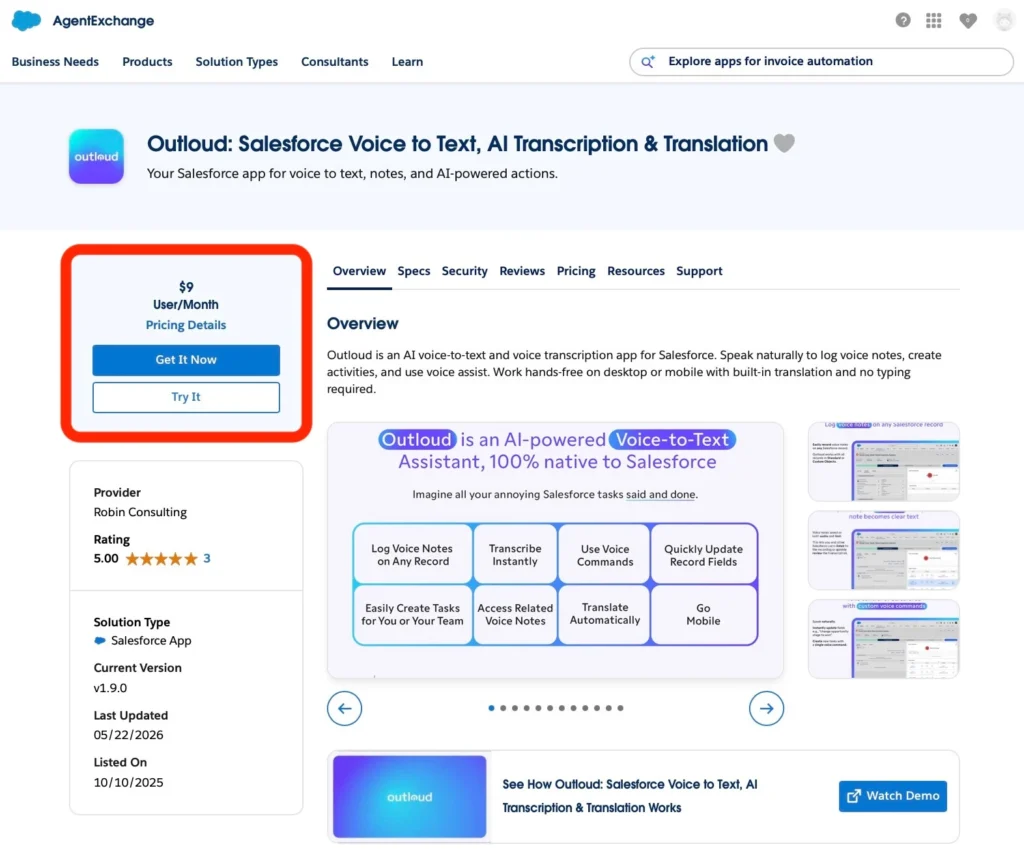
Get Outloud from AppExchange
Open the Outloud AppExchange listing and select Get It Now or Try It for a 7-day free trial. Follow the Salesforce installation flow and select the target org where the package should be installed.
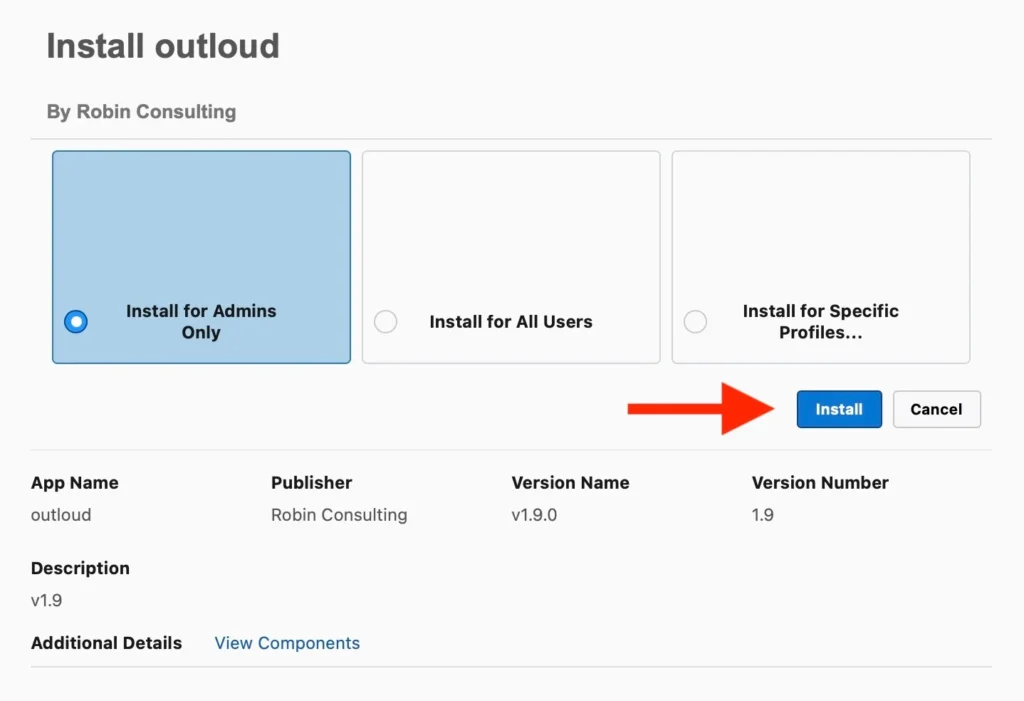
Install the app
For an initial test, an administrator can install the package in a sandbox, assign access to a small group of users, and validate the voice-to-text workflow before deploying it more broadly.
2. Configure Outloud
After installation, an administrator needs to complete the application configuration. The Outloud admin guide states that this can be done by a Salesforce System Administrator or a user with the Outloud Admin permission set. Configuration is managed through the Outloud Management App and the Outloud Manage tab.
Key settings include:
- OpenAI API Key: Connects Outloud to OpenAI for transcription, translation, and voice command recognition.
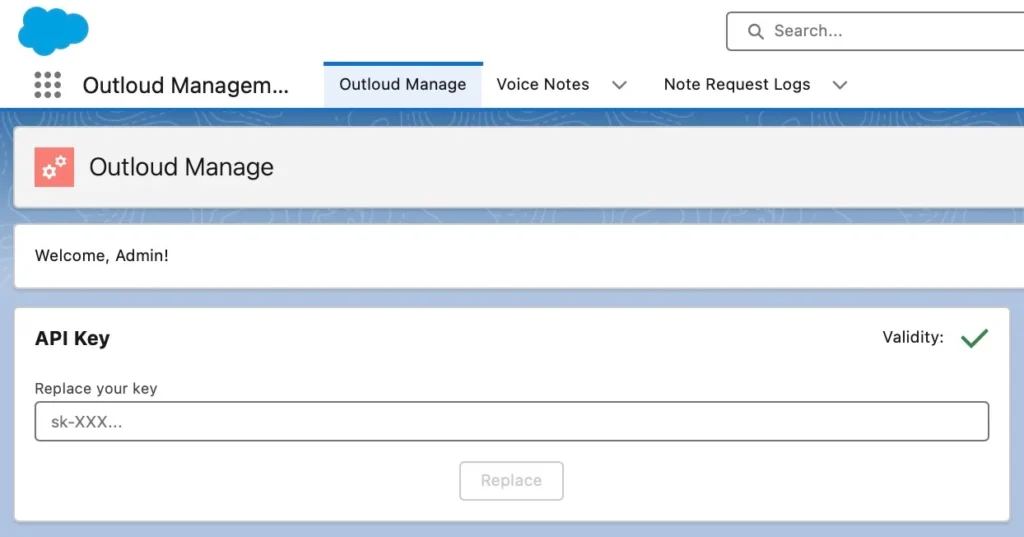
Add and validate the key
- Search Settings: Defines which Salesforce objects Outloud can search when attaching a voice note to a record.
- Language Settings: Defines the languages available for transcription and translation.
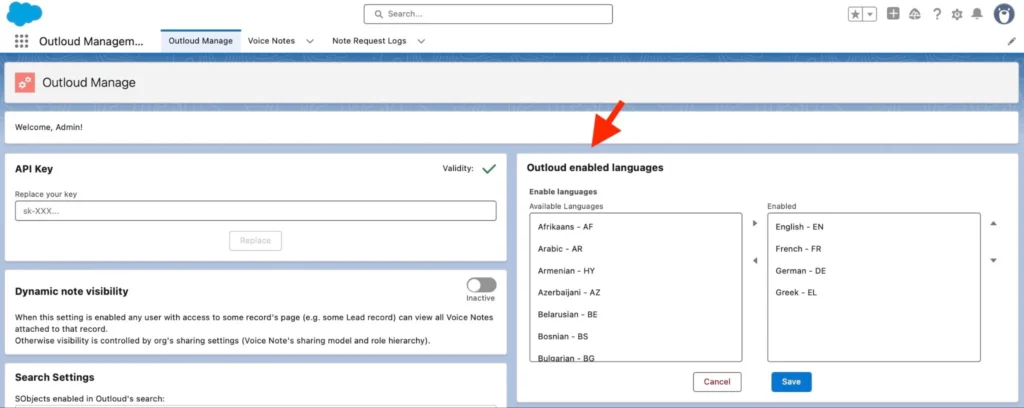
Enable languages
- Automatic Translation: Selects languages for automatically translating new voice notes.
- Dynamic Note Visibility: Controls whether voice notes are limited by their default visibility or can be viewed by users who have access to the related record.
- Model Settings: Defines the AI model used to process voice input.
- Voice Recorder: Add the LWC to the required Salesforce page using Lightning App Builder, then save and activate the page.
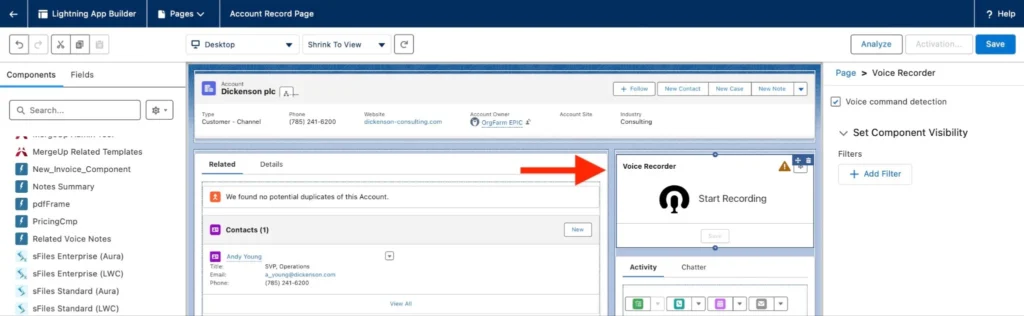
Add Voice Recorder
3. Use Outloud from Salesforce Records
Once configured, Outloud can be used while working with Salesforce records. Users can speak naturally to create voice notes or issue commands, rather than entering the information manually.
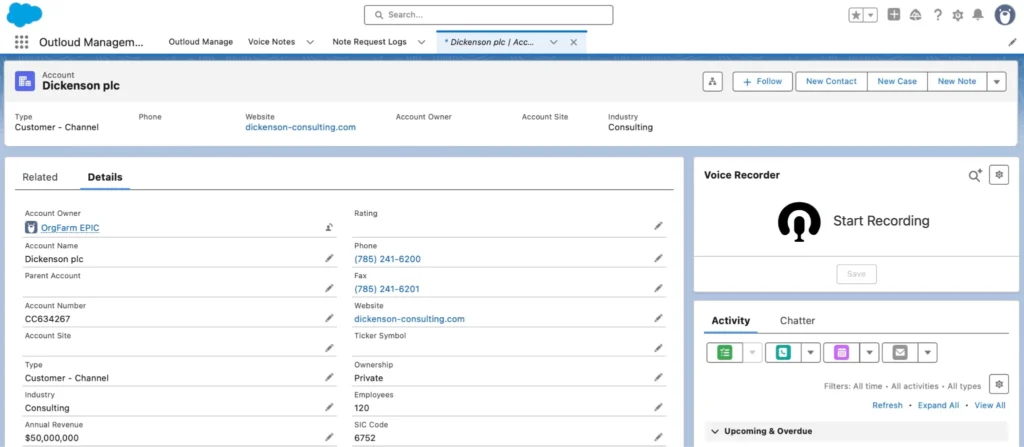
Voice Recorder on Account
For example, a user working with an Opportunity could dictate a meeting note or give a command related to that record. Outloud processes the voice input, uses OpenAI for transcription and command recognition, and presents suggested actions for the user to review before anything is saved to Salesforce.
What Can You Do with Voice to Text in Salesforce?
The value of an AI voice-to-text solution depends on what happens after speech is converted into text. A basic dictation tool can produce a transcript, while an AI voice solution can also interpret spoken commands and use them to perform supported actions in Salesforce.
1. Capture and save voice notes.
Users can speak notes directly against Salesforce records instead of typing them. This can be useful whenever users need to capture information against a Salesforce record without entering it manually.
Research on automatic speech recognition shows why this can matter: one study found a median dictation speed of 93 words per minute compared with 21.4 words per minute for typing. After accounting for transcription correction time, dictation was still about 2.5 times faster.
With Outloud, the voice note is converted into editable and searchable text and saved as a voice note related to the Salesforce record. Users can then work with the transcript instead of the original recording.
2. Create Salesforce Tasks.
Voice can also be used to create Salesforce Tasks. For example: “Remind me to call the customer next Monday.”
When Outloud by Robin Consulting detects a supported voice command, it presents a confirmation prompt before creating the Task. The action is not applied without user approval.
This is an important distinction between Salesforce dictation and a voice agent. Dictation produces text, while a voice agent can interpret a command and use it to perform a supported action in Salesforce.
3. Update record information.
A voice command can also be used to update Salesforce data. For example: “Change the stage to Closed Won.”
Outloud can update field values on the related Salesforce record, including the Stage field on an Opportunity.
These actions should continue to follow the user’s Salesforce access and permissions. The voice layer should not bypass existing Salesforce security controls.
4. Transcribe and translate.
Outloud converts voice notes into editable, searchable text and supports translation into more than 50 languages. Administrators can define the languages used for automatic translation.
This gives users the option to keep the original transcript and work with a translated version when needed.
Best Practices for Salesforce Voice-to-Text
Adding a Salesforce native voice to text assistant should be treated as a change to how users enter information into Salesforce. The voice layer should work with the existing Salesforce architecture, allowing users to enter notes or issue commands while Salesforce continues to handle permissions, validation, and automation.
- Start with one workflow: Begin with a specific use case, such as post-meeting notes, before expanding to voice commands and record updates. A focused workflow makes testing and measurement easier.
- Use Salesforce record context: When a user is viewing an Opportunity, use that record context instead of requiring them to identify it again. This reduces unnecessary voice input and supports field updates and related Tasks.
- Keep business logic in Salesforce: Let the voice layer update Salesforce data while existing Flows and other automation handle the business logic. Validation rules should continue to apply regardless of how information is entered.
- Add confirmation for important actions: Consider confirmation for commands that change important Salesforce data, such as an Opportunity amount, owner, or stage. Voice recognition and intent detection can produce incorrect results, so requiring users to approve sensitive changes adds another control before data is modified.
- Measure the result: Track how long users spend capturing notes, creating Tasks, and updating records before and after introducing voice. Salesforce reports that sales reps spend about 60% of their workweek on non-selling activities, including manual data entry. Also monitor transcript corrections, incorrect Salesforce updates, time to enter information, and user adoption. The goal is to reduce data-entry effort without reducing data quality.
Final Thoughts on Enabling AI Voice-to-Text in Salesforce
AI voice-to-text gives Salesforce users another way to capture information and interact with records without relying entirely on manual typing. But the value of the technology depends on what happens after the speech is converted into text.
Salesforce provides native options for specific transcription use cases, while custom development can support more specialized workflows. Dedicated Salesforce applications such as Outloud can provide a broader voice interface that combines transcription with voice notes, Tasks, record updates, and translation.
The best approach depends on the workflow, the level of control required, and how much development and maintenance the Salesforce team is prepared to take on. The key is to choose a voice solution that fits the way users already work in Salesforce and turns spoken input into useful, reliable Salesforce data.