

If you are a Salesforce Developer or Admin, there is a small but important change to know about in Winter ’27. The familiar Developer Console is no longer shown by default in Setup when Web Console is active. Salesforce is now putting Web Console at the center of the development experience. It is a modern, -browser-based development environment that lets you work with Salesforce code and queries directly inside your org. The good news is that the legacy Developer Console is not gone. If you still need it, you can enable it from Setup.
So, what exactly changed, and how do you enable Web Console or Developer Console? Let’s break it down.
What is changing in Salesforce Winter ’27?
In Winter ’27, Web Console is the preferred development environment, while Developer Console is treated as the legacy option. When Web Console is active and Developer Console is inactive, users see only Web Console as the development environment option from the Setup menu.
Salesforce also allows administrators to keep both consoles active. This is useful if your team still has workflows that depend on Developer Console while developers start using Web Console.
The important point is that Developer Console has not been removed. You can re-enable it whenever you need it.
What is Web Console?
Web Console is a browser-based IDE built into Salesforce. It is designed to provide a more modern development experience without requiring developers to leave Salesforce for common development and troubleshooting tasks.
It brings together capabilities such as Apex editing, SOQL execution, debugging, Query Plan inspection, Anonymous Apex, and in-context development workflows. Salesforce describes it as a modern alternative to older development tools, including the legacy Developer Console.
One of the biggest differences is that Web Console has an interface closer to modern IDEs such as Visual Studio Code and can maintain project context while you work.
How to Enable Web Console
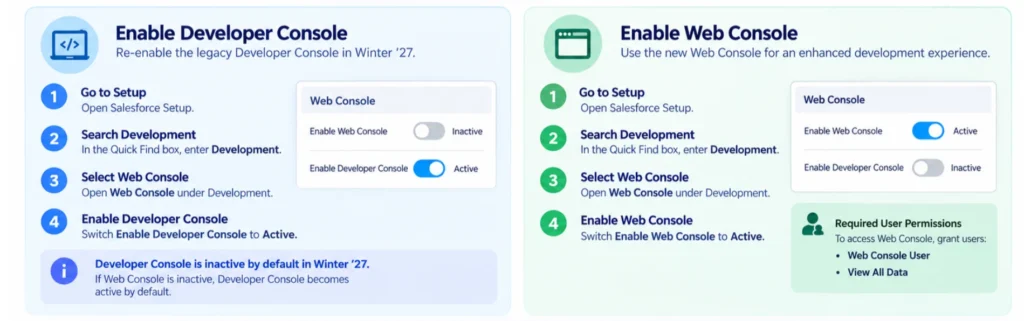
If you want to use Web Console in your Salesforce org, follow these steps.
Step 1: Open Setup
Log in to your Salesforce org and open Setup.
Step 2: Search for Development
In the Quick Find box, enter:
Development
Then select Web Console.
Step 3: Enable Web Console
On the Web Console setup page, find:
Enable Web Console
Switch the setting to:
Active
That enables Web Console for the org.
Step 4: Refresh Salesforce
After enabling Web Console, close the Setup page and refresh the page.
You may need to wait a few seconds for the menu options to update.
Once the change is available, you can find Web Console from the gear menu. Salesforce also provides other entry points, including Apex Classes, Apex Triggers, and Apex Jobs.
How to Enable Developer Console
What if your team still wants to use the old Developer Console?
You can enable it too.
Go back to:
Setup → Development → Web Console
Then find:
Enable Developer Console
Switch it to:
Active
That makes Developer Console available as an option again.
This is useful during a transition period when developers want to compare the two environments or continue using an existing Developer Console workflow.
What Happens When You Enable or Disable the Consoles?
This is probably the most important part of the Winter ’27 change.
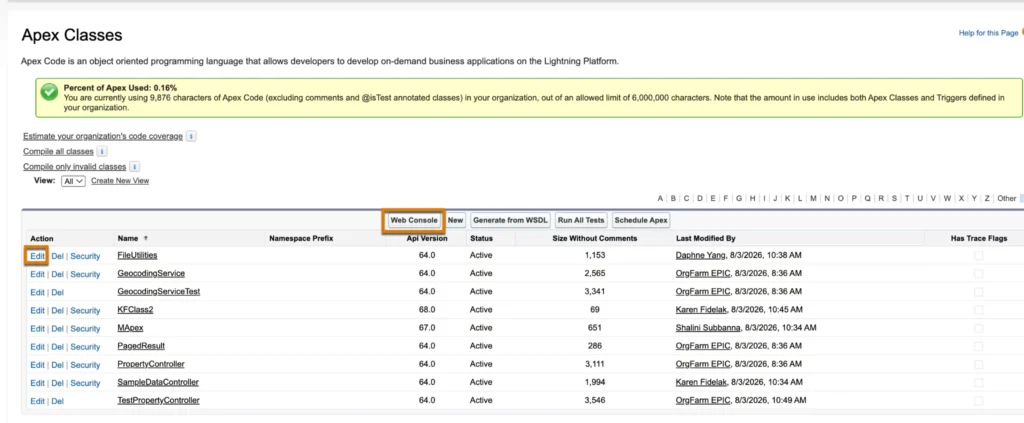
Web Console Active + Developer Console Inactive
Only Web Console is available from the Setup menu.
When you click Edit next to an Apex class, trigger, or job, Salesforce opens the item in Web Console.
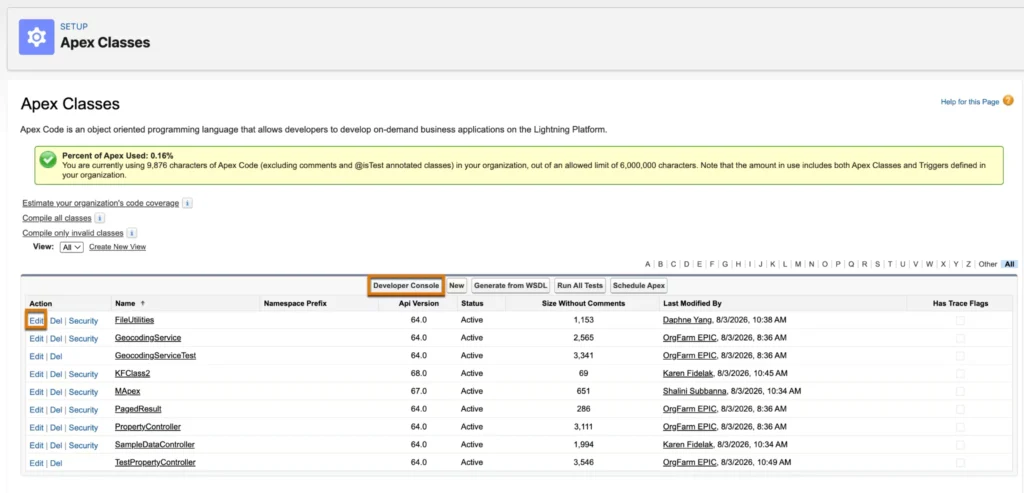
Web Console Inactive
If Web Console is inactive, Developer Console becomes active by default.
In this situation, Developer Console is the available development environment from the Setup menu, and Apex objects open in the Apex editor.
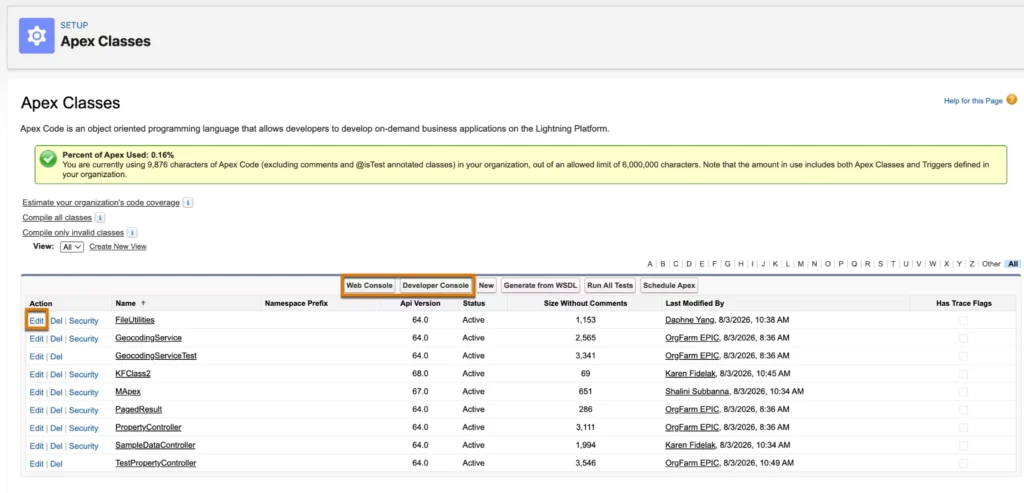
Both Web Console and Developer Console Active
You can also keep both options active.
In this setup, both Web Console and Developer Console are available from the Setup menu.
However, there is an important detail: when you click the Edit link next to an Apex object, Salesforce opens it in Web Console. You can still launch Developer Console separately from the available console options.
Web Console User Permissions
Enabling Web Console at the org level is only part of the setup.
Users who need access to Web Console must have:
- Web Console User
- View All Data
Make sure these permissions are assigned to the users who need to work with Web Console.
This is something Salesforce Admins should check before telling developers that Web Console is ready to use.
Enable Use Any API Client for Run Query
There is another permission to know about if you plan to use the Run Query option.
Users need the:
Use Any API Client
system permission.
You can provide this permission through either a Permission Set or a Profile.
Using a Permission Set
Go to:
Setup → Users → Permission Sets
Then:
- Open the required permission set.
- Go to System Permissions.
- Find Use Any API Client.
- Enable the permission.
Using a Profile
You can also configure it from:
Setup → Users → Profiles
Open the required profile, go to System Permissions, and enable:
Use Any API Client.
If you cannot find the Use Any API Client permission, Salesforce notes that API Access Control is disabled in the org.
Where Can You Launch a Web Console?
Once Web Console is enabled, you can launch it from the Salesforce Setup gear menu.
You can also access it through relevant Apex pages. For example, from Apex Classes, Apex Triggers, or Apex Jobs, the Web Console can open the relevant Apex object in context.
This is one of the areas where Web Console is different from the traditional Developer Console. The goal is to keep development closer to where you are already working in Salesforce.
Should You Still Use Developer Console?
That depends on your team’s workflow.
If your developers are comfortable with Developer Console and have existing processes around it, Salesforce gives you the option to keep it enabled.
At the same time, it makes sense to start exploring Web Console because Salesforce is positioning it as the modern development experience.
Web Console also brings a more familiar IDE-style interface and supports a broader set of development workflows. Salesforce’s comparison documentation highlights areas such as project context, Lightning Web Component language support, metadata support, and an interface closer to modern IDEs.
For many teams, the practical approach will be to enable Web Console, give developers access, and gradually move common workflows over while keeping Developer Console available when needed.
Final Thoughts
The Winter ’27 change is less about removing Developer Console and more about moving Salesforce development toward Web Console.
If you are a Salesforce Admin, the main job is simple: enable Web Console, check user permissions, decide whether Developer Console should remain available, and make sure the required API permission is configured for users who need to run queries.
For developers, this is a good time to start exploring Web Console and see how it fits into your daily Salesforce workflow.
Developer Console is still available when you need it, but Web Console is clearly becoming the direction Salesforce wants developers to move toward.