Here’s a scene most support leaders have lived through. A Priority 1 ticket lands on a Tier 1 rep’s console. They work it for forty minutes, exhaust their runbook, and escalate to Tier 2. Tier 2 picks it up an hour later, asks the customer the same three diagnostic questions, and escalates to Tier 3. By the time a product engineer sees the case, the customer has retold their story three times and lost half a day — and nobody on the chain knows the full context anymore.
Service Swarming is Salesforce’s answer to that pain. Instead of pushing the case up a ladder, you pull the right experts down to the case, in real time, in a dedicated Slack channel wired to the Case record. The case owner never changes hands. The customer tells their story once.
If you’re an admin, developer, or service architect looking at Service Cloud (now officially renamed Agentforce Service in Summer ’26, though the Service Cloud label is still everywhere in the docs), this post walks through what swarming actually is under the hood — the Swarm and SwarmMember standard objects, how Omni-Channel’s Expert Finder picks people, where Agentforce’s AI teammates fit, and the gotchas that trip teams up during rollout.
What Service Swarming is
Service Swarming lets an agent pull a small team of experts onto one record and solve the problem together, in real time. The agent clicks Begin Swarming on the case, describes the help they need, and picks who should join. Salesforce opens a Slack channel (or uses an existing one), posts an AI summary of the case, and tracks who joined and when.
A typical swarm runs like this:
- The agent starts the swarm from the case’s Actions & Recommendations component, or from Slack.
- The agent names the channel (for example, #swarm-case-00005246), sets it to public or private, and enters a short “help needed” description.
- The agent adds members with Expert Finder (skills-based), a specific person such as the account manager, or both.
- The swarm works in Slack: threads, huddles, and, with Slack Connect, even the customer.
- Members use Send to Salesforce on a Slack message to write the fix back to the case, with a link to the channel.
- The agent clicks Finish Swarming and closes the case. The swarm can be reopened later if needed.
Swarms aren’t only for cases. The data model also supports incidents, problems, change requests, and opportunities.
How it works under the hood
Swarming is built from standard objects, flows, and Omni-Channel. Nothing custom is needed to get started.
| Building block | What it does | Architect notes |
| Swarm object | One record per swarm: help needed, Slack channel or thread, start and end times | API 55.0+. Links to the parent record, so you can report swarms by case |
| SwarmMember object | One record per person: status, assigned and completed times | Your source for participation and expert-time metrics |
| Begin Swarming flow | The guided screen flow behind the quick action | Clone and extend it; don’t rebuild it |
| Expert Finder | Suggests experts by skill and invites them | Uses Omni-Channel skills and presence, so skills data must be accurate |
| Service Cloud for Slack | Creates channels, posts the case summary, sends messages back to the case | Needs the Salesforce-to-Slack connection and Slack user mapping |
Access rules matter here. To swarm in Salesforce, users need the Run Flows and Service Cloud User permissions. To swarm in Slack, users need Run Flows and the Slack Service User permission, plus a connected Slack workspace. Experts outside the service team still need these permissions, which is easy to miss when you license and assign.
The data model
Swarming adds two standard objects. Swarm holds one record per swarm and points to its parent record, usually the case. SwarmMember holds one record per person, with timestamps and a status. Together they tell you who helped, on which cases, and for how long.
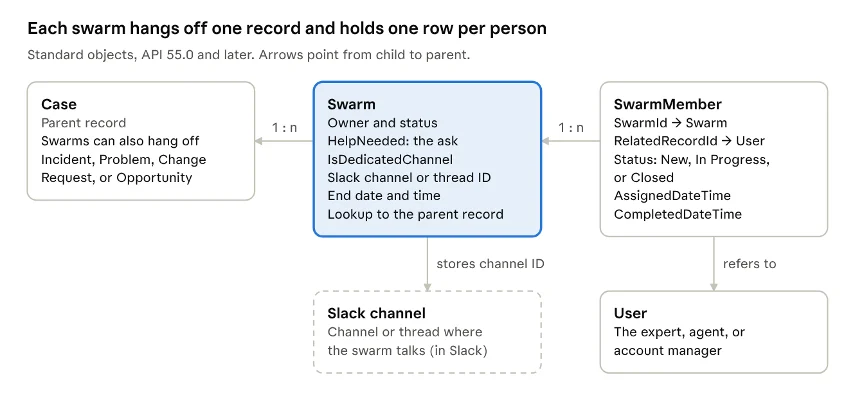
Swarming data model · Case, Swarm, SwarmMember, User, Slack
A few details matter when you design reports and automation:
- One case, many swarms. A case can be swarmed more than once, so report on Swarm records, not on a field on the case.
- Polymorphic member lookup. SwarmMember’s RelatedRecordId can point to a User or to records such as Account, Case, and Incident. Filter by type in reports.
- Members are created for you. In Slack, a SwarmMember record is created when someone joins the swarm channel (Salesforce Help).
- Records can close on their own. Swarm and SwarmMember records can close automatically when the related case closes (release notes).
- Salesforce channels add one more object. When you swarm in a Salesforce channel, SlackChannelRelatedRecord maps the channel to the record.
Fields change between releases. Run a describe on Swarm and SwarmMember in your own org before you build reports or integrations.
Setting it up- practical guide to Salesforce Service Swarming
The fastest path is Salesforce Go. In Setup, open Salesforce Go, search for “Swarming”, and click Keep Going. It walks you through console setup, turning on swarms, deploying the case flows, assigning permissions, and configuring Expert Finder.
If you prefer to do it by hand, or want to know what Salesforce Go did, here are the steps:
1. Turning swarming on
- Turn on swarming in Setup > Feature Settings > Service > Swarming.
- Create or assign a permission set with Create, Read, and Edit on Swarm and Swarm Member. Add the Slack Service User permission set for Slack users.
2. The Begin Swarming action
- On the Case object, create a quick action for the Begin Swarming flow. Add it to the case record page in Lightning App Builder.
- Add the Swarm and Swarm Member related lists to the case page. Consider console navigation items too.
- Add the action to the Case Lightning record page — most teams drop it in the Highlights Panel or (better) in the Actions and Recommendations component, since that’s where Agentforce surfaces follow-on suggestions.
- Drag the Swarm and Swarm Member related lists onto the Case layout so reps can see swarm context without leaving the record.
- Connect Salesforce to Slack from the Swarming setup page (“Swarm With a Collaboration Tool”).
- Set up Omni-Channel skills and assign them to your experts, so Expert Finder has something to match on.
- Turn on feed tracking for Swarm only if you swarm in Chatter, not Slack.
Test the full loop in a sandbox with real Slack users before go-live. Most early issues are user mapping and missing permissions on the expert side.
3. Finding the right expert
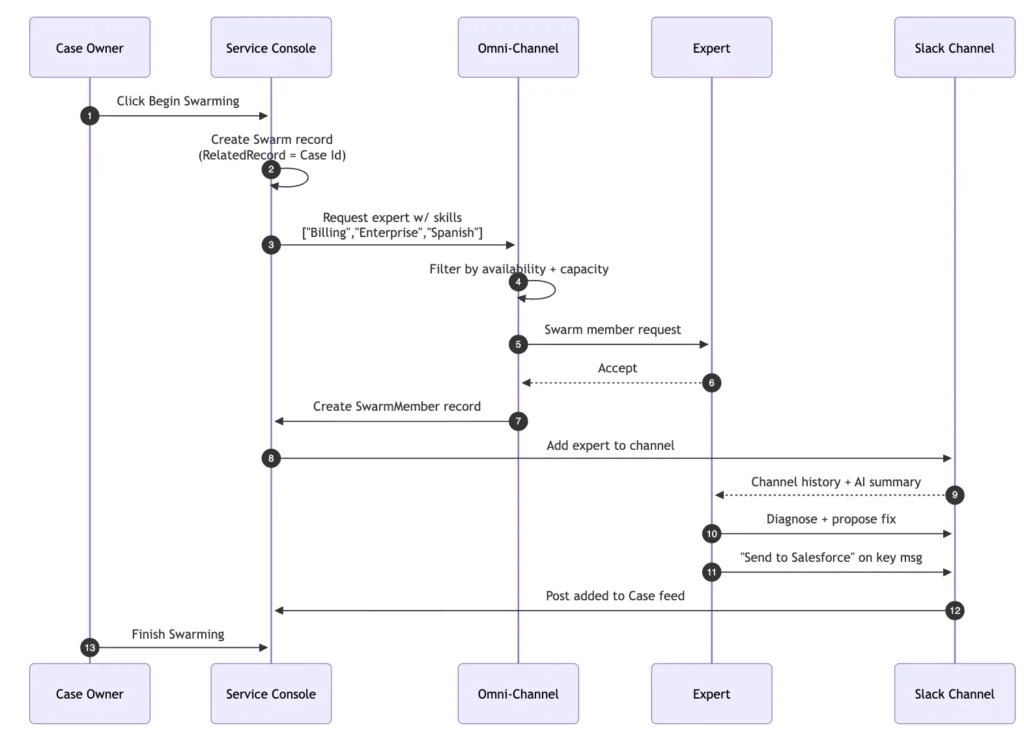
This is where swarming stops being a Slack feature and starts being a Salesforce feature. When a rep clicks Begin Swarming → Expert Finder, they describe the help they need, then pick required skills — things like “Solar Panels,” “English,” “Commercial Installers” in the Trailhead example. Omni-Channel then does what it does for inbound work: checks who has those skills, who’s available right now, and who has capacity under their configured work-item limits
4. Collaboration in Slack
Accepting a swarm request auto-joins the expert to a Slack channel named for the case — the convention is #swarm-case-<CaseNumber>, like #swarm-case-00005246. Agentforce posts an AI-generated case summary as the first message so joiners don’t have to scroll the case history. From there, it’s just Slack: messages, huddles, screen shares, file uploads, the usual.
Two things make the Slack channel special, not just a chat room:
Send to Salesforce. Hover any Slack message, click Send to Salesforce, and the message is pushed back to the Case feed as a post with a link to the Slack channel. That’s how resolution context survives after the channel goes quiet.
Slack Connect for customers. If the customer needs to be in the room too, Slack Connect brings them in as an external participant (admin approval required). Important subtlety: a Slack Connect guest sees the entire channel history from the moment they’re added. If you’ve been chatting internally for forty minutes about “yeah this is a product bug, don’t tell them yet,” that’s suddenly visible. The Salesforce docs recommend two swarms in that scenario — one internal-only, one customer-facing — which is clunky but correct.
5. Finishing the swarm
From the Actions and Recommendations panel on the case, or from the Slack channel itself, the owner clicks Finish Swarming. The swarm record closes, but the channel stays — and the case can reopen the swarm later if the issue recurs. That’s a nice touch: the same Slack channel wakes back up with its full history intact.
Design tips from the field
Swarming is easy to turn on and easy to overuse. These choices keep it useful:
- Define when to swarm. Write clear entry rules, such as P1 severity, a new issue type, or SLA risk. If every case swarms, experts stop answering.
- Treat skills as master data. Expert Finder is only as good as your Omni-Channel skills. Give someone ownership and review skills each quarter.
- Decide on channel strategy. A new channel per swarm gives a clean audit trail but adds clutter. Swarming in a thread of an existing team channel works well for smaller asks. Set a naming convention like swarm-case-<number> and an archive policy.
- Separate internal and external talk. If you use Slack Connect with customers, run a separate internal swarm for candid discussion.
- Close the knowledge loop. Make Send to Salesforce part of finishing a swarm, and turn repeat fixes into Knowledge articles so the next case doesn’t need a swarm at all.
- Extend the flow, don’t fork it. Clone the Begin Swarming flow to add fields like severity or product. Keep changes small so upgrades stay simple.
Architecture and Flow
End-to-end swarm lifecycle.

What happens when an expert gets invited
Measuring success
You don’t have to build reporting from scratch. The AgentExchange package Service Cloud Swarming Reports and Dashboards includes two dashboards:
- Swarming Impact Dashboard: swarm requestors, participation, responders, and the percentage of cases that used swarming.
- Swarming Operational Dashboard: number of swarm requests, number of swarm assists, and average swarm age.
Then add your own Swarm and Swarm Member reports next to your usual case KPIs. Compare time to resolution, escalation rate, and reopen rate for swarmed and non-swarmed cases of the same type. That comparison tells you whether swarming is working or just adding meetings.
Ready to swarm?
Swarming is a small switch in Setup and a big change in how your service team works. Get the entry rules, skills, and Slack design right, and complex cases stop bouncing between tiers.