


Salesforce orgs that are heavily customised accumulate Flow versions rapidly. Every time a Flow is modified and activated, the previous version becomes Obsolete. Over time, an org can end up with dozens — sometimes hundreds — of inactive Flow versions that serve no purpose but quietly create significant maintenance problems.
The most painful consequence is dependency blocking. When you need to delete a field, a class, or any other component that is referenced inside a Flow, Salesforce will not let you delete it while any Flow version — active or inactive — still references it. This means before you can clean up a single field, you first have to open every Flow, find every version that references it, and manually remove or deactivate them one by one.
In a highly customised org with hundreds of Flows and thousands of versions, this becomes an unmanageable task. The manual effort is disproportionate, error-prone, and time-consuming. There is no native Salesforce tool to handle this automatically.
Flow Version Cleaner solves this by automatically identifying and deleting old inactive Flow versions on a configurable schedule, keeping your org clean and your metadata dependencies unblocked.
Use Cases
Use case 1 — Deleting a field referenced in a Flow
You have a custom field on Account that is no longer needed. When you try to delete it from Setup, Salesforce throws an error:
| Cannot delete field. It is referenced in the following Flows: – Account_Onboarding (versions 1, 2, 3, 5, 6, 8) – Account_Renewal (versions 1, 2, 4) |
Without Flow Version Cleaner, you would need to open each Flow, deactivate or modify each version, and repeat for every version listed. With Flow Version Cleaner, old obsolete versions are automatically removed on a schedule, leaving only the active version and a configurable number of recent inactive ones. The field dependency disappears and the deletion succeeds.
Use case 2 — Removing a class referenced in a Flow
You want to refactor or delete an Apex class that is called from a Flow action. Salesforce blocks the deletion because obsolete Flow versions still reference it. The same dependency blocking issue applies — even versions that were deactivated years ago prevent the deletion. Flow Version Cleaner clears those old versions automatically, unblocking the class deletion.
Use case 3 — Cleaning up before a deployment
Before deploying to production, you want to validate a destructive change that removes a Flow-referenced component. In a CI/CD pipeline, stale Flow versions silently block deployments. Running Flow Version Cleaner as part of your pre-deployment process ensures old versions are cleared, reducing the risk of deployment failures caused by dependency conflicts.
Use case 4 — Reducing org storage limits
Salesforce orgs have metadata storage limits. Each Flow version counts toward that limit. In large orgs with hundreds of Flows that have been modified many times, accumulated versions can consume significant storage. Flow Version Cleaner reduces this footprint automatically, helping orgs stay within their storage allocation without manual intervention.
Architecture and Design
High-level overview
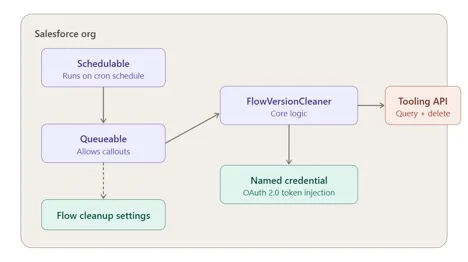
The solution consists of two Apex classes, a Custom Hierarchy Setting, and a Named Credential backed by an External Credential using OAuth 2.0 Client Credentials flow. The classes communicate with the Salesforce Tooling API to query and delete Flow versions.
| Component | Responsibility |
| FlowVersionCleaner | Batch class — queries, groups, evaluates, and deletes Flow versions. Implements Database.Batchable, Database.AllowsCallouts, and Database.Stateful. |
| FlowVersionCleanerSchedulable | Schedulable entry point — reads batch size from Custom Setting and calls Database.executeBatch() directly. |
| Flow_Cleanup_Settings__c | Custom Hierarchy Setting — configures versions to keep, batch size, and dry run mode. |
| FlowCleanerNC | Named Credential — handles OAuth 2.0 token injection automatically. |
The diagram below shows how these components relate to each other within the org.
Why a Named Credential with Client Credentials OAuth?
The Tooling API cannot be called from Apex using UserInfo.getSessionId() reliably in asynchronous or scheduled contexts — the session may not have API access or the session ID may be invalid by the time the job runs.
The Named Credential with OAuth 2.0 Client Credentials flow solves this cleanly. The platform handles token acquisition and refresh automatically with no manual Authorization headers required in the Apex code. The Connected App’s Consumer Key and Secret are stored securely in the External Credential, never in code.
| Important: Salesforce blocks Tooling API DELETE operations when called from same-org Apex directly. The Named Credential route works because the request is treated as an external HTTP callout rather than an internal same-org API call. |
Why a Batch class?
The initial design used a Queueable class to handle callouts from a scheduled context. However as the solution evolved to support heavily customised orgs with thousands of Flow versions, a Batch class became the right architecture for three reasons.
- Database.Batchable with Database.AllowsCallouts supports callouts directly — no Queueable middleman needed.
- The batch framework chunks the delete list automatically. Each chunk gets its own governor limits so the callout budget resets per chunk — keeping DELETE callouts manageable even on orgs with thousands of versions to clean up.
- Database.Stateful persists the running totals of deleted and failed records across chunks so the finish() method can log a meaningful summary.
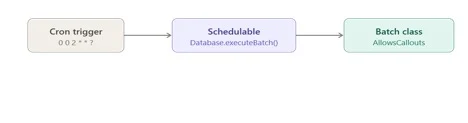
The Schedulable calls Database.executeBatch() directly:
Deletion logic
The core deletion logic follows these rules in order:
- Never delete an Active version.
- Never delete any version whose version number is greater than the active version — these post-active versions may be in review or in flight.
- From the remaining eligible inactive versions, keep the most recent N as configured in the Custom Setting and mark the older ones for deletion.
- If no active version exists for a Flow, treat all versions as eligible and still keep the most recent N, deleting the rest.
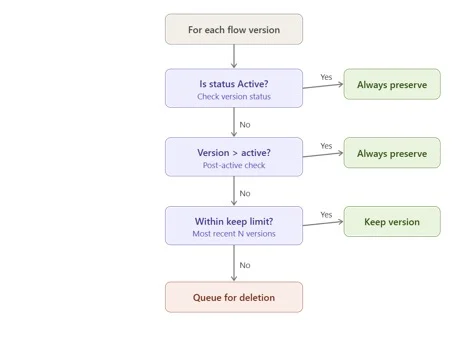
For example, given a Flow with 17 versions where version 14 is Active and the setting is configured to keep 2 inactive versions:
| Version | Status | Outcome |
| v1 — v11 | Obsolete | Deleted |
| v12, v13 | Obsolete | Kept (most recent 2 before active) |
| v14 | Active | Always preserved |
| v15, v16, v17 | Obsolete / Draft | Always preserved (post-active) |
Dry run mode
The Custom Setting includes a Dry_Run__c checkbox. When enabled, the batch logs all versions that would be deleted per chunk but does not fire any DELETE callouts. Each ID is logged individually with its Flow name and version number so the admin can verify exactly what would be removed.
| Recommended: Always run with Dry Run enabled first. Inspect the debug logs to confirm the correct versions are identified before setting Dry Run to false. |
Installation and Setup
Step 1 — Install the package
Install the unlocked package into your org:
| Prod: https://login.salesforce.com/packaging/installPackage.apexp?p0=04tIS000000U2bxYAC Sandbox: https://test.salesforce.com/packaging/installPackage.apexp?p0=04tIS000000U2bxYAC |
Or via Salesforce CLI:
| sf package install –package 04tIS000000U2bsYAC –target-org <your-org-alias> –wait 10 |
Step 2 — Create a Connected App
- Go to Setup → External Client App Manager→ New Connected App.
- Enable OAuth Settings.
- Callback URL: https://login.salesforce.com/services/oauth2/success
- Add scopes: Full access (full) and Perform requests at any time (refresh_token).
- Enable Client Credentials Flow.
- Set Run As to a user with API access and Manage Flow permission.
- Save
- Edit the Policies tab under App Policies, select the “Manage user data via APIs (api)”
- Under Plugin Policies>> Permitted User set “Admin Approved users are pre-authorized”
- On the same tab, Enable the Client Credentials Flow and select the run as user and save.
- Edit settings tab and under OAuth Scopes, select “Manage user data via APIs (api)” and remove other scopes. Save
- Save and note the Consumer Key and Consumer Secret.
Step 3 — Create an External Credential
- Go to Setup → Named Credentials → External Credentials → New.
- Set Label and Name to Flow Cleaner External Credential.
- Set Authentication Protocol to OAuth 2.0 and Authentication Flow to Client Credentials with Client Secret Flow.
- Set Identity Provider URL to https://<yourorg>.my.salesforce.com/services/oauth2/token.
- Check the Pass client credentials in request body checkbox and save.
- Under Principals on the same page, create a new Principal named “ClientIDSecret” and enter the Consumer Key and Consumer Secret from Step 2.
Step 4 — Create a Named Credential
- Go to Setup → Named Credentials → New.
- Set Label and Name to FlowCleanerNC.
- Set URL to https://<yourorg>.my.salesforce.com.
- Set External Credential to FlowCleanerEC.
- Check Generate Authorization Header.
Step 5 — Assign the Permission Set
- Go to Setup → Permission Sets → Flow Version Cleaner Admin.
- Click Manage Assignments and assign it to the user who will run the job.
- On the FlowVersionCleanerAdmin Permissionset, assign the External Credential just created to External Credential Principle Access.
Step 6 — Configure the Custom Setting
- Go to Setup → Custom Settings → Flow Cleanup Settings → Manage → New.
- Set Inactive Versions To Keep — number of inactive versions to retain per Flow (e.g. 2).
- Set Batch Size — number of DELETE callouts per batch chunk (e.g. 10 for heavily customised orgs, up to 100 for smaller orgs). Recommended: 20
- Set Dry Run to true for the first run.
Step 7 — First time execution
Before scheduling the job, run it manually first with Dry Run enabled to verify the correct versions are identified. Run this in Anonymous Apex:
Option A — Use batch size from Custom Setting
| Flow_Cleanup_Settings__c s = Flow_Cleanup_Settings__c.getInstance(); Database.executeBatch(new FlowVersionCleaner(), (Integer) s.Batch_Size__c); |
Check the debug logs — you should see lines prefixed with ** [FlowVersionCleaner] listing each version identified for deletion with its Flow name and version number. Once satisfied, set Dry Run to false and run again to perform live deletions.
Step 8 — Schedule the job
Once the first run is verified, schedule the batch to run automatically. Run this in Anonymous Apex. The following are examples of scheduling:
Daily at 2am
| System.schedule( ‘Flow Version Cleaner’, ‘0 0 2 * * ?’, new FlowVersionCleanerSchedulable() ); |
Every Sunday at midnight (recommended)
| System.schedule( ‘Flow Version Cleaner’, ‘0 0 0 ? * SUN’, new FlowVersionCleanerSchedulable() ); |
First of every month at 3am
| System.schedule( ‘Flow Version Cleaner’, ‘0 0 3 1 * ?’, new FlowVersionCleanerSchedulable() ); |
The cron expression format is: Seconds Minutes Hours Day-of-month Month Day-of-week. You can verify the scheduled job is active under Setup → Scheduled Jobs.
| To stop the scheduled job go to Setup → Scheduled Jobs, find Flow Version Cleaner and click Delete. Never uninstall the package without stopping the scheduled job first. |
Source Code and Package
The full source code is available on GitHub and the package is publicly installable:





Here is the link to the github repo: https://github.com/samzala/sf-flow-version-cleaner
and the link to the updated package: https://login.salesforce.com/packaging/installPackage.apexp?p0=04tIj000000LSvoIAG