
In Salesforce, new features are added regularly, and sometimes you might want to release them over time. You may want to test a feature with a few users first and then have the ability to turn it off instantly if something goes wrong. A feature toggle is a simple mechanism that lets you control whether a feature should be active or not without redeploying code.
Even though Salesforce does not provide a pre feature toggle system, you can build one easily using Custom Metadata Types, Apex, and Lightning Web Components (LWC). This blog guide you to create a simple, maintainable, and fully functional feature toggle system using custom metadata.
Step 1: Create a Custom Metadata Type for Features
First create a place to store your feature toggles by building custom metadata. Salesforce Custom Metadata Types are perfect because they are deployable across environments along with their records, cached for performance, and can be modified in production.
Creating Custom Metadatatype :
- Go to Setup → Custom Metadata Types → New Custom Metadata Type.
- Create Custom metadata with name as Feature_Toggle
- Add these fields to Feature_Toggle custom metadata:
- Feature Name (Text) – To store names of the features.
- Is Enabled (Checkbox) – To check if the feature is turned on or off.
- Description (Long Text) – A short explanation of what the feature does (optional).

After this, each feature you want to control will have a record in this metadata type. For example, you could create a record called LWC_New_Order_UI with Is Enabled set to false initially.
Step 2: Create an Apex Class to Check Feature Status
Then, you need a primary code that checks if feature is enabled which can be used later for enabling or disabling features. This ensures all parts of Salesforce check features regularly.
Apex class:
public with sharing class FeatureToggleService {
 private static Map<String, Feature_Toggle__mdt> featureCache;

    static {
        // Load all feature metadata into memory to avoid repeated queries
        featureCache = Feature_Toggle__mdt.getAll();
    }

    // Check if a feature is enabled
    public static Boolean isFeatureEnabled(String featureName) {
        Feature_Toggle__mdt feature = featureCache.get(featureName);

        // If the feature doesn't exist or is disabled, return false
        if (feature == null || !feature.Is_Enabled__c) {
            return false;
        }

        return true;
    }
}
Explanation:
This class loads all feature metadata into a static map with feature name as key and metadata record as value , which is cached during the transaction. The isFeatureEnabled method returns true if the feature exists and is enabled. If the feature is missing or if it is not enabled , it returns false. With this, you can check any feature in Apex or LWC regularly.
Step 3: Using Feature Toggles in Lightning Web Components
Feature toggles can also manage the user interface by deciding which parts of the screen can be rendered. When a feature is enabled, users see the new behavior or component being rendered, and when it is disabled, the existing behavior continues without any code changes.
First, create an Apex class to know the feature status:
public with sharing class FeatureToggleController {
    @AuraEnabled(cacheable=true)
    public static Boolean isFeatureEnabled(String featureName) {
        return FeatureToggleService.isFeatureEnabled(featureName);
    }
}
Here we are creating an Lightning component to check the behaviour while the feature is enabled and disabled
import { LightningElement, wire } from 'lwc';
import isFeatureEnabled from '@salesforce/apex/FeatureToggleController.isFeatureEnabled';

export default class NewOrderExperience extends LightningElement {
    isEnabled = false;

    @wire(isFeatureEnabled, { featureName: 'LWC_New_Order_UI' })
   wiredFeature({ data }) {
        if (data !== undefined) {
            this.isEnabled = data;
        }
    }
}
<template>
<template if:true={isEnabled}>
<div>
<h2>New Feature is Enabled!</h2>
<p>This is the new functionality now visible to users.</p>
</div>
</template>
<template if:false={isEnabled}>
<div>
<h2>Legacy Feature is Active</h2>
<p>The old functionality is being used instead.</p>
</div>
</template>
</template>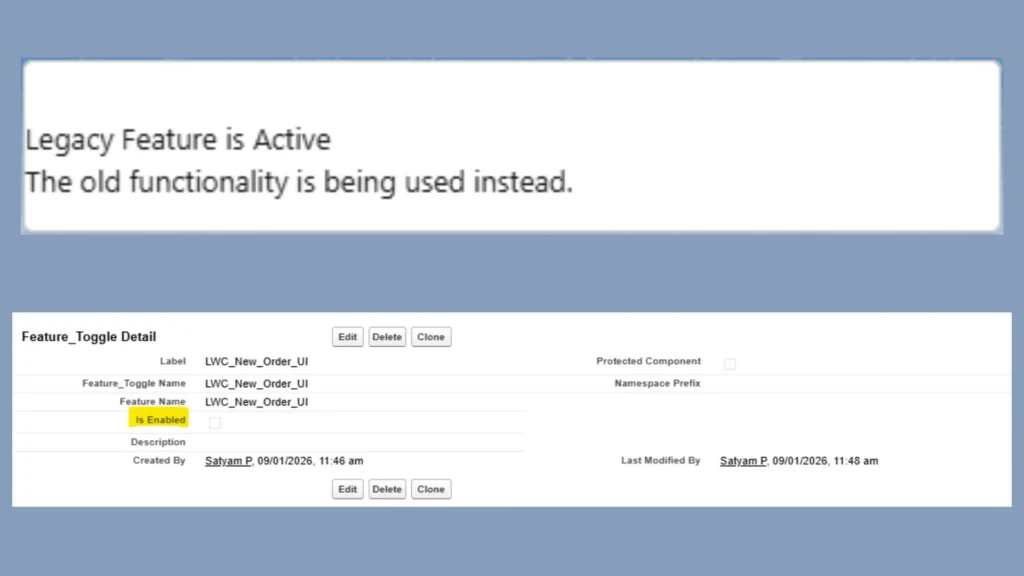
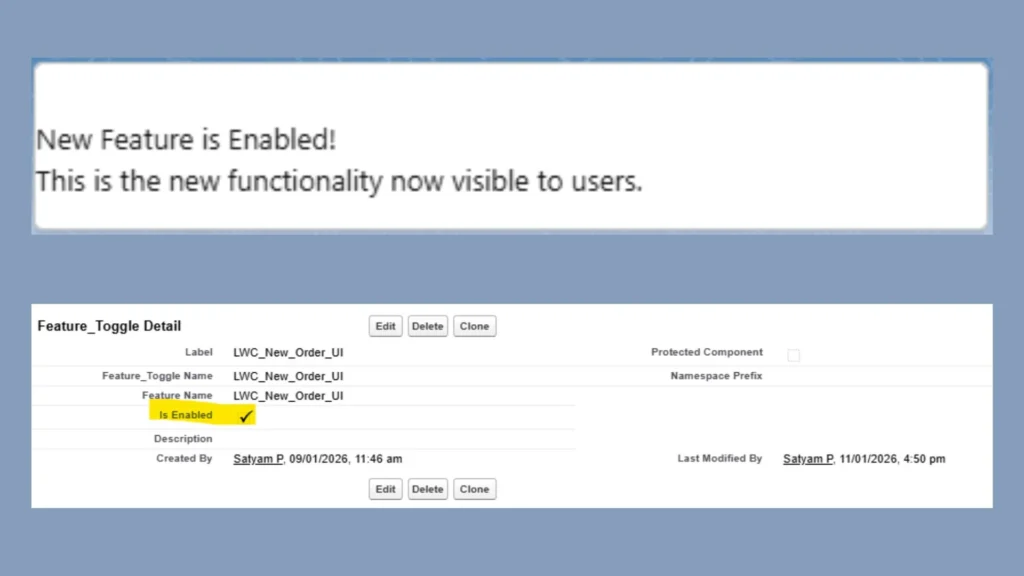
In this lightning component we have two sections New feature section, Legacy feature section and their rendering depends on isEnabled field from Custom Metadata record from particular feature. We can eliminate the need for code changes or redeployment, contents of can altered by changing values in custom metadata records.
Step 4: Toggle feature in Flows
You can also use this feature toggles in Flows. This can be achieved easily by retrieving custom metadata records through Get Records element in Flows to check if the feature is enabled or disabled in custom metadata and use it in Decision element. This allows your flow use the same data as custom metadatatype record.
Step 5: Deployment and Best Practices
When deploying a new feature with toggles:
- Always create the feature toggle disabled by default.
- Enable the feature in production only when you are ready for it to go live.
- Monitor performance and user feedback.
- Once the feature is stable and the old logic is no longer needed, remove the old code and toggle record to keep your system clean.
Testing is simple. In Apex tests, you can mock the FeatureToggleService to simulate features being enabled or disabled. This ensures that your code works correctly in both states.
Conclusion
Developing a simple feature toggle system in Salesforce is an easy and no Paid services were required. By using Custom Metadata Types, Apex you can achieve following things – Turn features on or off without redeploying, Keep logic consistent across Apex, UI, and Flows without changing codes ,Safely test new features before full rollout, Reduce deployment risk.
It allows Salesforce developers and admins to manage features dynamically and safely across environments. Learn more about FeatureManagement class.