

Salesforce Spring ’26 brings meaningful improvements to Salesforce Flow, especially for admins who build Screen Flows and manage complex automation. This release focuses on three big areas: better user experience, easier flow building, and stronger monitoring. Let’s look at the top Flow features in the Spring ’26 release notes.
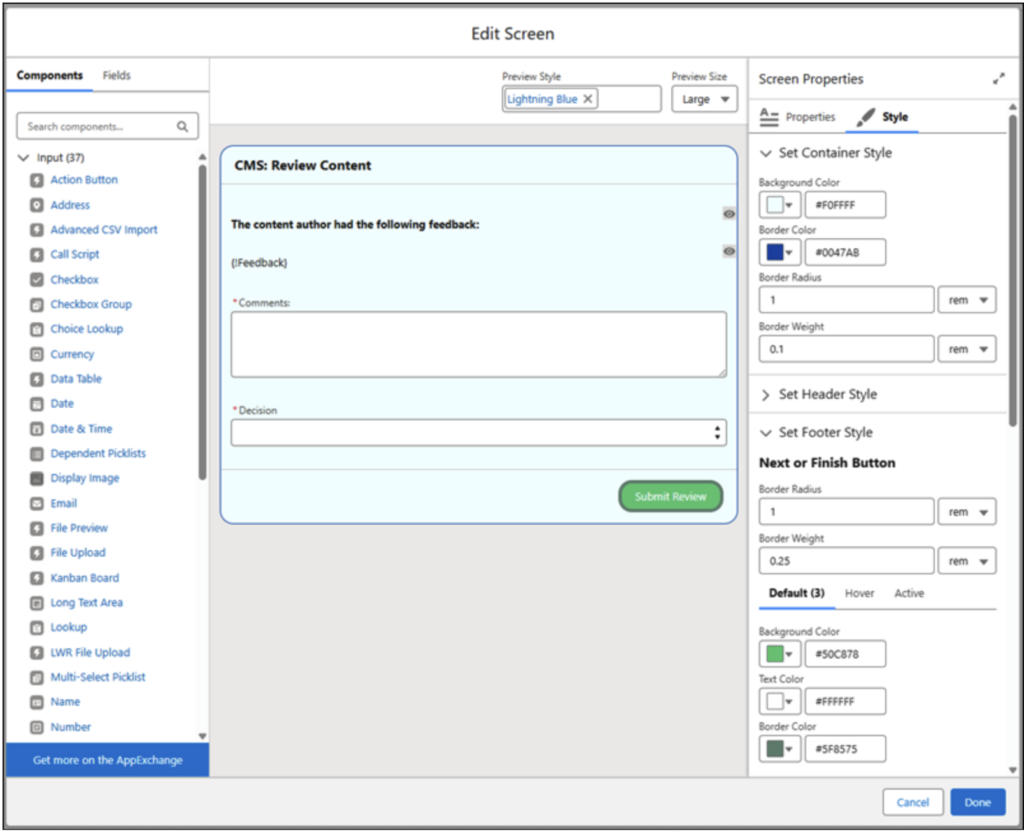
1. Tailor Screen Flows to Your Audience with Component-Level Styling Overrides
Until now, Screen Flows mostly followed your org or Experience Cloud theme. If you wanted a specific screen or component to stand out, there were very limited options.
Spring ’26 changes that. With component-level styling overrides, you can now control how individual parts of a Screen Flow look.
What you can style
You can customize things like:
- Background color
- Text color
- Border color and thickness
- Border radius
- Buttons and containers
This styling applies to many components, including:
Checkbox, Picklist, Radio Button, Text, Number, Date, Currency, Long Text Area, Repeater, Section, and more.
How it works
- Open a Screen element in Flow Builder
- Go to Screen Properties
- Open the Style tab
- Set styles for the header, container, and footer
Any styles you apply here override the org or site theme.
Why this matters
This makes flows:
- Easier to read
- More user-friendly
- More aligned with your business branding
For example, you can highlight important sections, make action buttons more visible, or visually separate steps in a long flow.
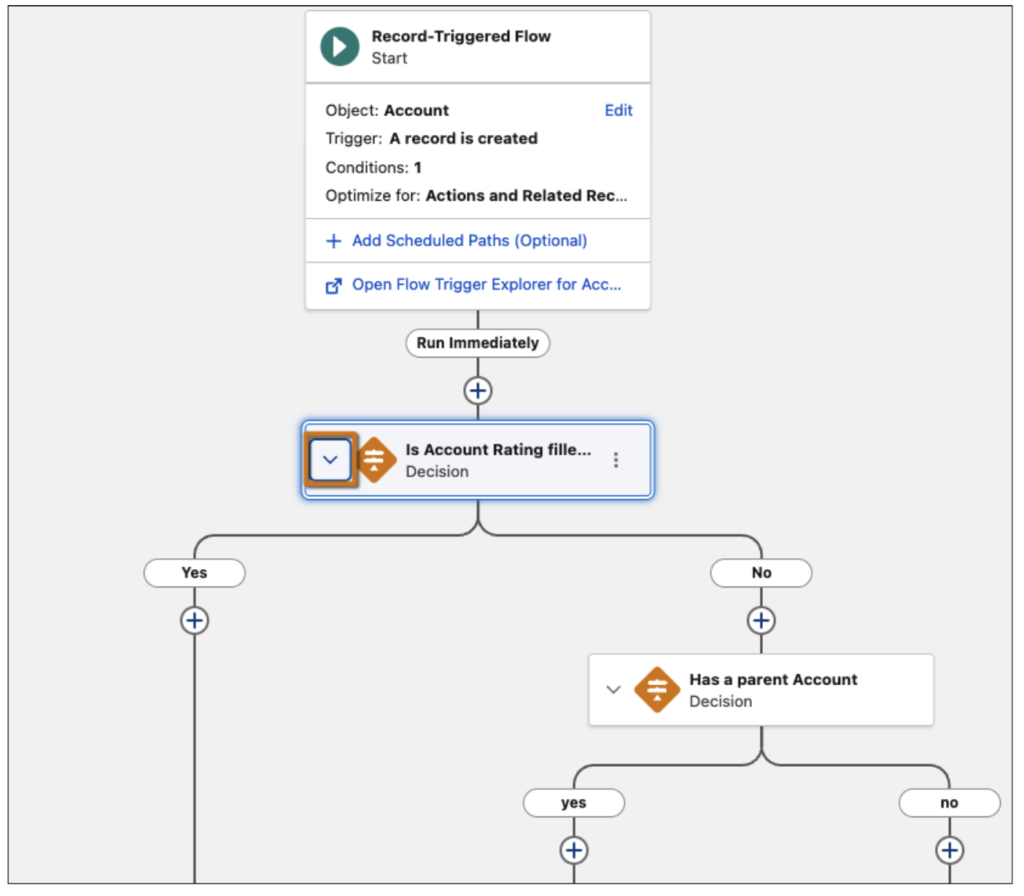
2. Simplify Your Flow Builder Layout by Collapsing Branching Elements
Large flows can become hard to manage, especially when they contain many decisions and loops.
Spring ’26 introduces a very practical feature: collapsing and expanding branching elements in Flow Builder.
What you can collapse
You can collapse elements that usually take a lot of space, such as:
- Decision
- Loop
- Wait
- Path Experiment
- Async Actions
How it works
In the Flow Builder canvas, you’ll see Collapse or Expand next to an element’s name.
Click it to hide or show the branching paths.
Flow Builder also remembers your layout preference locally, so when you come back later, your view stays the same.
Why this matters
This helps you:
- Focus on the part of the flow you’re working on
- Reduce visual clutter
- Understand complex flows faster
It’s a small change, but it makes daily flow development much easier.
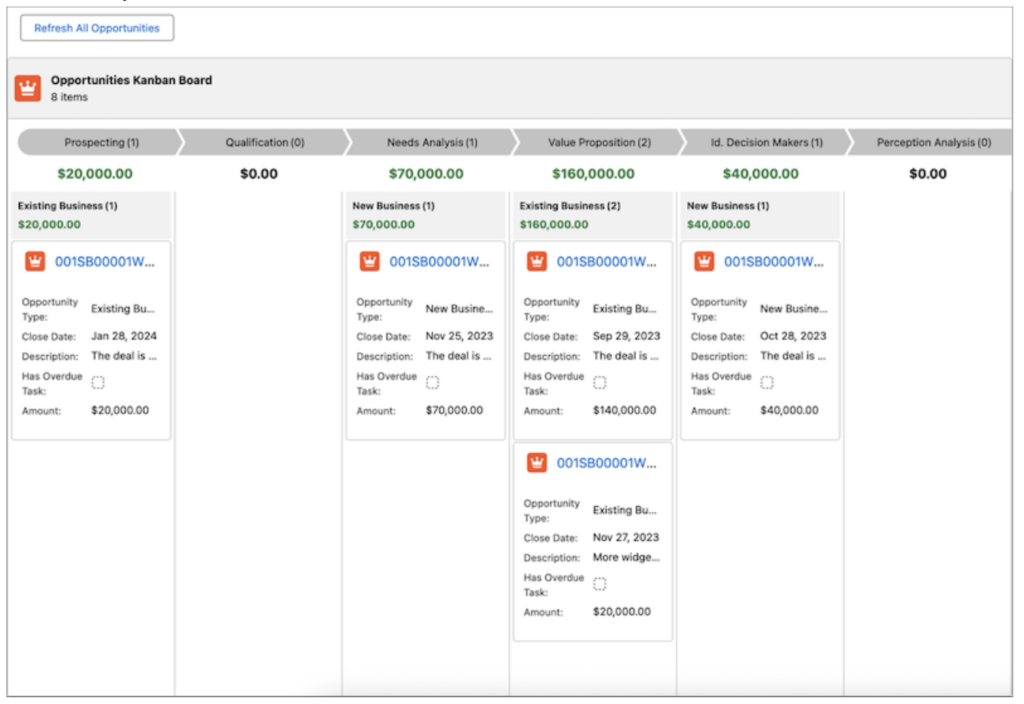
3. Visualize and Track Record Progress with Kanban Boards in Screen Flows (Beta)
Spring ’26 introduces a new Kanban Board screen component for Screen Flows. This allows you to show records visually, directly inside a flow.
What the Kanban Board does
- Displays records as cards
- Uses columns based on a picklist field
- Shows key record details on each card
- Is read-only (users can’t drag cards)
How it works
You:
- Add the Kanban Board component to a screen
- Select a record collection (for example, Opportunities)
- Choose a picklist field for columns (like StageName)
- Select which fields appear on the card
You can also:
- Group cards by another field
- Show summary values for columns
Why this matters
This is very useful when users need visibility, not editing.
Examples:
- Viewing Opportunity pipeline stages inside a flow
- Tracking Case progress during guided support
- Reviewing records before taking an action
Users get context without leaving the flow.
4. Add Visually Distinct and Accessible Messages to Screen Flows
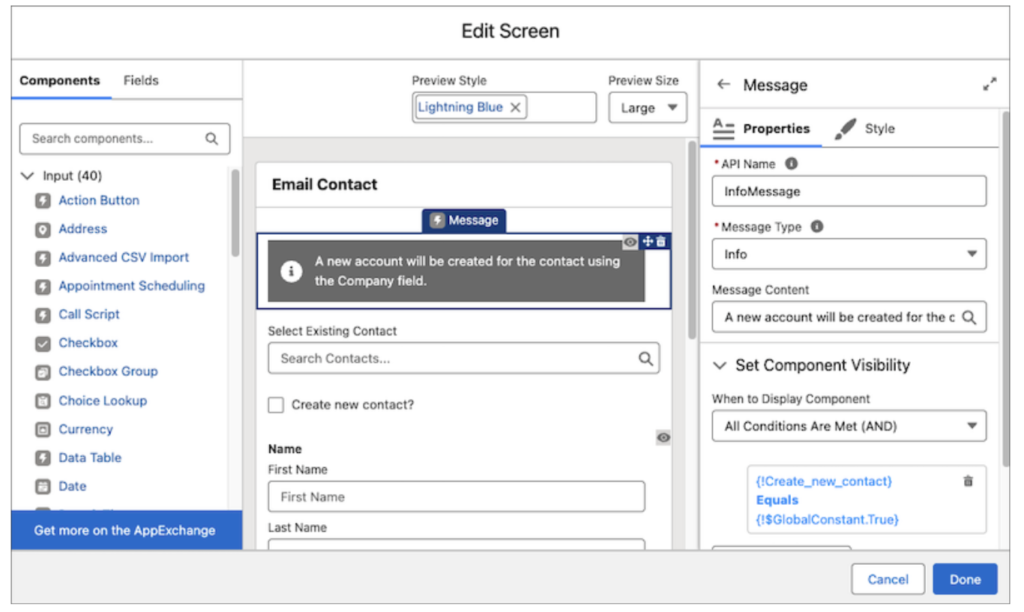
Clear communication inside a flow is important. Spring ’26 adds a new Message screen component to help with that.
What this component does
You can display messages that are:
- Information
- Success
- Warning
- Error
Each message:
- Uses clear colors and icons
- Is accessible and screen-reader friendly
- Can display static text or a flow resource
How it works
- Add the Message component to a Screen
- Choose the message type
- Enter text or reference a variable
Why this matters
This improves user experience by:
- Guiding users during the flow
- Confirming actions clearly
- Preventing confusion or mistakes
For example, after saving data, you can show a success message instead of silently moving to the next screen.
5. Set Up and Monitor Flow Logging in One Place
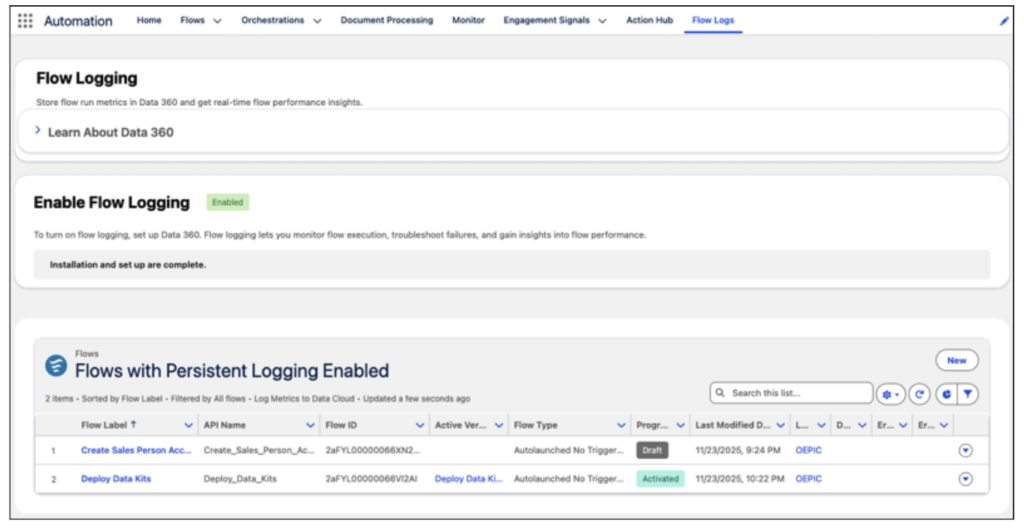
Debugging and monitoring flows has always been a challenge. Spring ’26 introduces a central place to handle this with Flow Logs.
What’s new
A new Flow Logs tab is now available in the Automation Lightning App.
From here, you can:
- Set up Data 360
- Enable flow logging
- See which flows are logging data
- View flow run metrics and performance insights
Why this matters
This gives admins better visibility into:
- How often flows run
- How they perform
- Where issues may occur
Instead of guessing or relying only on debug logs, you now get a clearer picture of flow behavior in real time.
Conclusion
Salesforce Spring ’26 brings practical and user-focused improvements to Salesforce Flow.
With better styling options, cleaner Flow Builder layouts, visual Kanban boards, clear messaging, and centralized logging, admins can now:
- Build flows that look better
- Manage complex automation more easily
- Give users a smoother experience
- Monitor flow performance with confidence
If you work with Screen Flows or Flow Builder regularly, Spring ’26 is a release worth exploring in detail.