
Salesforce Spring ’26 focuses on how admins really work. Not big UI redesigns. Not shiny features for demos. This release is about fewer interruptions, clearer security signals, and less friction inside Setup. If you manage users, security, integrations, or day-to-day platform stability, these five updates will quietly improve how your org runs.

1. Error Console: See Errors Without Disrupting Users
Errors are unavoidable in any mature Salesforce org. What changes in Spring ’26 is how those errors show up.
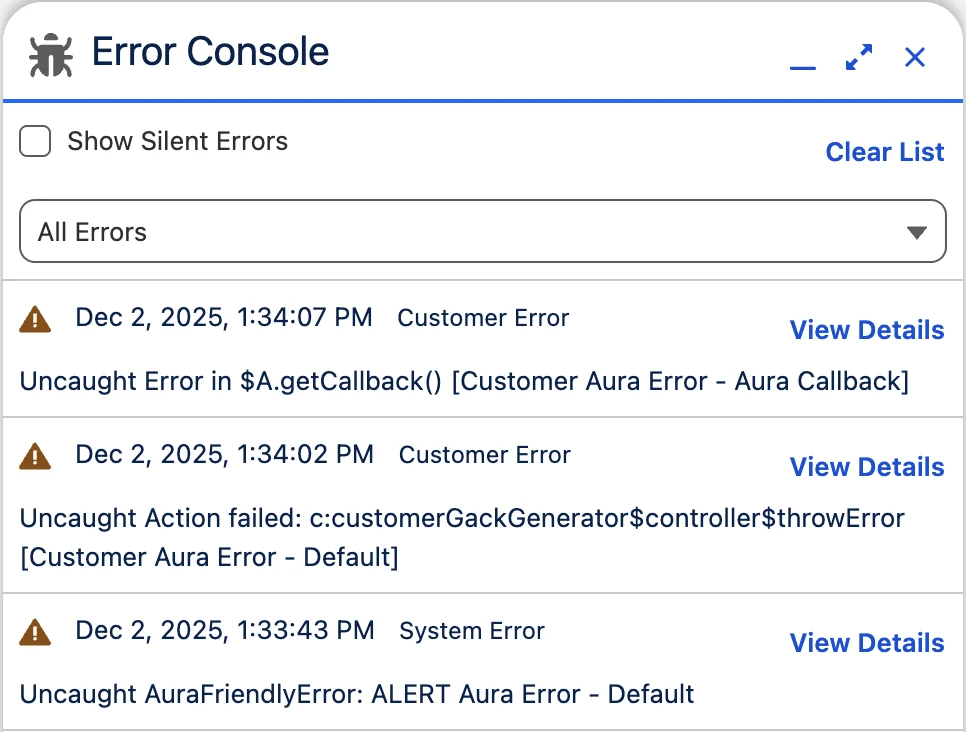
Salesforce now introduces an Error Console that collects page and component errors without constantly interrupting users.
Non-fatal errors are captured silently in the background. Users can continue their work without dismissing pop-ups. Fatal errors still appear immediately, but they’re also logged for later review.
This means admins and developers can review issues when it makes sense, instead of reacting to every interruption reported by users.
How it works
- Errors are logged automatically
- Non-fatal errors no longer block user actions
- Fatal errors remain visible but are also stored for analysis
How to enable
Go to Setup → User Interface → Advanced Settings and enable Use Error Console for error reporting in Lightning Experience.
2. Setup with Agentforce: A New Way to Navigate Setup (Beta)
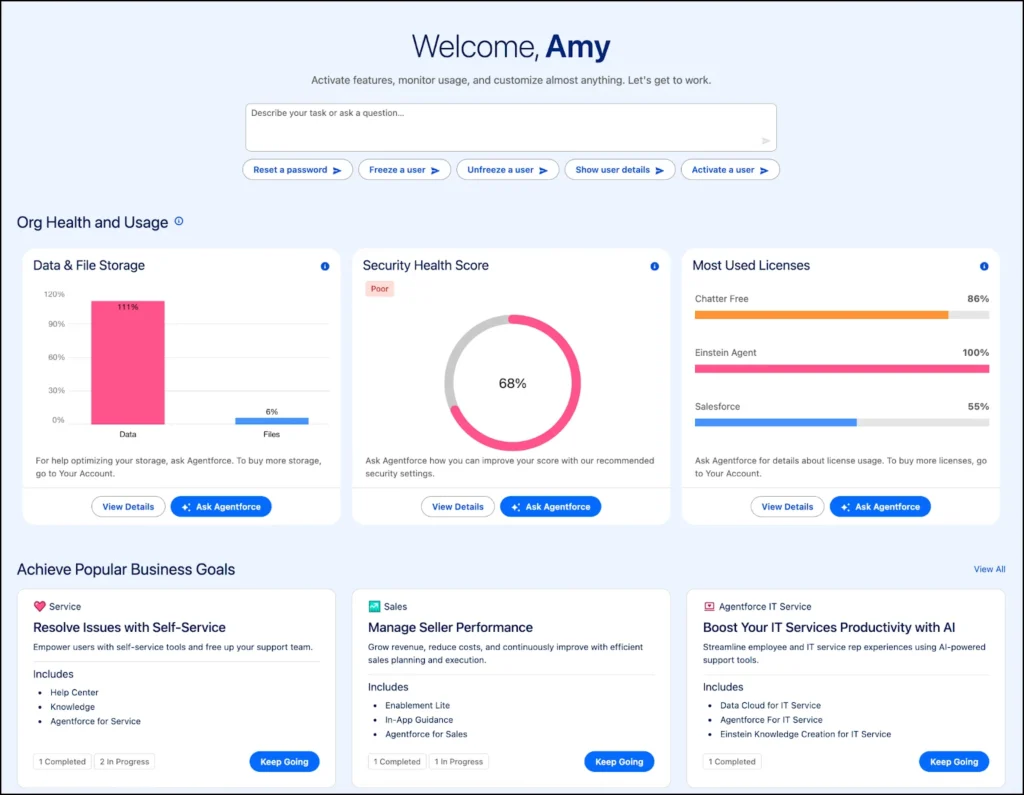
Spring ’26 introduces Setup with Agentforce, an agent-driven Setup experience built directly into Salesforce.
Instead of jumping across Setup pages, admins can ask questions or issue commands in natural language. The agent helps with tasks like managing users, creating objects and fields, building flows, fixing formulas, and navigating to the right Setup area.
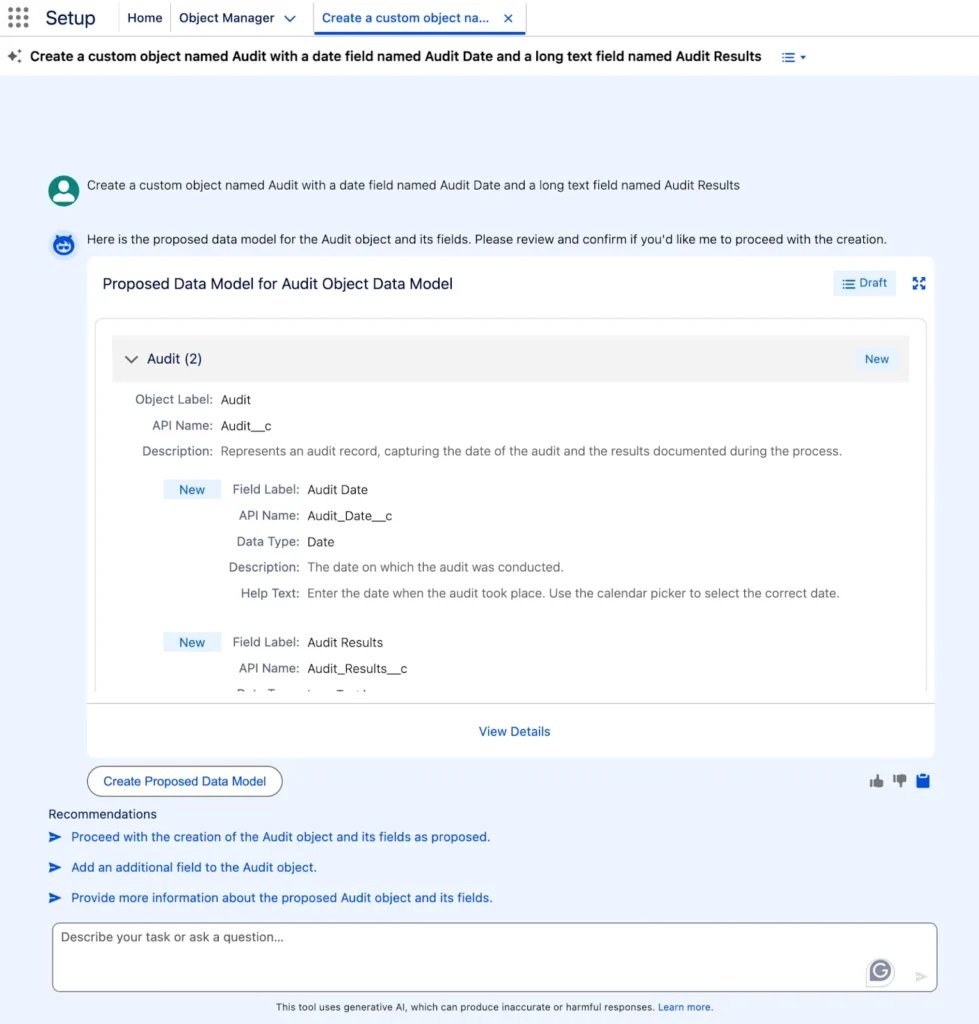
You stay inside Setup the entire time. No extra tools. No guessing where things live.
The agent appears:
- On Setup Home through a prompt bar and suggested actions
- On other Setup pages through an Ask Agent for Setup option
- In a full-screen experience when deeper context is needed
This is especially useful in large orgs where Setup complexity grows over time.
3. Connected App Creation Is Restricted in Spring ’26
This update affects how integrations are designed moving forward.
From Spring ’26 onwards, customers can no longer create new connected apps by default. Creation is blocked through both the UI and API. New connected apps are allowed only through package installation or by requesting access from Salesforce Support.
Existing connected apps continue to work as they do today. There is no impact on current integrations.
Salesforce is clearly steering customers toward External Client Apps, which offer stronger security controls and better packaging support.
What admins should plan
- Avoid creating new integrations using connected apps
- Review and document existing connected apps
- Align future integrations with External Client Apps
This change is about long-term security and governance, not immediate disruption.
4. Delete Salesforce Files: More Control Without Admin Bottlenecks
File management has traditionally required admin involvement. Spring ’26 introduces a new permission that changes this.
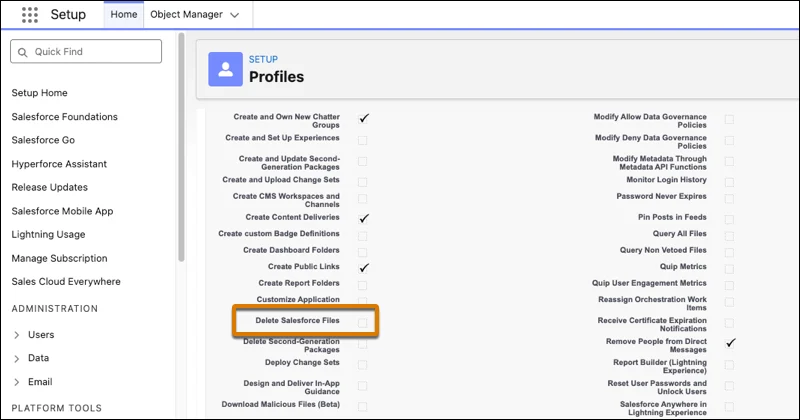
The Delete Salesforce Files permission allows users to delete any file they have access to view. Earlier, deletion was limited to file owners or system admins.
With the right permission assignment, teams can manage their own files without waiting on admin support.
This is particularly useful for sales, service, and operations teams that handle shared records and documents.
Admin guidance
- Assign the permission through profiles or permission sets
- Start with trusted roles
- Avoid broad enablement without governance
5. Health Check: Deeper Security Visibility and Alerts
Health Check gets a meaningful upgrade in Spring ’26 for orgs using the Security Center add-on.
Expanded security tracking
Health Check now evaluates seven additional configurable security settings, including:
- Multi-Factor Authentication status
- SAML configuration
- Session management controls
This gives a more accurate picture of how secure the org really is, not just whether basic settings are enabled.
Score change notifications
Admins can now configure notifications when the Health Check score changes.
You can:
- Notify all System Administrators
- Select individual internal users
- Add external email addresses for security or audit teams
This turns Health Check into an active monitoring tool instead of a report you remember to check occasionally.
How to configure
Go to Setup → Health Check, enable notifications, and define recipients.
Conclusion
Spring ’26 isn’t about adding noise. It’s about reducing it.
Users face fewer interruptions from errors.
Admins spend less time navigating Setup.
Security posture becomes clearer and easier to monitor.
Integration strategy becomes more disciplined.
These updates don’t demand immediate action, but they reward admins who plan ahead. Over time, they make Salesforce calmer to use and easier to govern.
FAQs
What is the Error Console in Salesforce Spring ’26?
The Error Console captures page and component errors in Lightning Experience. Non-fatal errors are logged without interrupting users, while fatal errors remain visible and are also recorded for later review.
Will my existing connected apps stop working in Spring ’26?
No. Existing connected apps continue to work normally. The restriction applies only to creating new connected apps.
Who should get the Delete Salesforce Files permission?
This permission is best assigned to trusted roles that manage shared records or documents. It should be controlled using permission sets rather than enabled broadly.
Do Health Check improvements require any add-on?
Yes. The expanded Health Check settings and notifications are available only to customers with the Security Center add-on.