
The Question You Cannot Answer Yet
Here is a test. Without opening any tools, can you answer these three questions about your Salesforce org?
- Which connected app made the most API calls last week?
- Is any integration still running on an API version Salesforce plans to retire?
- Did anything unusual happen with your API traffic over the weekend?
If you answered “I’d need to check” to all three — welcome to the majority. Most admins know their org’s API usage as a single number on System Overview. This guide is about turning that number into a story you can actually tell.
Why API Monitoring Deserves a Spot on Your Admin Radar
You are already juggling user provisioning, automation maintenance, release management, and a dozen other things. Adding API monitoring to the pile might sound like overkill. But here is the thing — it keeps coming up.
Integration health: In a well-run org, API traffic follows a predictable rhythm. Same volumes, same days, same integration users doing the heavy lifting. When that rhythm breaks, you want to know.
Deprecation readiness: Salesforce periodically sunsets older API versions. If you have no visibility into which integrations use which versions, the first sign of trouble is a production outage.
Security posture: If your security team ever asks “which apps were calling Salesforce between 2 AM and 4 AM last Thursday?”, you want to have an answer — or at least know where to find one.
Solid API monitoring lets you respond to all three scenarios with data instead of guesswork.
How Salesforce API Limits Actually Work
Your Salesforce org runs on shared infrastructure alongside thousands of other customers. API limits are the mechanism that prevents any single tenant from degrading performance for everyone else. As an admin, the key concept to internalize is the difference between the soft guardrail and the hard cliff.
The Daily API Request Limit
Every org gets a Daily API Request Limit that covers REST, SOAP, Bulk, and Connect API calls. A few things worth noting:
- It operates on a rolling 24-hour window, not a calendar day reset at midnight.
- It scales based on your Salesforce edition and certain license types.
- It is a soft limit — Salesforce may tolerate short bursts above it while the platform remains healthy.
However, if consumption keeps climbing, a protection mechanism kicks in: new calls get rejected with HTTP 403 and error code REQUEST_LIMIT_EXCEEDED. The block lifts only once your trailing 24-hour total falls back below the threshold.
The practical takeaway: treat the documented limit as your operating ceiling. Crossing it occasionally might not cause immediate damage, but making a habit of it means you are one bad batch job away from an outage.
The Monthly API Entitlement
Think of this as the 30-day moving average of your API consumption. Salesforce compares your total calls over the last month against your entitlement.
There is no enforcement mechanism tied to the monthly number directly. Its value is as a trend indicator — it smooths out daily noise and shows you whether API demand is creeping upward over weeks and months. That information is gold when planning new integrations or negotiating with project teams about expected load.
Where to Check Your Numbers
Two Setup pages give you everything you need at a glance:
Company Information (Setup → Company Information)
- API Requests, Last 24 Hours — your current rolling daily usage against the limit.
- API Request Limit per Month — your 30-day consumption versus entitlement.
System Overview (Setup → System Overview)
- A visual bar showing your 24-hour API call count as a percentage of the daily limit.
- Great for a quick sanity check after deployments, data loads, or Monday mornings.
For the technically inclined: developers can also pull limit data from the Sforce-Limit-Info response header and the /services/data/vXX.0/limits REST endpoint to feed into custom dashboards.
Native Monitoring Tools You Should Turn On Today
Before reaching for any third-party solution, make sure you have squeezed the most out of what Salesforce gives you for free.
The 7-Day API Usage Report
Hidden in Salesforce Classic under Reports → Administrative Reports, the “API Usage in the Last 7 Days” report breaks down API calls by user and day. You will find it in Enterprise, Performance, and Unlimited orgs (Professional Edition may need extra activation).
Tips to get more from it:
- Clone it immediately — the default version cannot be customized.
- Group by User, then by Date to identify your heaviest consumers.
- Add a chart and save it to a shared folder so your ops team can reference it.
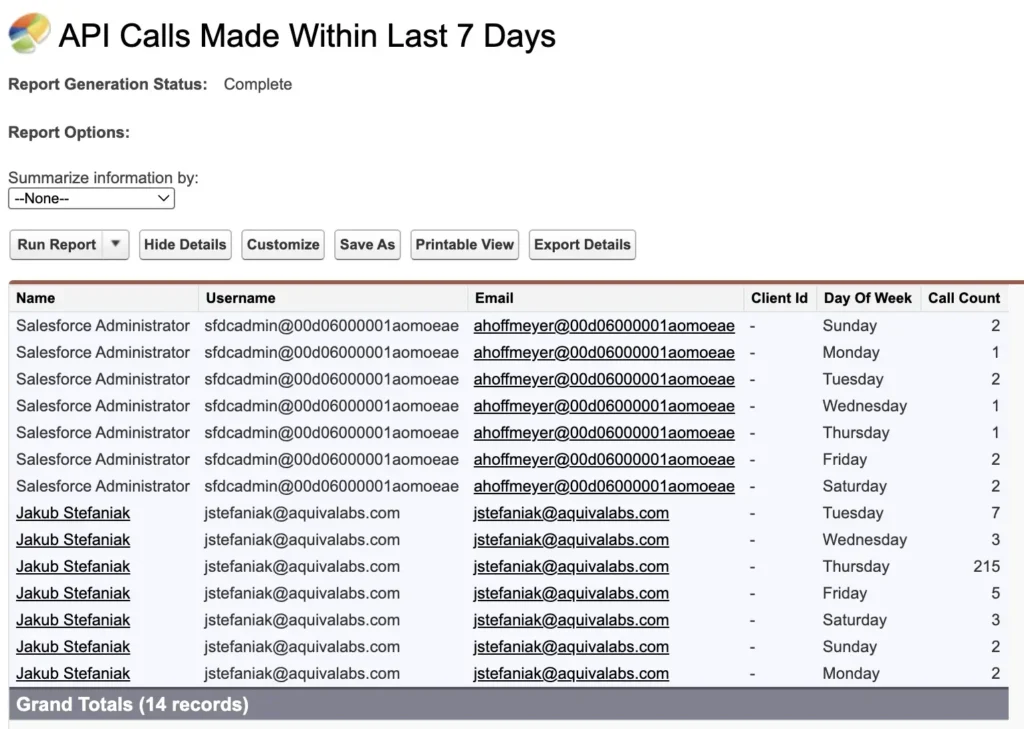
It will not show you request timestamps or capture every Bulk API operation, but it answers the essential question: who is responsible for most of our API traffic this week?
API Usage Notifications
This is the lowest-effort, highest-value monitoring step you can take. Navigate to Setup → API Usage Notifications and configure threshold-based email alerts.
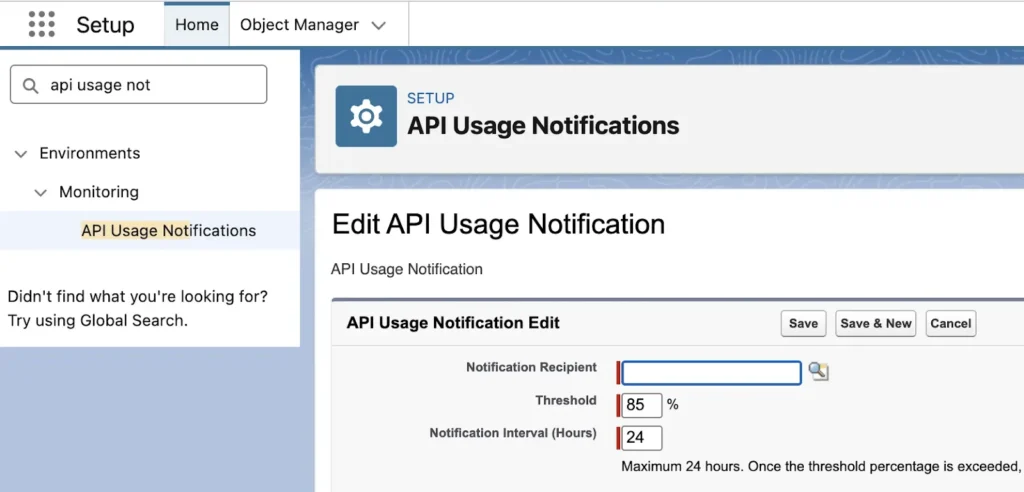
A starting point that works for most orgs:
| Threshold | Window | Check Frequency |
| 50% | Last 24 hours | Once per day |
| 80% | Last 4 hours | Every 4 hours |
| 90% | Last hour | Every hour |
Route these to a shared mailbox or operations alias — not just your personal inbox. You want someone to see these even when you are on vacation.
Event Log Browser and API Total Usage
If the 7-day report gives you the “who,” event logs give you the “what, when, where, and how.”
One-time setup: Head to Setup → Security → Event Monitoring → Event Monitoring Settings and flip on “Generate event log files.”
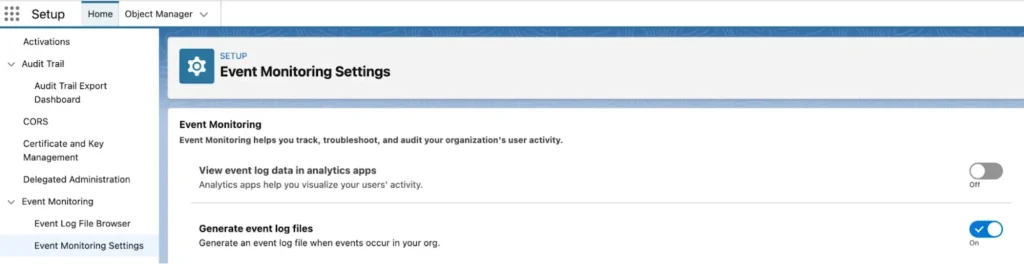
Then browse your logs at: Setup → Security → Event Monitoring → Event Log Browser.
Filter for the API Total Usage event type and download the CSV. Each row represents an individual API call with fields including:
- USER_ID — the Salesforce user (typically an integration user)
- CLIENT_IP — where the call originated
- CONNECTED_APP_ID — the connected app or external client identifier
- CLIENT_NAME — an optional self-reported label from the calling application
- API_FAMILY / API_RESOURCE — which API surface and endpoint
- ENTITY_NAME — the Salesforce object accessed
- ROWS_PROCESSED — approximate record count
- STATUS_CODE — the HTTP response (200, 401, 500, etc.)
- REQUEST_ID — a correlation ID for cross-referencing with other logs
This is your single source of truth for API activity. Everything else — System Overview, the 7-day report, usage notifications — is a summary layer on top of this data.
Governance Practices That Pay Off When Things Go Wrong
Good monitoring is only as effective as the hygiene underneath it. A few disciplined practices make the difference between “let me check” and “I have no idea.”
Give Every Integration Its Own Identity
Each significant integration should have its own connected app (or external client app) and its own dedicated integration user. This means:
- You can track each tool’s API footprint independently via CONNECTED_APP_ID.
- You can revoke access to one integration without collateral damage to others.
- Permission sets stay tight — each integration user only touches the objects it needs.
Avoid the temptation of a single “API User” account shared across five different tools. It saves time during setup and costs you hours during every investigation.
Insist on Meaningful Client Names
The CLIENT_NAME field in event logs is optional, and most clients leave it blank or default to something unhelpful like “python-requests.” Push your vendors and internal teams to set it via the Sforce-Call-Options header with a descriptive label — something like “Warehouse-ETL-Prod” or “Marketing-Sync-v2.”
This single practice transforms your log files from cryptic to scannable.
Keep an Integration Catalog
Maintain a lightweight reference document — even a shared spreadsheet — listing each integration with its:
- Application name and business owner
- Connected app identifier and integration user
- Expected schedule and typical daily volume
- API family and version in use
When a security advisory drops or an anomaly surfaces, this catalog turns a multi-hour investigation into a five-minute lookup.
Decoding CONNECTED_APP_ID: The 0H4 and 888 Mystery
For anyone doing serious API analysis, CONNECTED_APP_ID is the field that ties a raw log entry to a real application. Unfortunately, interpreting it is not always straightforward.
0H4 Prefix — Connected Apps in Your Org
IDs starting with 0H4 reference connected apps registered inside your Salesforce org. You can resolve them by navigating to https://[your-domain].my.salesforce.com/[0H4-ID] to see the app name, publisher, and access policies.
888 Prefix — External Client Apps
IDs starting with 888 are trickier. They represent external client applications that Salesforce recognizes but that do not appear in your org’s Connected Apps list. To find out what a specific 888 ID maps to, the official process is to open a Salesforce Support case and ask.
This is painful during time-sensitive investigations. There is no self-service lookup, no central mapping in Setup, and every new 888 ID means another support ticket. Many admins understandably give up and label these as “unknown external app.”
What the Ideal Experience Looks Like
Imagine opening your API monitoring dashboard and seeing human-readable application names for every single CONNECTED_APP_ID — whether 0H4 or 888. No ID decoding. No support tickets. No tribal knowledge locked in one admin’s notebook.
This is exactly the problem that sAPIm (Simple API Monitor for Salesforce) was built to solve. More on that shortly.
Beyond Thresholds: Why Baselines and Anomaly Detection Matter
Limit-based alerts tell you when aggregate usage is high. They do not tell you when usage is weird.
Example: Your nightly ETL job fires 30,000 API calls at 3 AM every day — perfectly normal. One day, it fires the same 30,000 calls at 7 PM instead. Total daily volume is unchanged. No threshold is breached. But operationally, something has shifted, and you want to know about it.
To catch this kind of change, you need baselines — a structured understanding of what normal looks like for each integration, user, and time window. Useful baselines capture:
- Per-app call volume by hour and day of week
- Which objects and API endpoints each integration typically hits
- Geographic patterns (which IPs and regions are expected)
- Weekend vs. weekday traffic profiles
Building these baselines manually from CSV exports is theoretically possible but practically unsustainable for most admin teams. It requires regular data pulls, persistent storage, normalization, and ongoing review. That is a full-time data engineering task bolted onto an already full admin workload.
Where Native Tooling Runs Out of Road
Let us be candid about the limitations of Salesforce’s built-in monitoring:
- Fragmented experience: Limits live on Company Information, daily usage on a Classic report, detailed events in downloaded CSVs. There is no unified view.
- Shallow history: Without Event Monitoring (Shield), your API Total Usage logs have a very short retention window.
- Manual correlation: Turning raw CSVs into trend charts and anomaly alerts requires spreadsheets, scripts, or a BI tool — all of which need ongoing maintenance.
- Opaque identifiers: CONNECTED_APP_ID values (especially 888 IDs) require manual decoding.
These tools answer “how much?” quite well. They struggle with “what changed?”, “is this normal?”, and “which app is behaving differently?”
How sAPIm Fills the Gap
sAPIm (Simple API Monitor for Salesforce) is a free managed package on the AppExchange that layers intelligence on top of the same API Total Usage event logs you already have.
Here is what it brings to the table:
Extended history and trend visibility. sAPIm retains event data beyond the native window, so you can actually see multi-week and multi-month patterns. Baselines become visible without manual spreadsheet work.
Automatic identity resolution. Both 0H4 and 888 CONNECTED_APP_IDs get mapped to human-readable application names. No more support tickets, no more guessing.
Anomaly detection with proactive alerts. Instead of checking dashboards, sAPIm watches for behavioral deviations — unusual timing, unexpected volume spikes, new IP addresses, unfamiliar API endpoints — and notifies you via Slack, email, or Salesforce in-app notifications.
Pivot-ready investigation. When an alert fires, you can drill into the data by connected app, user, IP, time range, and object — all from one interface instead of six different Setup pages.
The net effect: anomalies find you. On quiet days, you focus on other work. When something unusual happens, you have the context to explain it in minutes rather than hours.
Getting Started with sAPIm
You can request access and learn more at sapim.aquivalabs.com. The app is listed on the AppExchange and is completely free. Start with a sandbox or non-critical org to see your own data in action — most admins are surprised by what they discover in the first hour.
Your One-Week API Monitoring Action Plan
Theory is great. Execution is better. Here is a concrete plan to level up your API monitoring in seven days.
Day 1: Establish Your Baseline Reading
- Open Company Information and System Overview. Write down your current 24-hour usage and daily limit.
- Navigate to the Classic “API Usage in the Last 7 Days” report and run it. Note your top API consumers.
- Set up at least one API Usage Notification — 80% over the last 4 hours is a solid starting point. Make sure the notification goes to an address someone actually monitors.
Days 2–3: Get Acquainted with Your Event Data
- Clone the 7-day report, group it by User and Date, and save it to a shared admin folder.
- Enable event log file generation (if not already on) and download one API Total Usage CSV from Event Log Browser.
- Open the CSV and familiarize yourself with the key columns — especially CONNECTED_APP_ID, USER_ID, CLIENT_NAME, and STATUS_CODE.
Days 4–5: Build Your Integration Catalog
- Create a simple spreadsheet listing each known integration: app name, connected app ID, integration user, expected schedule, and typical volume.
- Identify which integrations use dedicated users versus shared accounts. Flag the shared ones for future cleanup.
- Cross-reference your catalog against what you see in the event log CSV. Are there CONNECTED_APP_ID values you do not recognize?
Days 6–7: Look Ahead
- Review your Monthly API Entitlement on Company Information. Is your 30-day trend flat, growing, or spiky?
- Reach out to owners of your highest-volume integrations. Do they know which API version they are using? Do they have a plan for upcoming deprecations?
- If you are ready to go further, install sAPIm in a sandbox. Point it at your event logs and see what patterns emerge. Configure anomaly notifications so insights come to you automatically.
Ongoing Habits
- Glance at System Overview and the 7-day report after every major deployment or data migration.
- Refresh your integration catalog quarterly — owners change, new tools get added, volumes shift.
- When a Salesforce security advisory mentions API activity, use your catalog and logs to confirm whether your org is affected within minutes.
- Let your monitoring tool (whether sAPIm or something you have built) deliver alerts to you — do not rely on remembering to check a dashboard every morning.
Wrapping Up
API monitoring is not a checkbox exercise — it is about building a clear line of sight into every conversation between your org and the outside world.
You do not need Shield. You do not need a dedicated security operations center. With the native tools Salesforce provides, a few governance habits, and a free tool like sAPIm to stitch the picture together, you can:
- Know your limits and how close you are at any moment.
- Get alerted before spikes become outages.
- See which integrations and users drive your API traffic.
- Investigate anomalies with context instead of guesswork.
- Respond to security advisories with confidence instead of panic.
If you want to go deeper into the silent anomalies that never trigger a threshold alert — and the detection approaches behind them — check out my whitepaper API Monitoring & 2025 Salesforce Data Breaches.
Until then: go turn on those notifications, download that first CSV, and start getting to know your org’s API story. The next time your CEO asks “what happened?”, you will have an answer.
Jakub Stefaniak is a Salesforce Certified Technical Architect and Field CTO at Aquiva Labs. sAPIm is a free AppExchange package built by Aquiva Labs to help admins monitor Salesforce API usage.
Resources: