

With the rise of generative AI tools, Claude by Anthropic has become a popular choice for developers and businesses looking to integrate advanced language models into their workflows. This guide will walk you through the basic steps to set up Claude for code generation or analysis tasks.
What Is Claude?
Claude is an AI assistant developed by Anthropic. It can generate, review, and analyze code, making it ideal for a wide range of programming applications.

Prerequisites
Before you get started, make sure you have:
- An Anthropic account
- API access to Claude (request or obtain credentials)
- Basic programming knowledge
Setup Claude Code on Mac
How to Set Up Claude Code. Here is Step-by-Step Guide
1. Sign up for Anthropic
- Sign up for Anthropic at anthropic.com.
- Select the plan that you want to use. For this demo, we are using the PRO plan which is $20 per month.
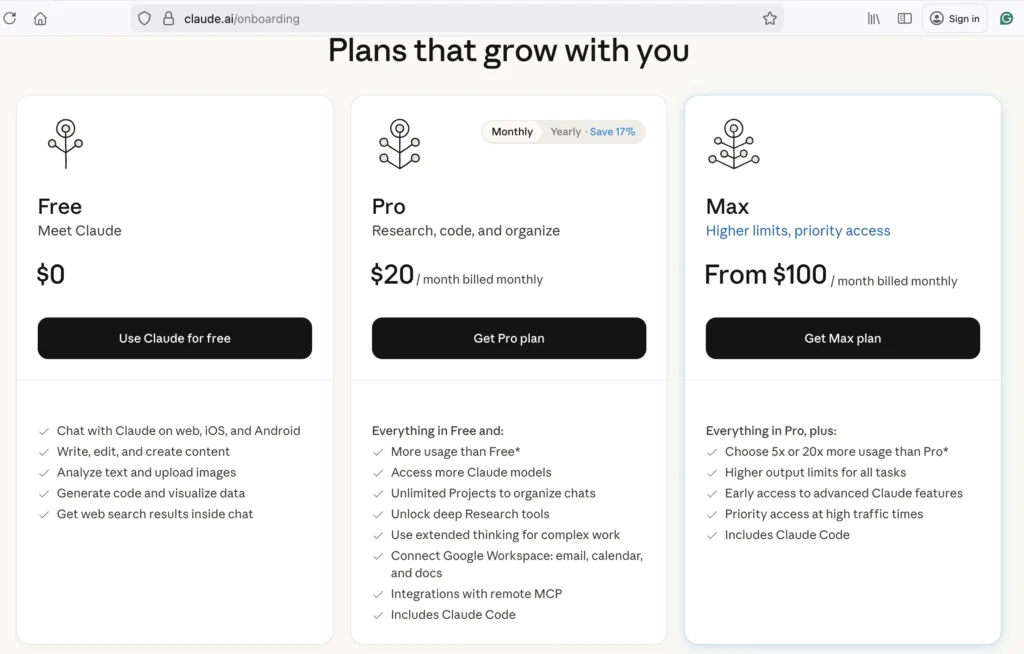
After entering the credit card details, configure it for you. Then it will show you install page
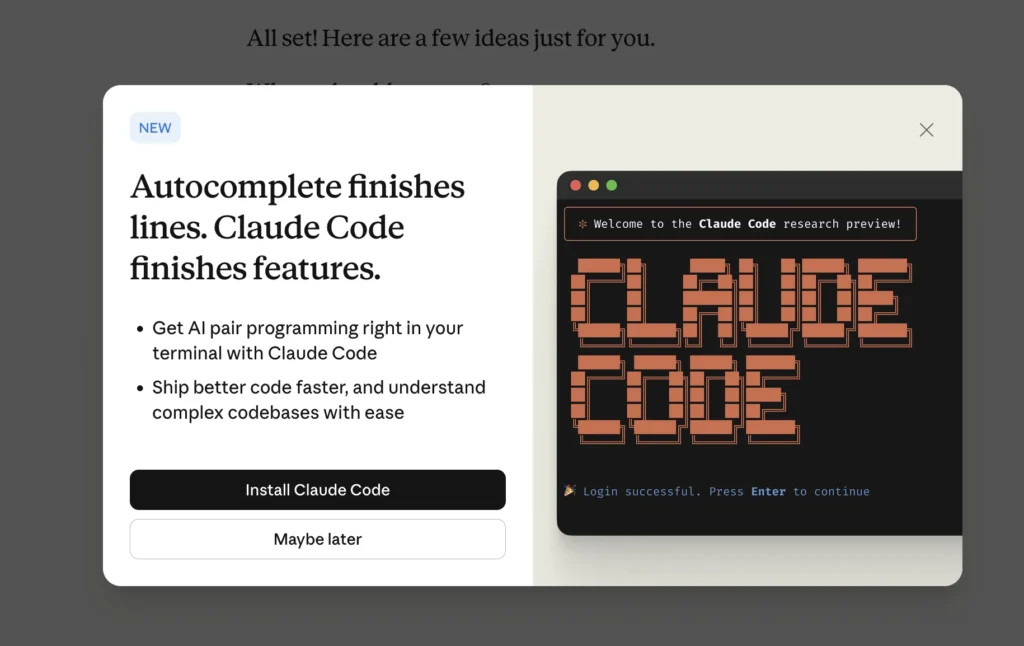
2. Install the cloud code
Use the below for Mac and learn about Windows here.
curl -fsSL https://claude.ai/install.sh | bash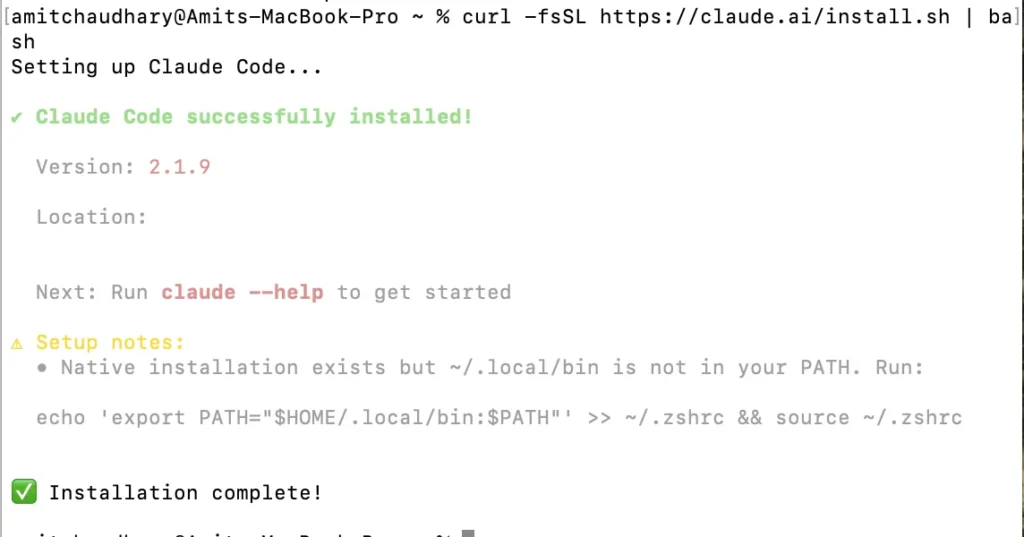
NOTE: If you need to set the path, then please do it.
3. Verify Installation
Check if Claude is installed properly or not? Execute below command
claude --version
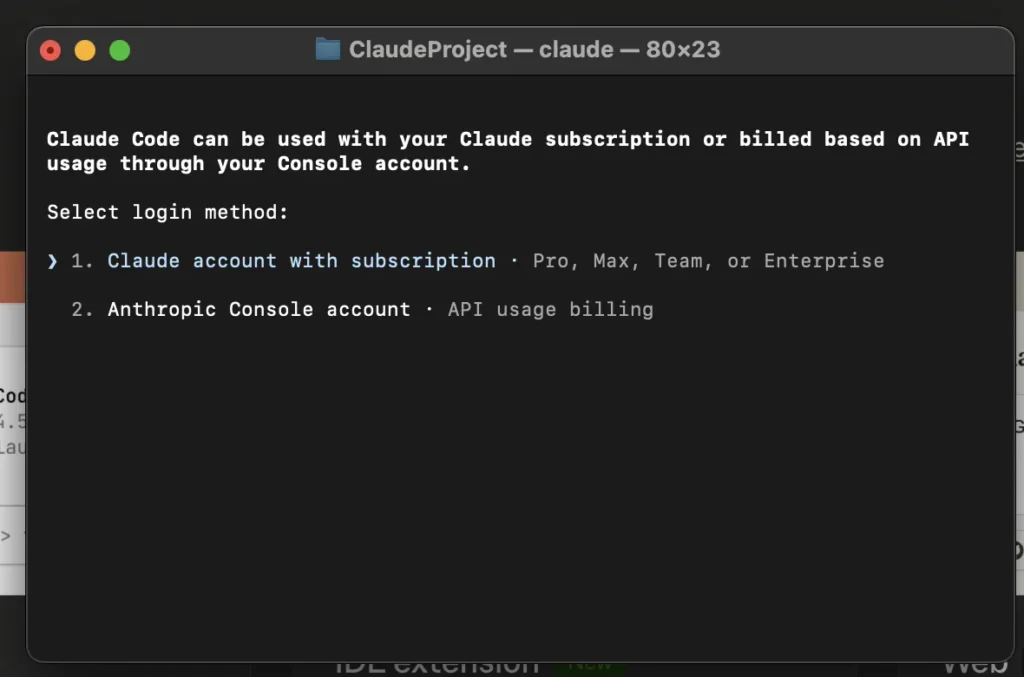
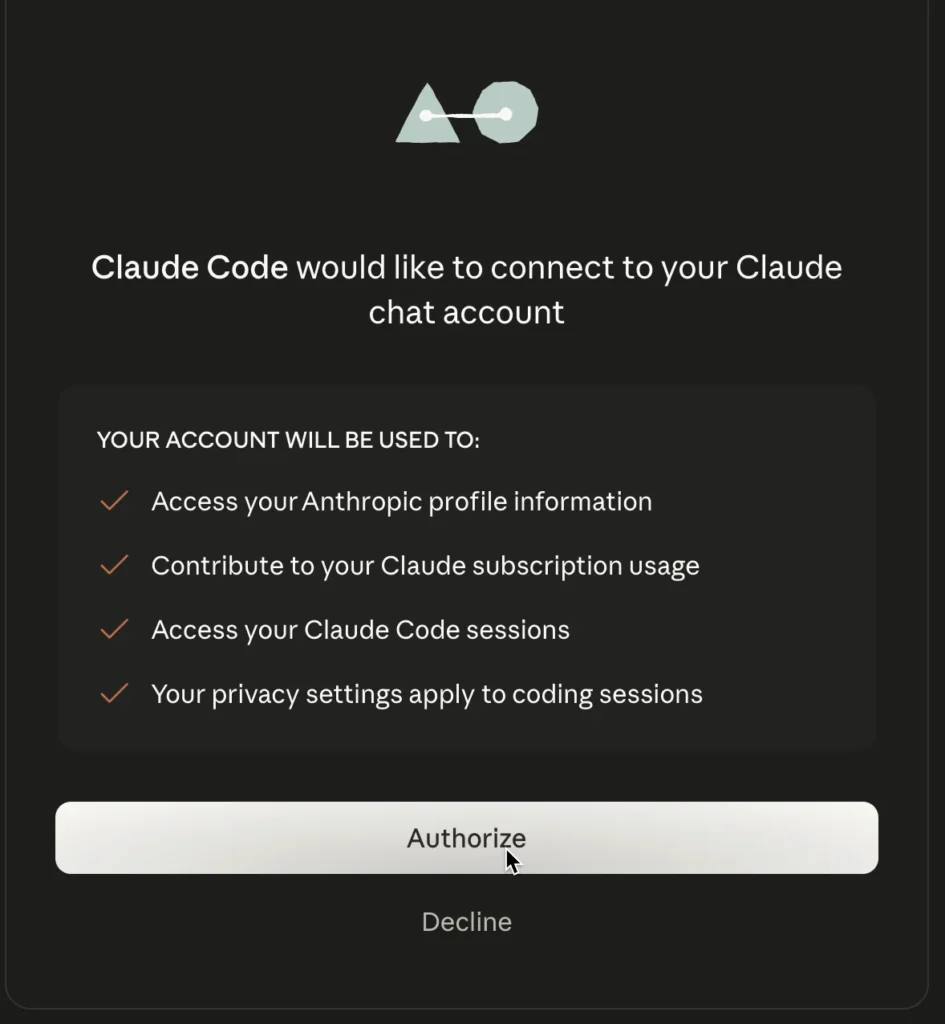
4. Authentication
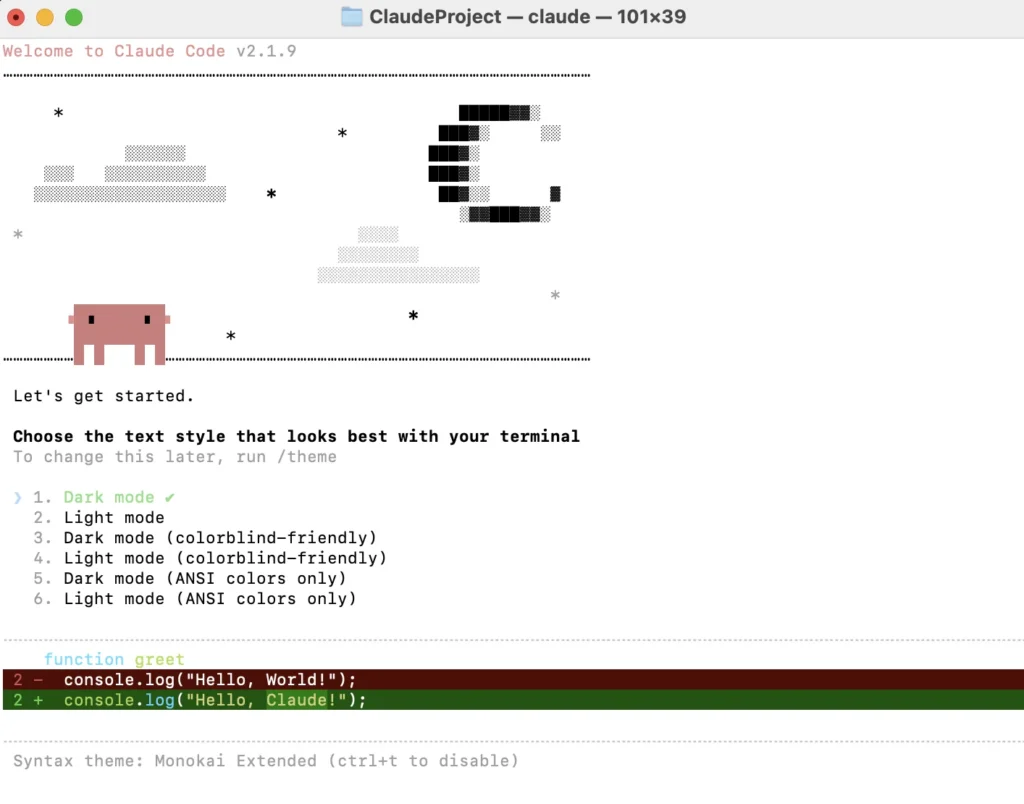
Now, set up one folder where you want to create a Claude project and run the Claude command.
cd myproject
claude
Once you run the above command, it will ask you to set up the theme.
5. Test Claude Code & Start using Claude Code
# Start Claude Code
claude

# Initialize context
init

# Test
explain the project structure
NOTE: Always run /init when starting a new Claude Code session. This creates a claude.md file that provides essential project context.
IDE Extensions
We have the following way to use Claude.
- Claude console
- IDE Extensions.
- CLI tool
You can use the IDE Extension for VSCode. If you are new, please check how to set up VS Code. Here’s an overview of IDE extensions for integrating Claude (by Anthropic) into coding environments:
How to install:
- Go to the Extensions tab in VS Code
- Search for “Claude”
- Install and follow configuration instructions.
VS Code extension vs. Claude Code CLI
The extension doesn’t yet have full feature parity with the CLI. If you need CLI-only features, you can run claude directly in VS Code’s integrated terminal.
| Feature | CLI | VS Code Extension |
|---|---|---|
| Slash commands | Full set | Subset (type / to see available) |
| MCP server config | Yes | No (configure via CLI, use in extension) |
| Checkpoints | Yes | Coming soon |
! bash shortcut | Yes | No |
| Tab completion | Yes | No |
Essential Claude Code Commands
- /init
- /help
- /clear
- /exit
Claude Code Best Practices & Tips
- Explore>Plan>confirm>code>commit
- More context better performance
- CLOUDE.MD
- Slash commands
- At mentioning filenames
- Always Initialize Project Context use/init command.
- Be specific: The clearer your prompt, the better the code output.
- Set token limits: Use max_tokens_to_sample to control response size.
- Post-process code: Always review and test generated code for accuracy and safety.
Summary
Explore advanced features in the Anthropic documentation, such as streaming responses, code analysis, and integration into larger applications. Setting up Claude for code generation is straightforward. With the right API access and a few lines of code, you can unlock powerful AI coding capabilities in your own projects.