
A common feature in current project management tools is the kanban board. They give teams an easy means to monitor work at various stages, increasing productivity and transparency. What if you require a custom Kanban board for a custom object ? Salesforce provides independent Kanban functionality in list views. We’ll use Lightning Web Components (LWC) to create a drag-and-drop Kanban board from scratch in this tutorial. By the end, you will have a reusable LWC component that shows records grouped by stage or status and can be used with any custom object. Since this project is practical and easy for beginners, we will go over each step in detail, including a basic example, complete implementation, and explanations.
Uses of Kanban Board
1. Management of Tasks : With the help of cards, kanban boards divide large projects into smaller, more manageable tasks. Usually, each card includes information such as the task name, owner, status, and due date. Teams can see the lifecycle of each task by dragging cards between stages (e.g., To Do → In Progress → Done). This ensures consistent progress by making it simple to concentrate on finishing tasks rather than juggling too many things.
2. Project Transparency & Visibility : Everyone can see the status of a project in real time thanks to kanban boards. Managers can quickly check the overall status, and team members are instantly aware of who is working on what. This openness keeps everyone focused on the project’s objectives and avoids duplication of effort. Without having to wait for drawn-out status meetings, stakeholders can keep tabs on developments, which boosts confidence and saves time.
3. Optimization of Workflow : Kanban boards offer a clear visual representation of the workflow by outlining the process steps as columns. When too many tasks are piled up in one column, like In Progress, teams can quickly identify bottlenecks.This enables managers to avoid overburdening team members by redistributing workloads and enforcing work-in-progress (WIP) limits. Analyzing the cards’ flow over time contributes to increased productivity, fewer delays, and a more streamlined procedure overall.
4. Adaptability and Flexibility : Kanban boards are incredibly adaptable and can be customized to fit any team or process, in contrast to strict project management systems. Priorities can be quickly changed by rearranging tasks, and new stages (such as Review or QA) can be added at any time. Because of its versatility, Kanban is beneficial for workflows in sales, marketing, human resources, and support in addition to Agile teams. Kanban adapts to the needs of the team and organization because it is simple to scale and modify.
Project Overview
We’ll build a Kanban board for a custom object called Project_Task__c.
- Stage field: A picklist field named Stage__c with values: To Do, In Progress, Done.
- Card fields: Each task card will display Name, Owner.Name, and Due_Date__c.
- Kanban behavior:
- Tasks are grouped by Stage__c.
- You can drag cards between columns.
- When dropped, the Stage__c field is updated in Salesforce.
Final output:
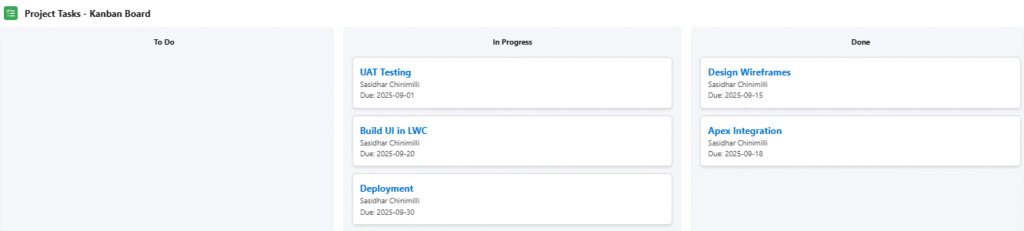
- A 3-column Kanban board (To Do, In Progress, Done).
- Draggable task cards that update instantly on stage change.
Implementation Steps
We’ll follow these steps:
- Set up the custom object and fields.
- Create Apex controller to fetch and update records.
- Build the LWC structure: columns and cards.
- Implement drag-and-drop functionality.
- Wire everything together and test.
- Enhance the UI for better usability.
Step 1: Custom Object Setup
Create a new custom object:
- Object: Project Task (Project_Task__c)
- Fields:
- Stage__c (Picklist: To Do, In Progress, Done)
- Due_Date__c (Date)
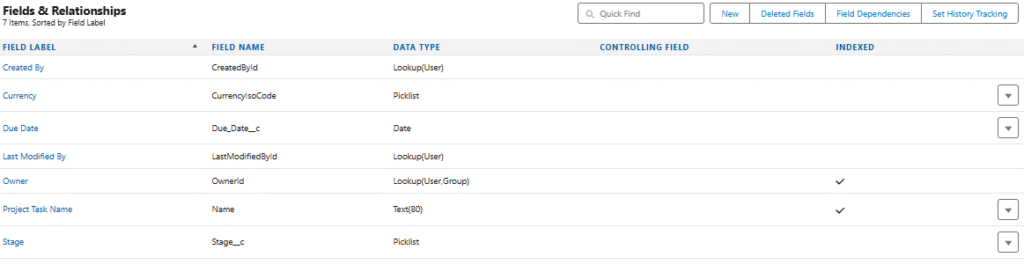
Add some sample records so we have data to display.
Step 2: Apex Controller
We need Apex methods to:
- Fetch all tasks grouped by stage.
- Update a task’s stage when it’s moved.
| public with sharing class ProjectTaskController { @AuraEnabled(cacheable=true) public static List<Project_Task__c> getTasks() { return [ SELECT Id, Name, Stage__c, Due_Date__c, Owner.Name FROM Project_Task__c ORDER BY Due_Date__c ASC ]; } @AuraEnabled public static void updateTaskStage(Id taskId, String newStage) { Project_Task__c task = [SELECT Id, Stage__c FROM Project_Task__c WHERE Id = :taskId LIMIT 1]; task.Stage__c = newStage; update task; } } |
Explanation:
- getTasks() fetches all tasks with required fields.
- updateTaskStage() updates the stage of a given record.
Step 3: LWC Template (HTML)
We’ll create columns for each stage and loop through tasks.
| <template> <lightning-card title=”Project Tasks – Kanban Board” icon-name=”standard:task”> <div class=”kanban-container”> <template for:each={stagesWithTasks} for:item=”col”> <div key={col.stage} class=”kanban-column” data-stage={col.stage} ondragover={handleDragOver} ondrop={handleDrop}> <h2 class=”column-title”>{col.stage}</h2> <template for:each={col.tasks} for:item=”task”> <div key={task.Id} class=”kanban-card” draggable=”true” data-id={task.Id} ondragstart={handleDragStart}> <p class=”task-title”>{task.Name}</p> <p class=”task-owner”>{task.Owner.Name}</p> <p class=”task-date”>Due: {task.Due_Date__c}</p> </div> </template> </div> </template> </div> </lightning-card> </template> |
Key points:
- We loop through stages (To Do, In Progress, Done).
- Each column displays cards from tasksByStage[stage].
- Each card is draggable (draggable=”true”) with ondragstart.
- Columns handle ondrop events.
Step 4: LWC JavaScript
Now, let’s implement drag-and-drop logic using JavaScript.
| import { LightningElement, wire, track } from ‘lwc’; import getTasks from ‘@salesforce/apex/ProjectTaskController.getTasks’; import updateTaskStage from ‘@salesforce/apex/ProjectTaskController.updateTaskStage’; import { refreshApex } from ‘@salesforce/apex’; export default class KanbanBoard extends LightningElement { @track stagesWithTasks = []; draggedTaskId; stages = [‘To Do’, ‘In Progress’, ‘Done’]; wiredTasksResult; // store wire response for refresh @wire(getTasks) wiredTasks(result) { this.wiredTasksResult = result; const { data, error } = result; if (data) { this.groupTasks(data); } else if (error) { console.error(error); } } groupTasks(tasks) { this.stagesWithTasks = this.stages.map(stage => { return { stage, tasks: tasks.filter(task => task.Stage__c === stage) }; }); } handleDragStart(event) { this.draggedTaskId = event.currentTarget.dataset.id; } handleDragOver(event) { event.preventDefault(); // allow drop } handleDrop(event) { event.preventDefault(); const newStage = event.currentTarget.dataset.stage; if (this.draggedTaskId && newStage) { updateTaskStage({ taskId: this.draggedTaskId, newStage }) .then(() => { // refresh data after update return refreshApex(this.wiredTasksResult); }) .then(() => { console.log(`Task moved to ${newStage}`); }) .catch(error => { console.error(‘Error updating task:’, error); }); } } } |
Step 5: LWC CSS Styling
Styling the Lightning component
| .kanban-container { display: flex; gap: 1rem; justify-content: space-around; } .kanban-column { flex: 1; background: #f4f6f9; padding: 1rem; border-radius: 8px; min-height: 300px; } .column-title { font-weight: bold; margin-bottom: 1rem; text-align: center; } .kanban-card { background: white; border: 1px solid #ddd; border-radius: 6px; padding: 0.75rem; margin-bottom: 0.75rem; box-shadow: 0 2px 4px rgba(0,0,0,0.1); cursor: grab; } .task-title { font-size: 1rem; font-weight: bold; color: #0070d2; } .task-owner, .task-date { font-size: 0.8rem; color: #555; } |
Step 6: Metadata File
Make the component available on record pages or app pages.
| <?xml version=”1.0″ encoding=”UTF-8″?> <LightningComponentBundle xmlns=”http://soap.sforce.com/2006/04/metadata”> <apiVersion>60.0</apiVersion> <isExposed>true</isExposed> <targets> <target>lightning__AppPage</target> <target>lightning__RecordPage</target> <target>lightning__HomePage</target> </targets> </LightningComponentBundle> |
Possible Enhancements
- The Kanban board can dynamically retrieve picklist values from Stage__c rather than hardcoding stages like To Do, In Progress, or Done. This keeps the board up to date with changing business processes without requiring code modifications by guaranteeing that any new stages added in Salesforce show up as columns on the board automatically.
- Users can change task fields like priority, owner, and due date right on the cards with inline editing. This speeds up updates, reduces the need to open the record detail page, and helps users stay focused on the task at hand. It’s particularly helpful for making last-minute changes during task reviews or daily standups.
- By including a search bar or filter dropdown, users can locate pertinent tasks more quickly. You can filter by owner, status, priority, or due date, for instance. By assisting users in concentrating only on what is important, this feature increases efficiency, particularly for large boards with numerous tasks.
- Toast messages that indicate success or failure give the user instant feedback when a task is moved or updated. It improves usability and clears up confusion by confirming that their action was completed successfully or highlighting problems if something goes wrong.
- Optimistic updates cause a card to visually move on the board instantly, even before the server verifies the modification. While the backend continues to manage the actual database update in the background, this improves the user experience by making the Kanban feel quicker and more responsive.
Test the Kanban Board
- Add the LWC to a Lightning Home Page.
- Verify columns display with tasks grouped correctly.
- Drag a card from To Do to In Progress.
- Check the UI updates.
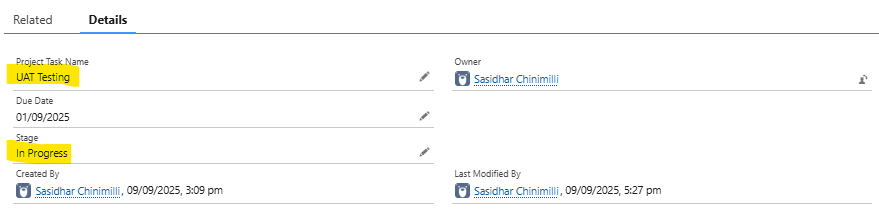
- Open the record to confirm the Stage__c field updated.

Here UAT testing is in TO DO in front end and back end
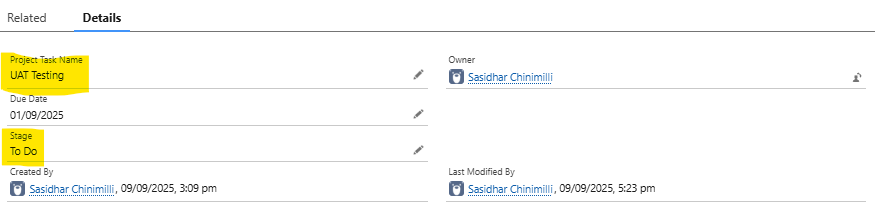
Now i will drag this to in progress in Home page then it will automatically gets updated in record data.
Conclusion
One of the best ways to integrate front-end functionality with Salesforce data is to create a personalized drag-and-drop Kanban board in LWC. We developed a reusable, fully functional board using only a few files that can be used with any object that has a stage or status field. This method not only enables developers and administrators to customize Salesforce to meet business requirements, but it also makes an excellent portfolio project for anyone getting ready for a Salesforce interview. Try adding dynamic stages, filtering, or even pairing it with Lightning Data Service for greater efficiency once you’ve mastered this basic version.